

Roman Kamushken
@s26u7pv9qta5g4:e6. The agent clicks the ref instead of guessing at pixels, then reads the tree again.
agent-desktop is a tool your agent calls, and the observe, act, verify loop lives in the coding agent. There is no model inside it, and nothing below is a transcript: every agent-desktop command and every value the docs quote comes from the published pages.
It started as an independent project under the GitHub handle lahfir, appeared on npm in February 2026, and reached Vercel Labs with 1.0.2 in late October.
It sees only apps that publish an accessibility tree: native controls on all three systems do, canvas surfaces do not.
Every agent-desktop command below is quoted from the 1.0.2 documentation, November 2026; the jq and shell around them are written for this article. Nothing was run on the author's machine, and every visual is drawn from the documented shapes, not captured from a screen. The docs track the current release, not the version pinned here, and the CLI ships weekly: check every flag against the live page before you use it.
After the open source digest, this is the first long review in our Tools category: nine jobs, one per check a desktop team runs before a release. Three others fail, and they decide if you install it.
What it is, in four commands
The docs show the whole idea on GNOME Calculator: map the window, drill into a region, press 7, wait for the display to read 7.
agent-desktop snapshot --app gnome-calculator --skeleton -i --compact         # 1. map: a shallow skeleton
agent-desktop snapshot --root @s2txcl95uvubmn:e1 -i --compact                 # 2. drill: expand one region
agent-desktop click @s2txcl95uvubmn:e11                                       # 3. act: press the 7 button
agent-desktop wait --element @s2txcl95uvubmn:e6 --predicate value --value 7   # 4. verify: the display reads 7
Docs: Quick start
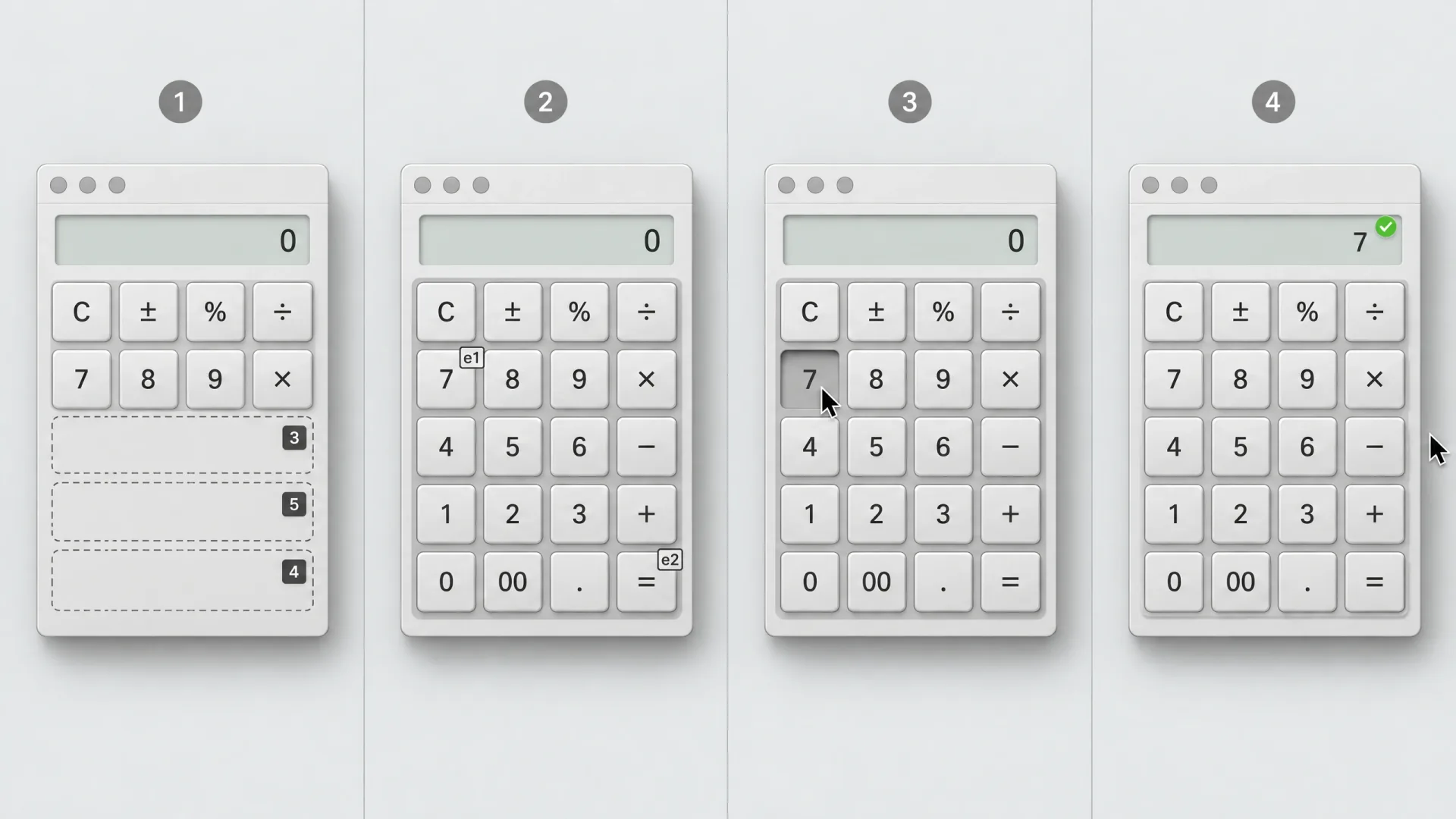
Four calls, one loop.
The docs describe the skeleton as a read to depth 3, with cut containers carrying children_count, and the same page shows the drill adding 31 refs. On macOS the app is Calculator, and each ref carries its snapshot id.
The fourth line is the one people skip. The quick start shows the click coming back with "delivery": "delivered_unverified" and "retry": "unsafe": the event went out, nothing confirmed it, and a repeat could press 7 twice. Only a read proves the change.
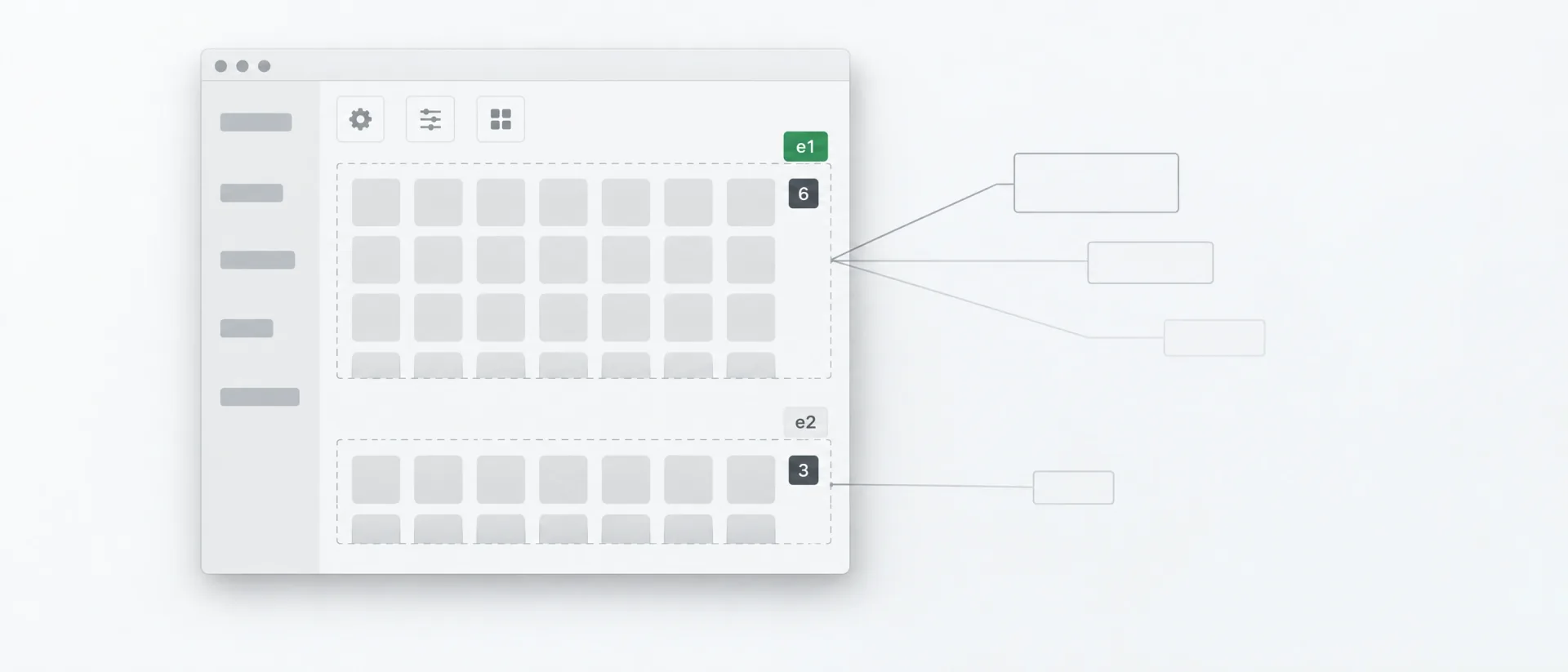
The first read stays shallow.
Before you hand it anything
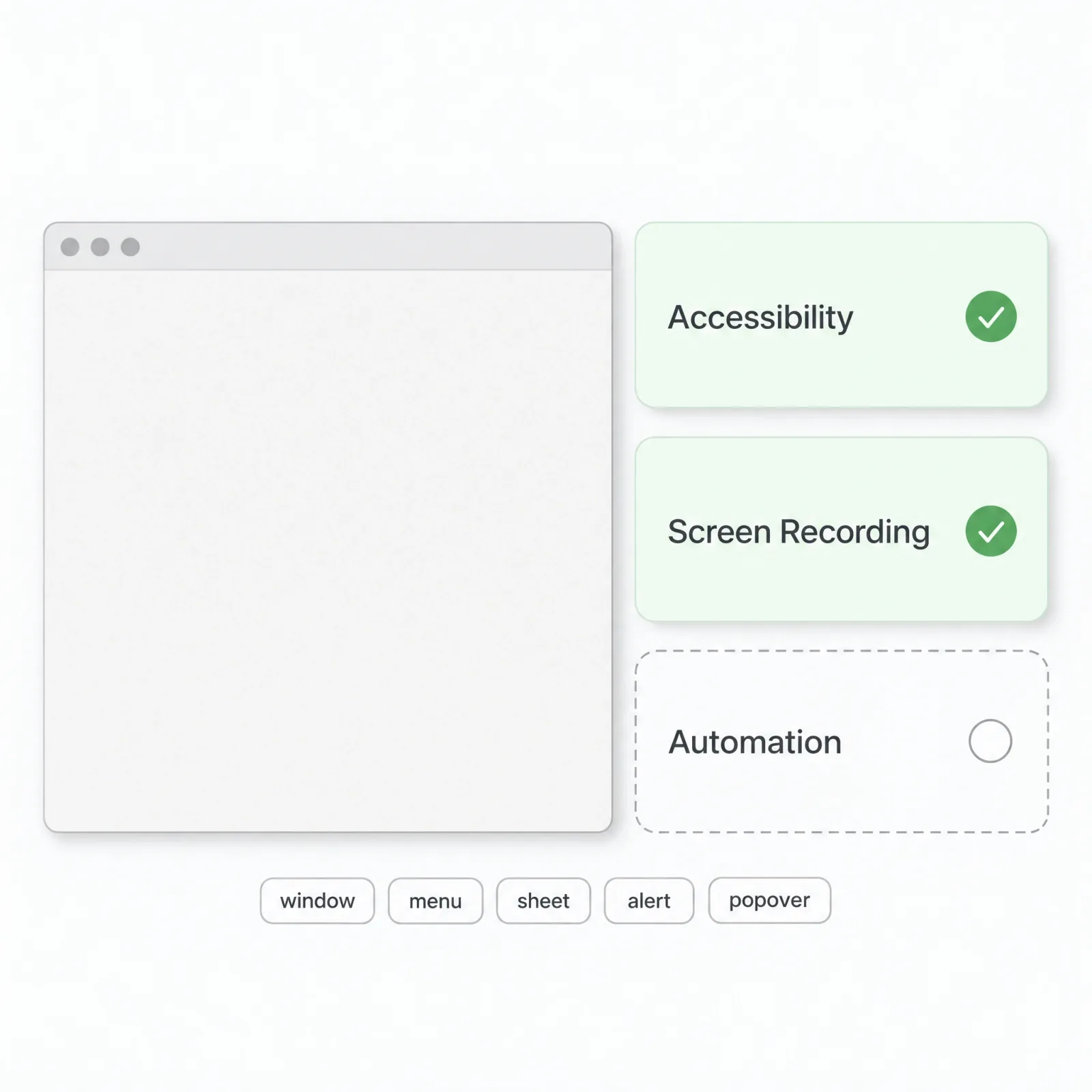
Two states, one list.
Install is one line on Node 18 or later. Then run agent-desktop status and read two fields: permissions.accessibility.state should say granted, and supported_surfaces should not be empty.
→ macOS. macOS 13 or later. The Accessibility grant belongs to whichever app launched the CLI, so Terminal and VS Code each need their own. permissions --guide opens the right pane.
→ Windows. Windows 10 1809 or later, inside the signed-in desktop session. Session 0, Server Core, the secure desktop and a locked desktop are not supported, and an app running as administrator can be read but not driven from a lower-integrity terminal.
→ Linux. Ubuntu 24.04 or later with a running AT-SPI bus. An empty supported_surfaces means the bus did not answer.
Headless is the default: ref actions go through the accessibility API without moving the pointer or taking focus. --headed is permission for physical input.
Refs belong to their snapshot. After the UI changes, an old ref fails with STALE_REF or matches an element you no longer meant.
Three edges the docs attach, each changing the prompt rather than the command:
→ Windows, physical input. type, focus and right-click are headed-only there and return POLICY_DENIED headless. set-value writes the field without keystrokes.
→ Quit shortcuts on macOS. The docs put cmd+q at POLICY_DENIED unless you pass --force, and name close-app as the way to quit an app.
→ Redaction has an edge. Trace lines swap sensitive fields, such as text, value, name and description, for { "redacted": true }. Session screenshots, the exported HTML and visual debug files are not redacted.
The jobs are one review process: the unnamed-control list from job 1 is what makes the find --exact calls in job 8 trustworthy. Jobs 1 to 3 make artifacts, 4 to 6 gate a release, 7 to 9 leave evidence for whoever defends a fix. Pick by who reads the result.
The prompts name an app called Acme. Substitute the name list-apps prints for your build.
For designers
Designer jobs share one property: the result is an artifact a human reads, so a wrong click costs a re-run.
1. Audit a screen's accessibility in one pass
The job. List every control on one screen that a screen reader would announce badly.
Prompt.
Run agent-desktop skills get desktop and follow it. Scope the read to the
Settings window with --window-id from list-windows, and snapshot it with -i and
without --compact. Click nothing. List every node with a ref_id but no name, and
every node whose role does not match what it does. Output a table: ref, role,
current name, problem, suggested fix.
Commands.
agent-desktop skills get desktop                                                     # load the loop rules
agent-desktop list-windows --app "Acme"                                              # window ids for this app
agent-desktop snapshot --window-id "<ID>" -i > settings.json                         # Settings only, not the whole app
jq '.. | objects | select(.ref_id and (.name == null)) | select(.children == null and .children_count == null)' settings.json
agent-desktop get "<REF>" --property role                                            # read the role back
Docs: Snapshots and refs · Skeleton and drill-down
What it proves. A node carries name only when it has one, and empty fields are omitted, so a ref with no name key is a control with no accessible name. That is the failure WCAG 4.1.2 Name, Role, Value describes, found without an inspector.
Where it breaks. The list covers only what the read reached. A snapshot that runs out of budget still succeeds, with data.complete set to false, since --timeout-ms defaults to 3000. Drill each region with --root first.
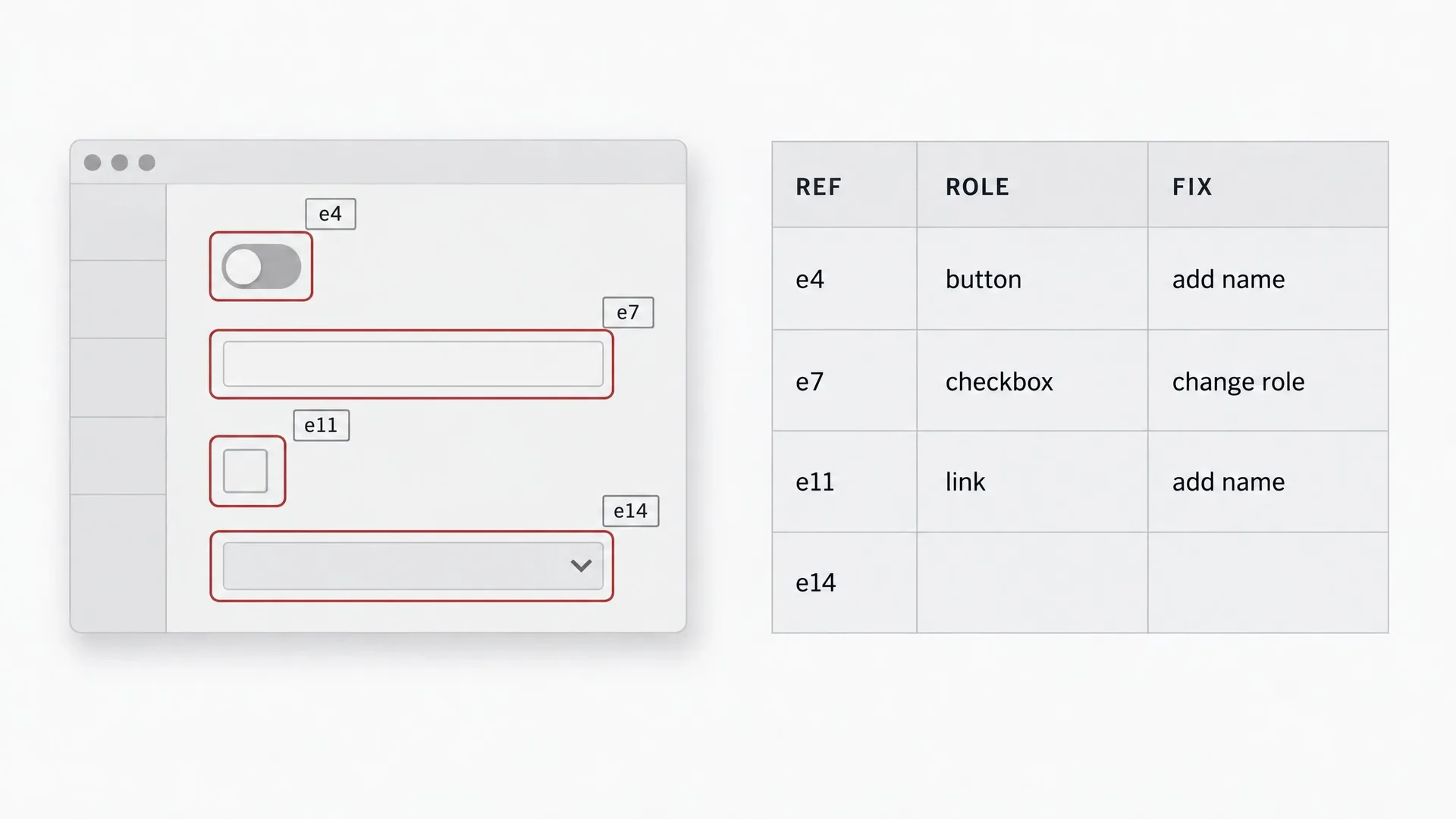
One read, one fix list.
2. Capture every state of a component for review
The job. Put five states of one component into a folder whose names sort the same on every run: default, hover, focus, disabled, error.
Prompt.
In "Acme", open Profile. Screenshot the window with the "Save" button in five
states into ./review/profile-save/ as 01-default.png to 05-error.png. Disabled
appears when Email is empty; error appears after saving "roman@". Use --headed
only for hover. Re-find the button before each step; stop if a state is missing.
Commands.
agent-desktop find --app "Acme" --role button --name "Save" --exact --first   # button ref
agent-desktop screenshot ./review/profile-save/01-default.png --app "Acme"     # baseline
agent-desktop --headed hover "<REF>"                                           # physical hover
agent-desktop focus "<REF>"                                                    # semantic, headless on macOS
agent-desktop is "<REF>" --property enabled                                    # confirm disabled
Docs: Interaction · Mouse
What it proves. The five states stop depending on someone clicking through a build. I take the reference for each state from the AI inspiration gallery and name files the way Material Desktop names frames.
Where it breaks. The agent cannot invent a state. Disabled and error exist only if you name the input that triggers them. A headed hover moves your real cursor.
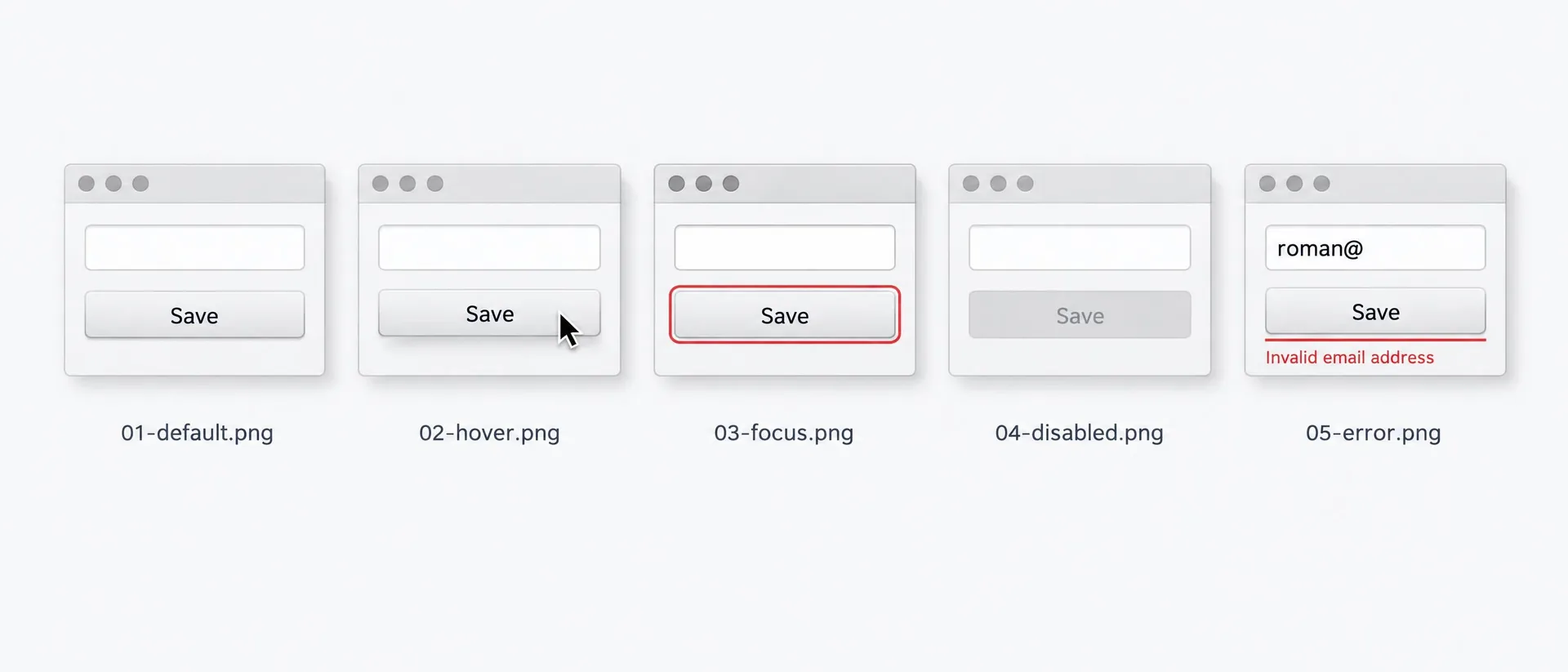
Five states, five stable names.
3. Diff a flow before and after a redesign
The job. Run one flow on the old build and the new one at the same window size, then pair the screenshots.
Prompt.
Resize "Acme" to 1280x800. Run checkout: Cart, Shipping, Payment, Review.
Screenshot each screen to ./diff/old/ as 01-cart.png to 04-review.png, then
stop so I can install the new build. Repeat into ./diff/new/ with the same
names and write ./diff/index.md pairing old and new side by side.
Commands.
agent-desktop resize-window --app "Acme" --width 1280 --height 800                # freeze the viewport
agent-desktop find --app "Acme" --role button --name "Continue" --exact --first   # ref for this build
agent-desktop click "<REF>"                                                       # one step
agent-desktop wait --text "Shipping" --app "Acme" --timeout 5000                  # next screen up
agent-desktop screenshot ./diff/old/02-shipping.png --app "Acme"                  # stable name
Docs: App and window
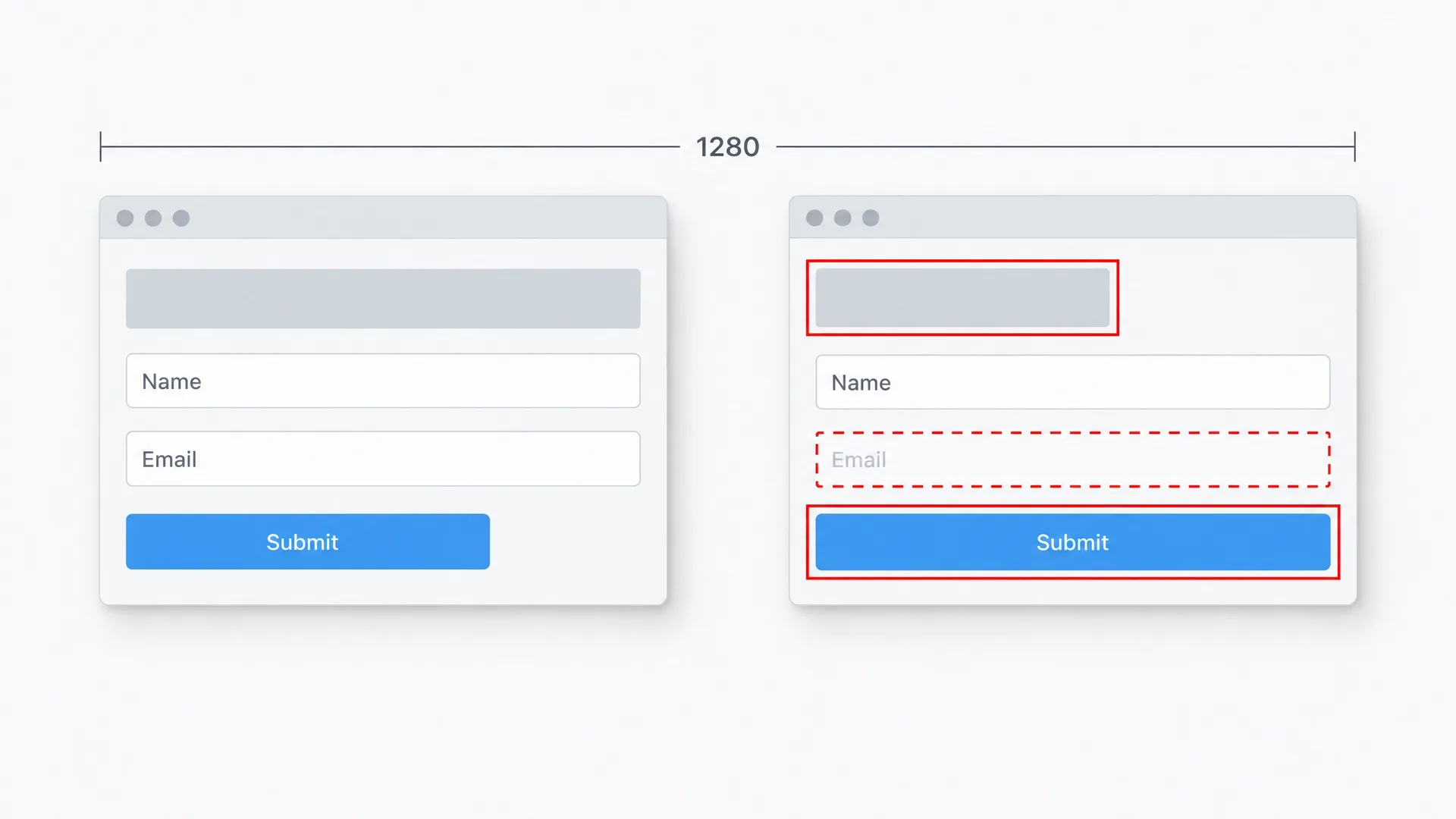
Every difference is the redesign.
What it proves. Both builds are compared on identical frames, so the difference belongs to the redesign.
Where it breaks. Refs from the old build mean nothing on the new one. If the redesign renamed Continue to Next, the second run dies on step one, so give the agent both labels.
For release owners
These jobs gate a release. They pay off when a missed bug costs more than a prompt.
4. Smoke the onboarding before a release
The job. Walk first-run onboarding on a clean install and halt on the first screen that fails to appear.
Prompt.
Launch "Acme" on a clean profile. Screens: Welcome, Create workspace, Invite
team, Done. On each, find the primary button, then run one batch with
--stop-on-error: wait until it is enabled, click it, wait 10 seconds for the
next heading. Halt on the first miss; report screen, snapshot id, error code.
Commands.
agent-desktop launch "Acme"                                                         # start the app
agent-desktop wait --window "Acme" --app "Acme" --timeout 15000                     # window exists
agent-desktop find --app "Acme" --role button --name "Get started" --exact --first  # screen ref
agent-desktop batch '[
  {"command": "wait",  "args": {"element": "@<snapshot_id>:eN", "predicate": "enabled", "timeout": 5000}},
  {"command": "click", "args": {"ref_id": "@<snapshot_id>:eN"}},
  {"command": "wait",  "args": {"text": "Create workspace", "app": "Acme", "timeout": 10000}}
]' --stop-on-error
What it proves. --stop-on-error turns the first missing screen into a halt with a stopped.reason, not a skip to the next entry. If onboarding is a long tooltip tour, contextual help shortens the walk.
Docs: Batch
Where it breaks. A batch can use a ref you already found before it starts, and it cannot create one: nothing in the array reads the tree. So one batch covers one screen, and the next screen is checked by text. The docs record a batch returning ok: true with stopped: { "index": 1, "reason": "stop_on_error" }, so the exit code stays 0.
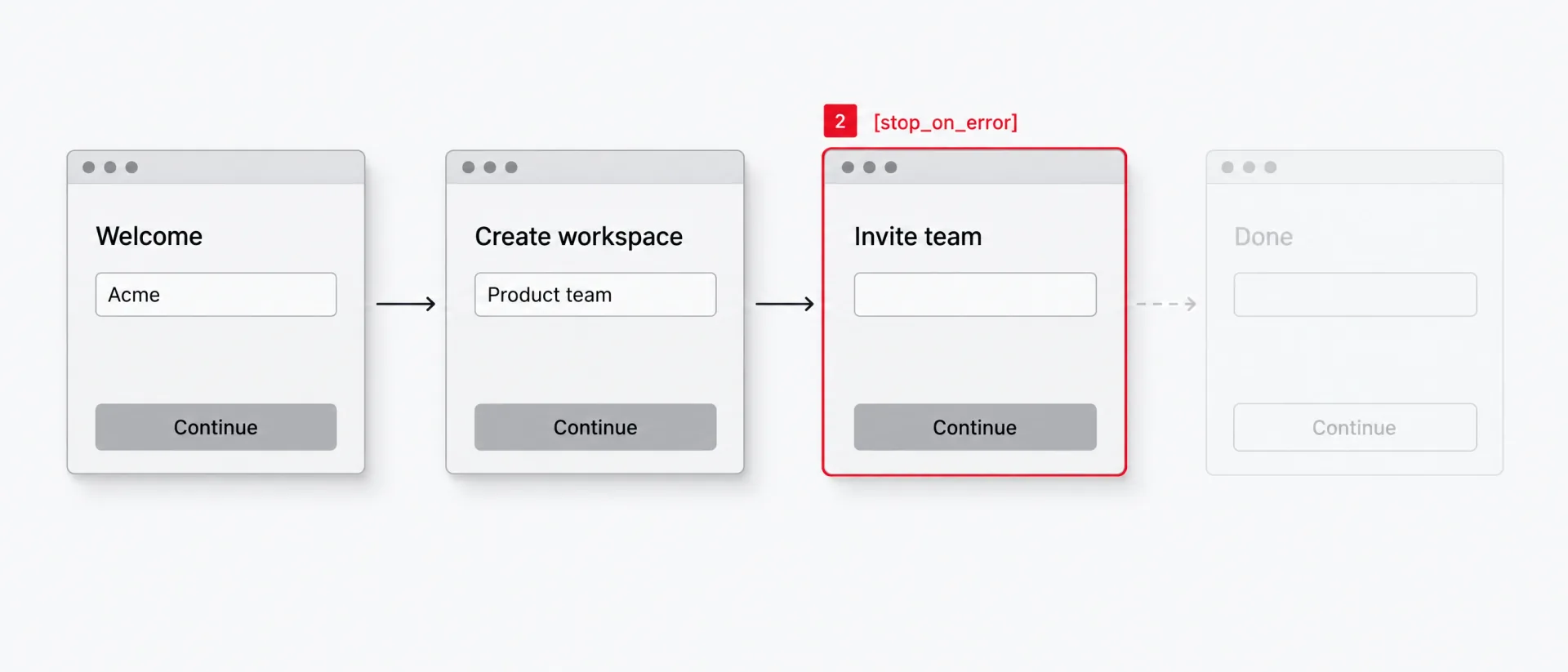
A stopped block names the miss.
5. Push a signup form through its empty and invalid states
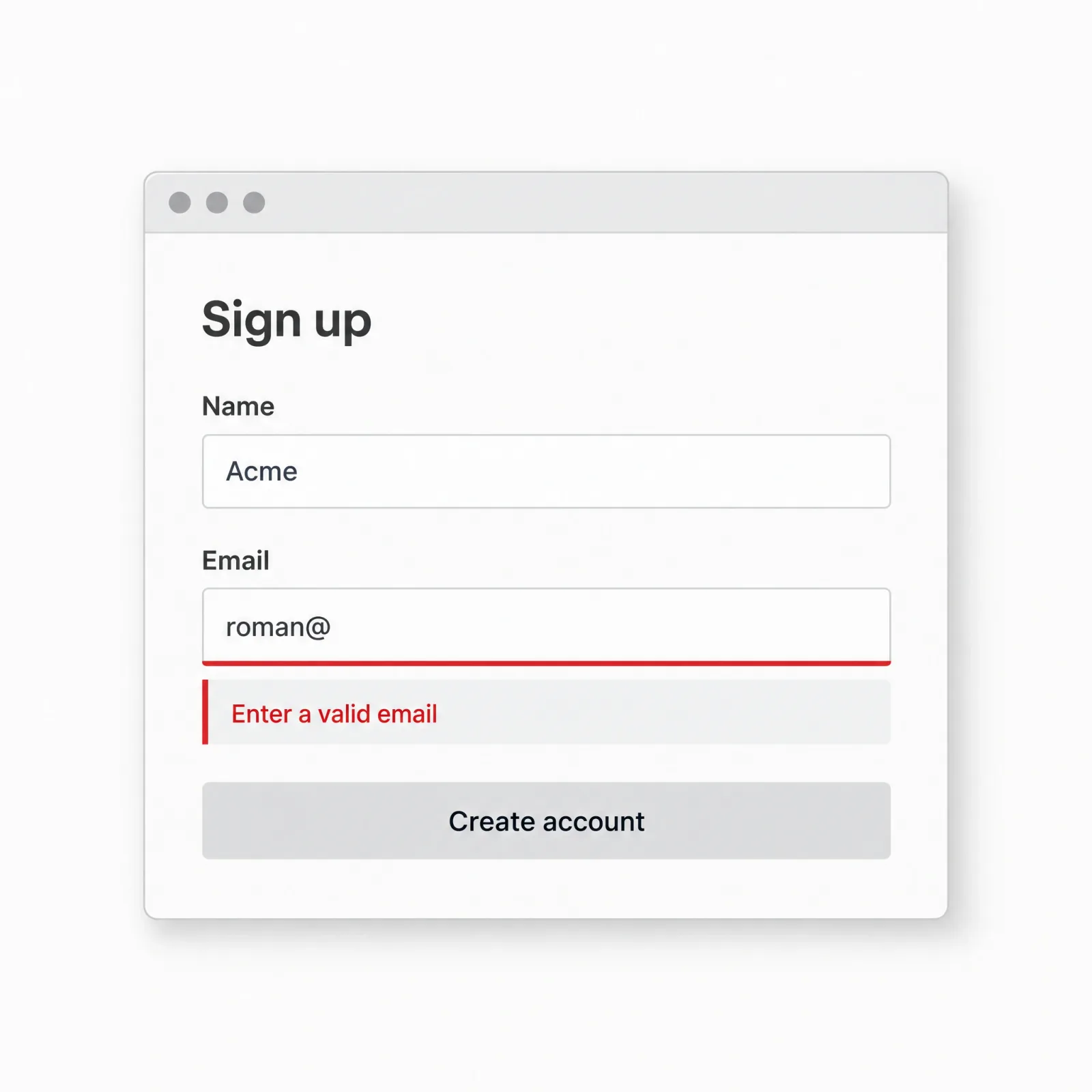
Copy is compared, not matched loosely.
The job. Submit the signup form empty, then with a malformed email, and check the error copy word for word.
Prompt.
In "Acme", open Sign up. Submit it empty and confirm [your empty-field copy].
Type "roman@" into Email, submit, then confirm [your invalid-email copy].
Read each error back with get --property text and report any difference
from the expected copy, character for character.
Commands.
agent-desktop find --app "Acme" --role textfield --name "Email" --exact --first          # field ref
agent-desktop type "<REF>" "roman@"                                                      # ref action, headless
agent-desktop click "<REF>"                                                              # submit
agent-desktop wait --text "[your invalid-email copy]" --app "Acme" --timeout 5000        # the copy you expect
agent-desktop get "<REF>" --property text                                                # read it back
Docs: Observation · Wait
What it proves. The check is literal: a designer signs off on one sentence, and a build that ships a shorter one fails here first. The input UI design guide covers that sentence.
Where it breaks. wait --text matches a case-insensitive substring, so it passes when the words sit inside a longer, wrong sentence, and the get read-back catches that.
6. Run a release gate that fails loudly
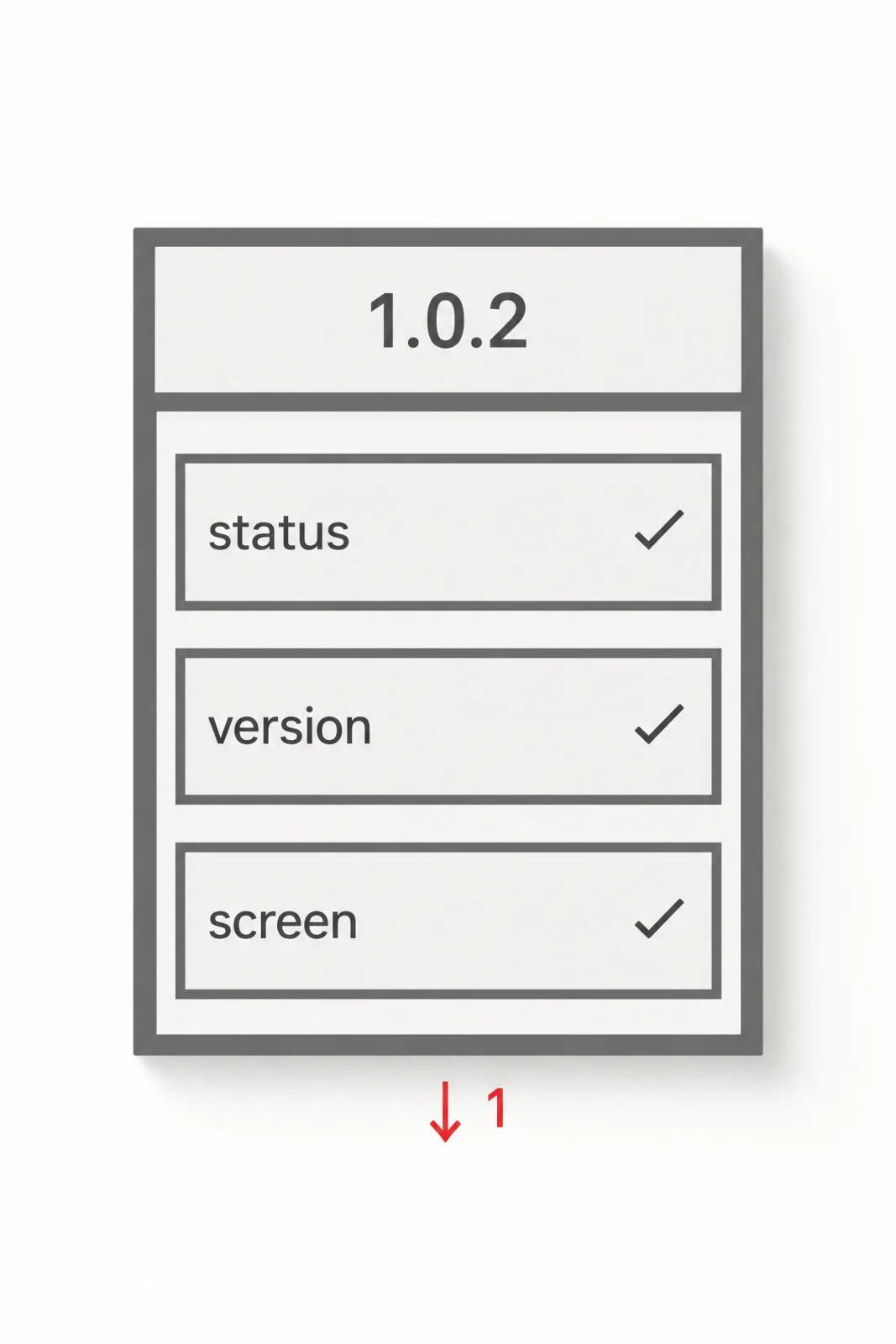
Three checks, one exit code.
The job. Before tagging a release, check the machine, log the CLI version and confirm the first screen renders, in one script that exits non-zero on any miss.
Prompt.
Write gate.sh. Exit 1 unless agent-desktop status shows accessibility granted.
Log agent-desktop version. Run gate.json through agent-desktop batch with
--stop-on-error and exit 1 if any entry has ok: false. gate.json uses only
entries that need no refs: launch, wait with window, wait with text.
Commands.
agent-desktop status | jq -e '.data.permissions.accessibility.state == "granted"'   # exit 1 if not
agent-desktop version | jq -r '.data.version'                                        # log release
agent-desktop batch "$(cat gate.json)" --stop-on-error > gate-result.json            # saved checks
jq -e '[.data.results[].ok] | all' gate-result.json                                  # real verdict
What it proves. The gate fails in the language CI understands, exit code 1. Logging version ties a pass to a release, which matters for a tool that shipped 1.0.0 and 1.0.2 in a week.
Where it breaks. A saved file cannot hold refs, because refs die with their snapshot, so the gate checks screens and leaves clicks to jobs 4 and 8. There is no replay command, and trace show only reads a session back. Batch failures land at exit 0 too, which is why the last line reads ok and not $?.
For developers
Developer jobs turn a vague report into evidence an engineer opens.
7. Replay a bug report exactly as written
The job. Follow a user's steps to reproduce verbatim and capture the window and the tree at the step that fails.
Prompt.
Reporter's steps for "Acme" 2.4.1, unchanged: [paste steps]. Start a session
named bug-412. Run the steps in order and wait for each result the reporter
describes. At the first miss, save a screenshot and the full tree to
./bug-412/, then stop. Add no steps the report lacks. Then write
./bug-412/check.sh with the failing step as one assertion, so job 9 can rerun
it.
Commands.
export AGENT_DESKTOP_SESSION="$(agent-desktop session start --name bug-412 | jq -er '.data.session_id')"
agent-desktop wait --text "Export finished" --app "Acme" --timeout 10000            # step 3 result
agent-desktop screenshot ./bug-412/step-3.png --app "Acme"                          # failing frame
agent-desktop snapshot --app "Acme" > ./bug-412/step-3-tree.json                    # the tree
agent-desktop --debug --screenshot ./bug-412/step-3.html snapshot --app "Acme" -i   # labelled bounds
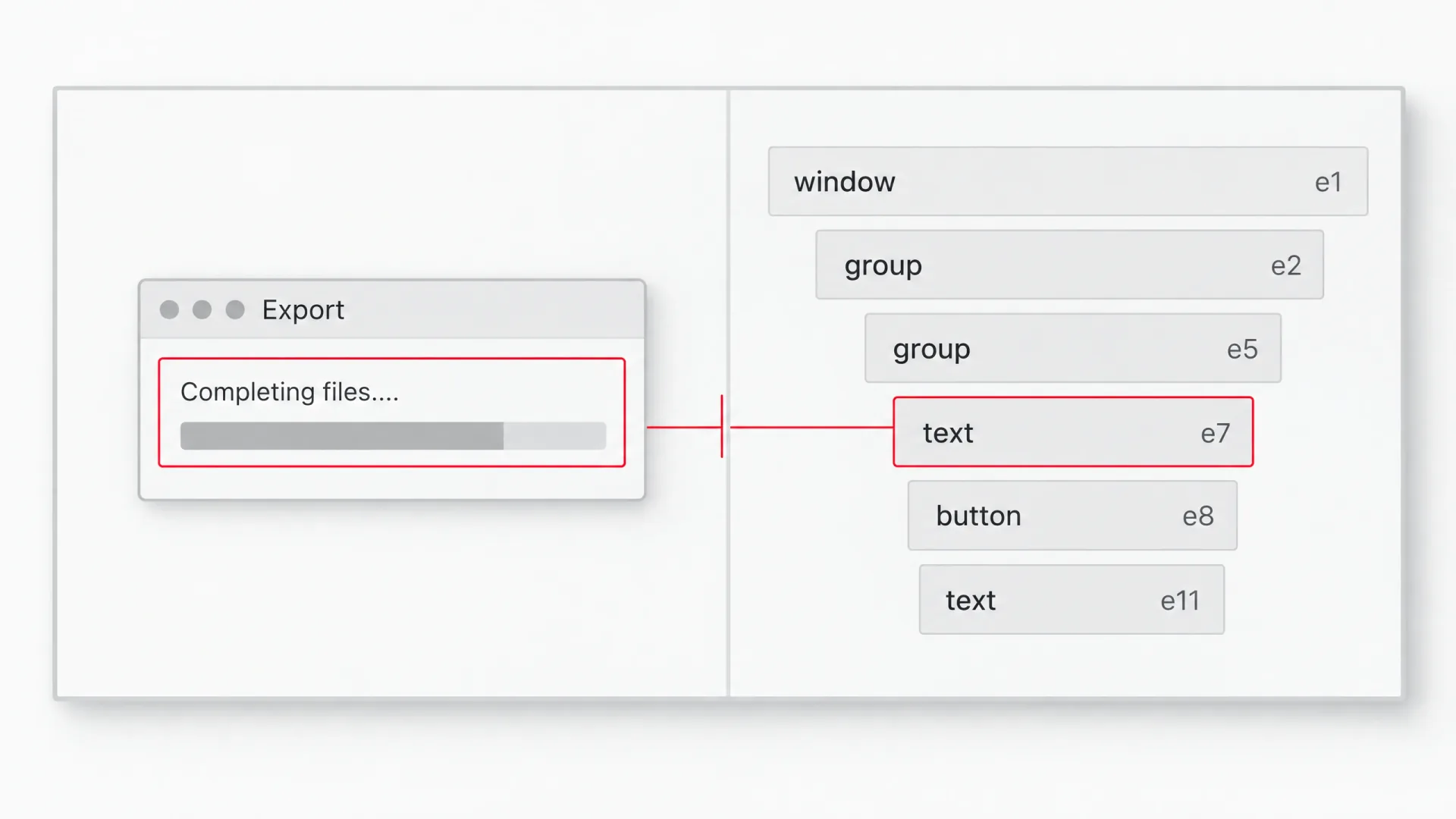
One frame beside one tree.
What it proves. The engineer gets the failing frame next to its tree, tied to one step and one session, so a "cannot reproduce" reply becomes a comparison.
Where it breaks. Reports skip steps. A reporter writes "open the file" and leaves out the dialog; tell the agent to stop there, because a guessed step reproduces a different bug. The debug HTML is unredacted, so strip customer data first.
8. Regression-pass the critical flows after a migration
The job. After rebuilding the app on a new UI framework, run the three flows that make money and collect every failure into one report.
Prompt.
"Acme" was rebuilt on a new framework. Run sign in, create project, export
PDF; they end on "Projects", "Untitled project" and "Export finished".
Re-find refs per screen, one batch per screen with --stop-on-error, and move
to the next flow after a failure. Write report.md: flow, step, expected, error.
Commands.
agent-desktop find --app "Acme" --role button --name "Sign in" --exact --first       # live ref
agent-desktop batch "$(cat flow-1-step-1.json)" --stop-on-error > flow-1-step-1.out   # one screen
jq '.data.stopped // empty' flow-1-step-1.out                                         # where it halted
jq -r '.data.results[] | select(.ok == false or .ok == null) | [.index, .error.code] | @tsv' flow-1-step-1.out
Docs: Batch
What it proves. The flows that pay for the product pass on the rebuilt app, each end state asserted by name. Without them, a migration counts as done because nothing crashed.
Where it breaks. Migrations change the tree more than the pixels. A button can come back with a new role or no name, and every find --exact misses, so run job 1 on the new build first. On Windows, menus in WinUI 3 hosts are not detected.
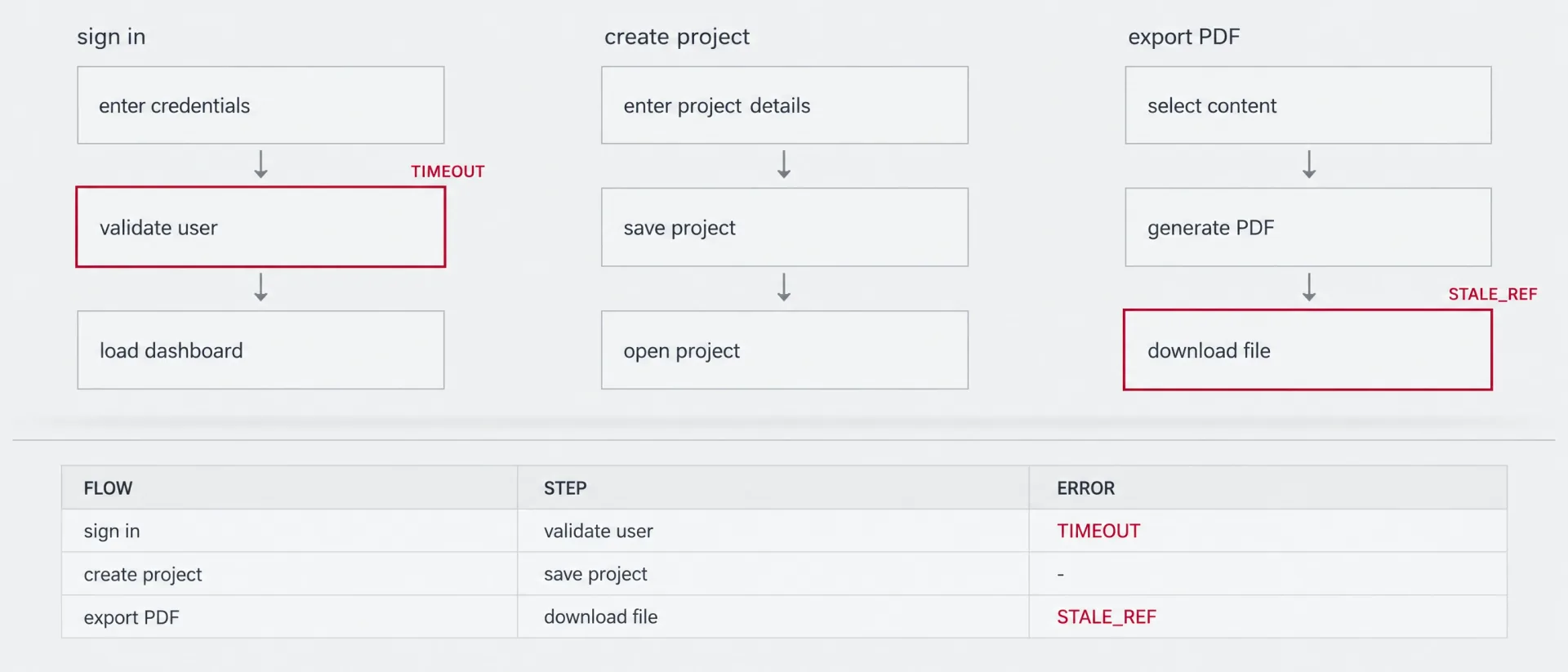
Three flows in one report.
9. Prove a fix closed the bug
The job. Run the assertion from the bug report on the old build and the fixed one, and keep both results.
Prompt.
Run ./bug-412/check.sh against "Acme" 2.4.1, then 2.4.2, three times each.
The check clicks Export and waits 10 seconds for "Export finished". Report
exit and error codes. The fix is proven only if 2.4.1 fails every time and
2.4.2 passes every time.
Commands.
agent-desktop find --app "Acme" --role button --name "Export" --exact --first   # ref for this build
agent-desktop click "<REF>"                                                     # the path the report walks
agent-desktop wait --text "Export finished" --app "Acme" --timeout 10000        # expect a timeout on 2.4.1
echo "exit $?"                                                                  # 1 there, 0 on 2.4.2
Docs: Errors and recovery
What it proves. A green run alone proves nothing: the red run shows the check sees the bug, the green that the fix closed it.
Where it breaks. A flaky check passes both ways. If the old build passes once in three, it measures timing, not the bug, so wait on a different element first.
The three that break
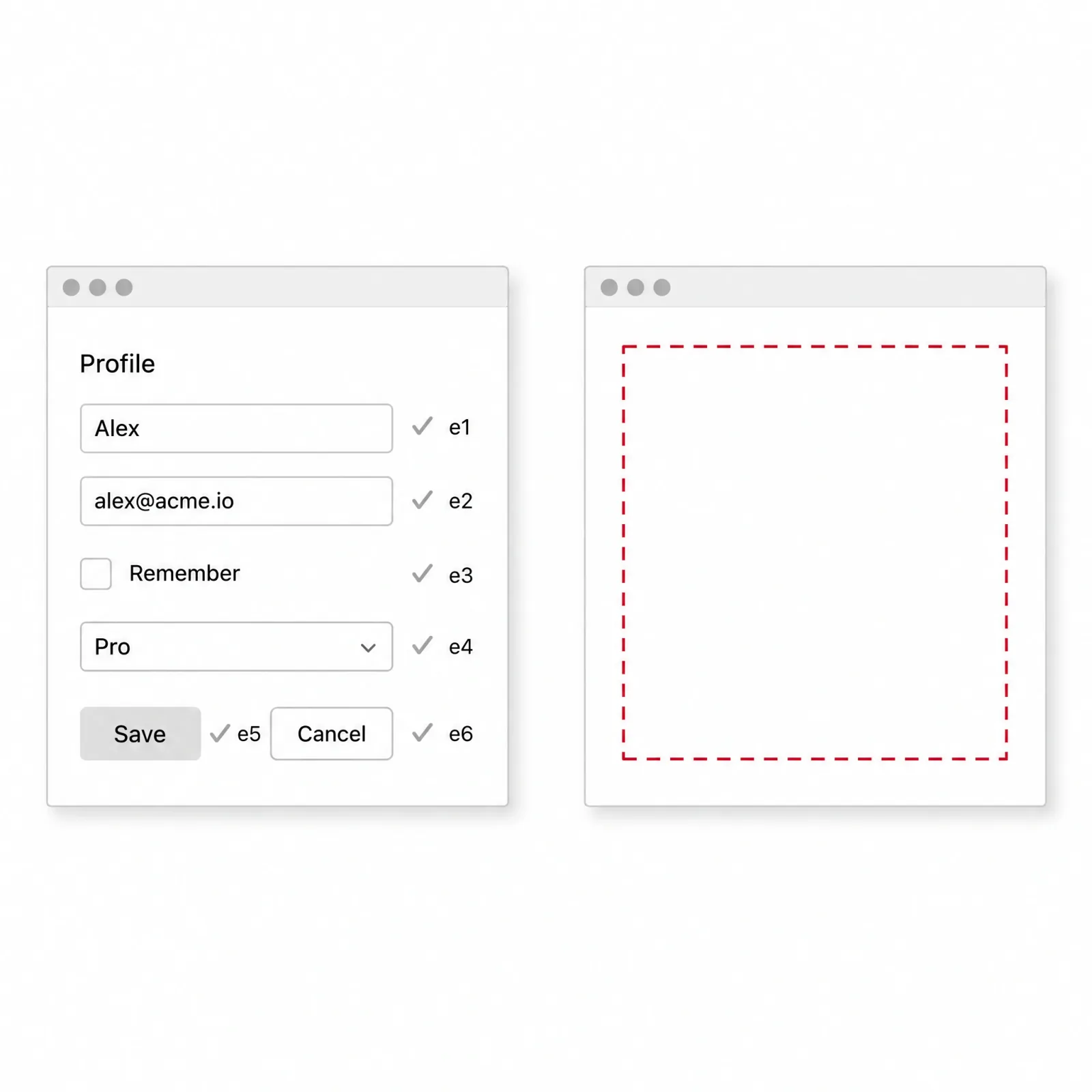
Named controls, then an empty frame.
Anything drawn to a canvas. Design-tool canvases and 3D viewports expose no tree for what they draw, and neither do chart libraries that paint to <canvas>. You get a window with a few nodes and no refs where the shapes are, which the macOS docs call custom-rendered UI. Use a vision agent there, or ship an accessible table beside your charts.
Web content inside the app. agent-desktop does not automate web pages. For a Chromium or Electron app you launch fresh, launch "Acme" --cdp opens a loopback DevTools port, agent-browser takes the web contents, and agent-desktop keeps the native menus. The warning signs are a thin tree and a --cdp refusal when the app is already open, so quit it first.
Login walls and dialogs outside the tree. A captcha exists to stop automation, and the agent should stop at it. UAC prompts are unsupported, and Electron's native dialogs are missing from the Linux tree. Sign in yourself first, use an account without a captcha, and pass file paths through the app's fields.
Who should not bother
A web-only SaaS founder needs agent-browser, the CLI for pages. A designer who never ships desktop UI needs neither. A team with no release cadence gains little: the loop pays off on run ten.
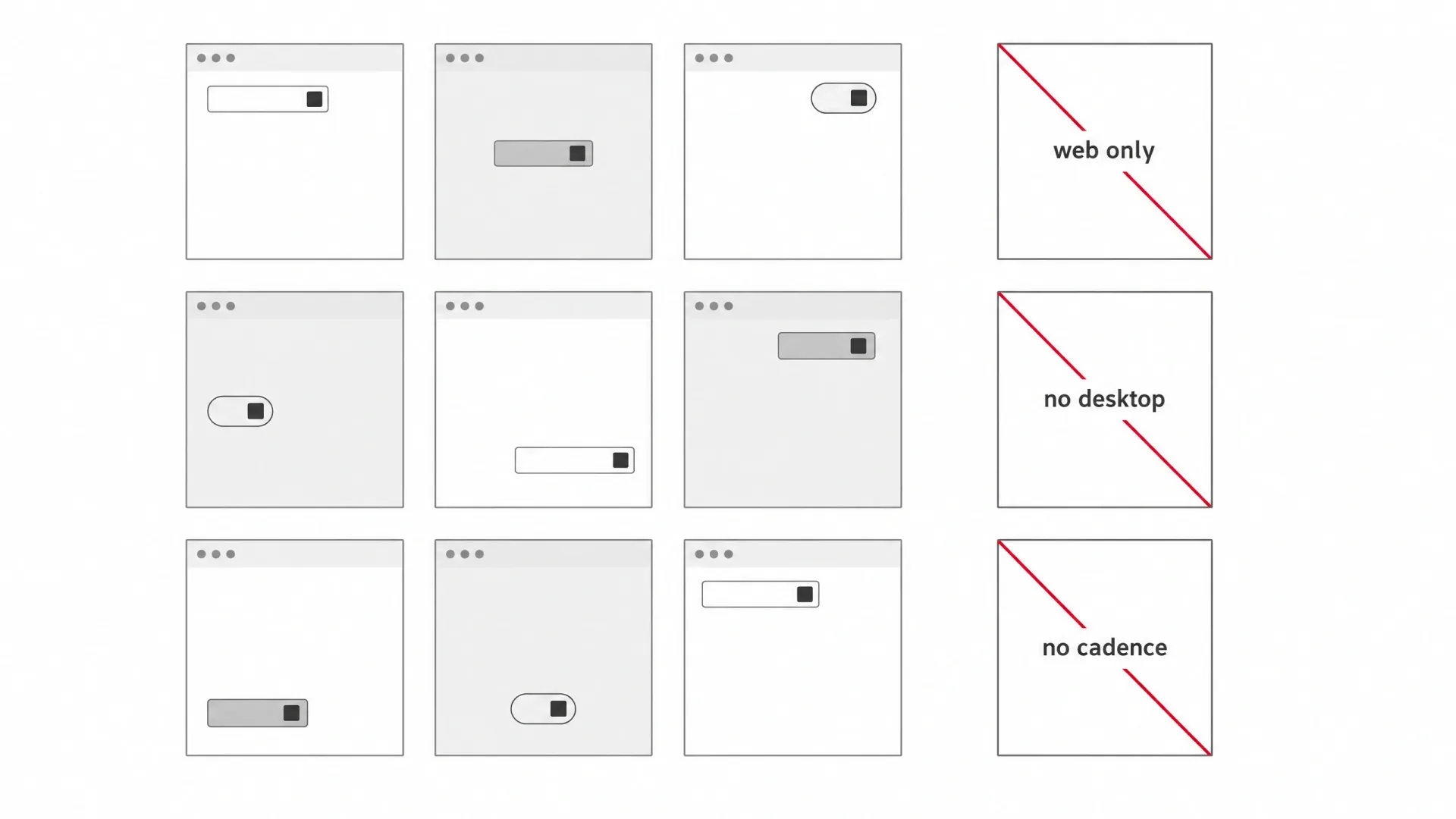
Nine jobs, three reasons to skip.
The verdict
agent-desktop is a QA and audit tool. As a daily driver it asks for prompts about clicks you could make in seconds.
The speed argument is in its own docs: the quick start puts the calculator check at 286 ms and the wait docs put a title wait at 112 ms, while a vision agent pays for a screenshot and a model call per step. Across a 200-step pass the gap compounds.
Worth it for desktop products with a test cadence, where jobs 4 to 6 run every release. Oversold for everything else. If you design the agent's side of the loop too, the approval and undo patterns are the human half.
Frequently asked questions
Does agent-desktop need a vision model?
No. It has no model inside and never looks at pixels to find an element. It reads the accessibility tree the operating system already exposes and hands back JSON with refs. Your coding agent does the reasoning, and screenshots exist only as evidence for a human reviewer.
Can agent-desktop automate a website?
No, and the docs say so directly. Web pages belong to agent-browser. For a Chromium or Electron app you launch fresh, --cdp opens a loopback DevTools port. agent-browser connects to it for the web contents, and agent-desktop keeps the native menus and dialogs.
Which apps can agent-desktop not see?
Anything that publishes no accessibility tree. Canvas surfaces such as design tools and 3D viewports show up as a window with few nodes and no refs. Windows UAC prompts and locked screens are out of reach, and on Linux, Electron's native dialogs are missing from the AT-SPI tree.
Is it safe to let agent-desktop click around my desktop?
Safer than most options. Ref actions run headless by default, without moving your cursor or taking focus. Quit shortcuts such as cmd+q come back as POLICY_DENIED unless you pass --force. The real risk is data: snapshots and screenshots contain whatever was on screen, so keep them out of public repos.
Does agent-desktop work headless?
Headless is the default for ref actions, which go through the accessibility API. It still needs a live desktop session: the signed-in interactive desktop on Windows, a graphical session with an AT-SPI bus on Linux. The Linux page puts its test environment on Xvfb with openbox, the realistic path into CI.
Start with one screen
If you ship a desktop product, you have nine prompts that turn a release checklist into commands. Start with job 1: one screen, no clicks.
One snapshot answers the question that matters before you install: how much of your own UI the agent can name. What the docs cannot settle is whether your app is readable at all, since canvas surfaces and captcha walls need different approaches.
Want the write-up in front of designers and founders? Publish on Setproduct.