

Roman Kamushken
A pie chart with nine slices asks the reader to compare angles. The same data as a sorted bar chart asks them to compare lengths along one baseline, and perception research ranks position and length well above angle for accuracy. The data was fine. The chart choice broke it.
Chart choice is a communication decision, and it happens before any pixel. You name the question first. The chart family follows, then the anatomy.
This guide runs in that order: data relationship → chart family → anatomy → mobile adaptation → accessibility → anti-patterns. It is a reference, so skip the linear read. Jump to the chart you are about to ship and read its block.
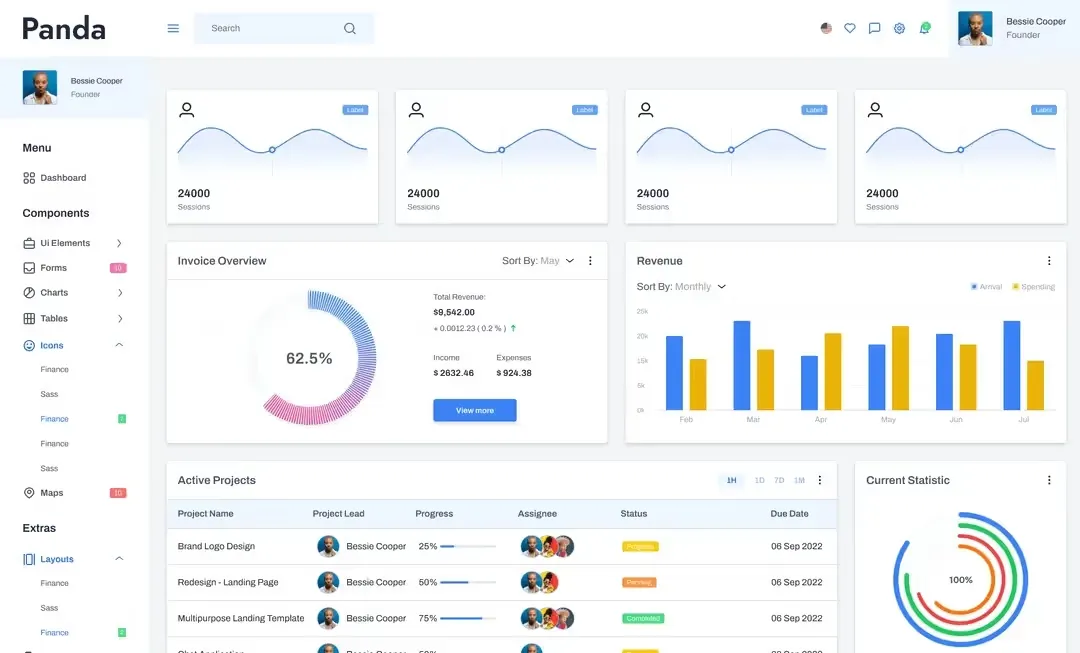
If you are planning the whole screen, the dashboard UI design guide covers layout and hierarchy. This one covers what goes inside each card.
Chart follows the data relationship
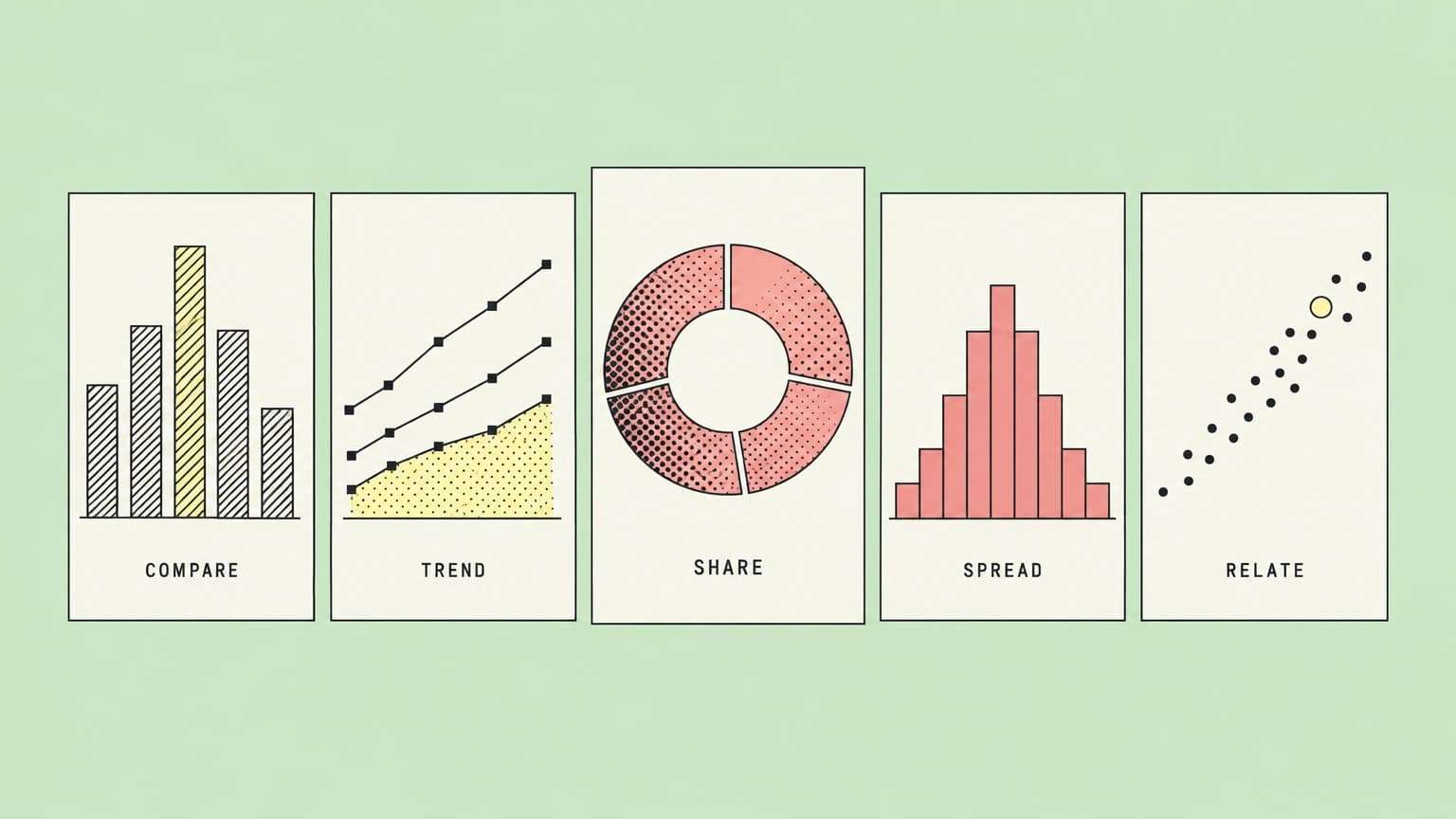
Every chart answers one of six questions. Name the question and your shortlist shrinks from 40 options to about 5.
| Relationship | The question it answers | Go-to charts |
|---|---|---|
| Comparison | How does A compare to B? | Bar, bullet, dot plot |
| Trend over time | How did it change? | Line, area, sparkline |
| Part-to-whole | What is it made of? | Stacked bar, treemap, waffle |
| Distribution | How is it spread? | Histogram, box plot, beeswarm |
| Correlation | Do these move together? | Scatter, heatmap, bubble |
| Flow and process | Where does it go next? | Sankey, funnel, waterfall |
Two special cases sit on top. Hierarchy is part-to-whole with nesting. Geography is any of the six with a map as the axis, and it brings its own traps.
The ranking behind every recommendation here comes from Cleveland and McGill's 1984 study Graphical perception, published in the Journal of the American Statistical Association. People read position along a common scale most accurately, then length, with angle and area far behind. That finding explains why bars beat pies.
Operational screens live on comparison and KPI status, analytical ones on distribution and correlation. The types of dashboards breakdown shows which mix each type needs.
The selection decision tree
Ask these questions in order and stop at the first yes. Each branch has a typical wrong turn, the chart people grab under deadline.
❶ Am I comparing values across categories? → Comparison charts. Wrong turn: a line chart across unordered categories, which invents a trend between "Chrome" and "Safari".
❷ Does the value change over time? → Trend charts. Wrong turn: 365 daily bars crammed into one card, where a line would show the shape.
❸ Do the parts add up to a meaningful whole? → Part-to-whole. Wrong turn: a pie of a multi-select survey question, where answers total 160%.
❹ Do I care how values spread? → Distribution. Wrong turn: an average response time bar that hides the 5% of requests taking 4 seconds.
❺ Do two measures move together? → Correlation. Wrong turn: a dual-axis line chart, where axis scaling manufactures the correlation.
❻ Does something move between states or stages? → Flow. Wrong turn: a funnel for a journey where users loop back and skip steps.
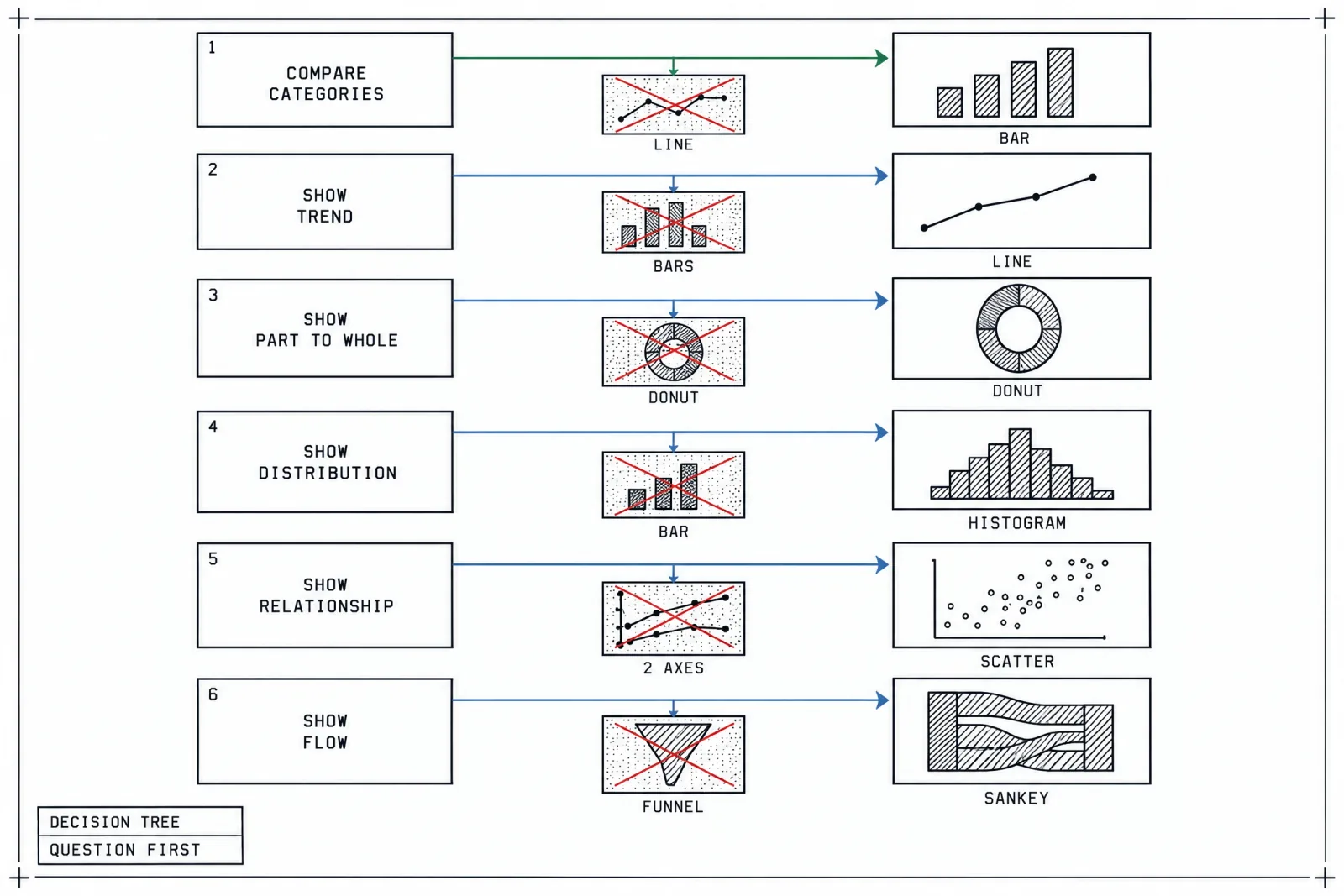
Answer the question first and the chart family picks itself; the crossed-out specimens are the deadline defaults.
When two answers apply, the earlier question wins.
Comparison charts
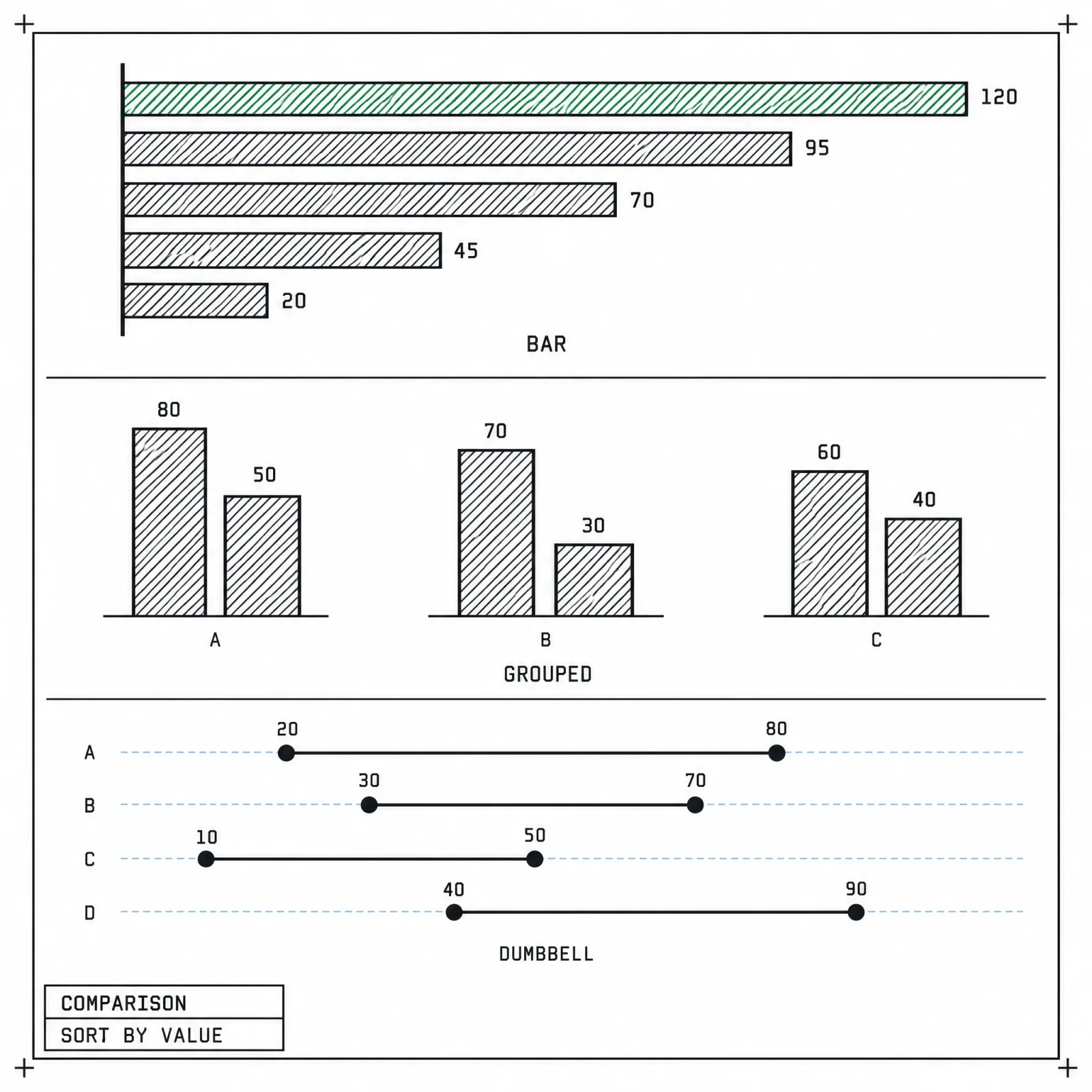
Three ways to compare, all built on length or position along one shared scale.
Comparison is the most common dashboard question, and most charts in this family are bars in disguise.
Bar chart (vertical and horizontal)
Serves: one measure across categories.
Anatomy: zero baseline, bars sorted by value, direct value labels at the bar end, an optional target line. As a working heuristic, go horizontal when labels run long or the category count passes about 7.
Breaks when the baseline is truncated. A bar's length is its value, so starting the axis at 80 turns a 5% gap into a visual doubling.
Rule of thumb: sort descending unless the categories carry a natural order, like months or age bands.
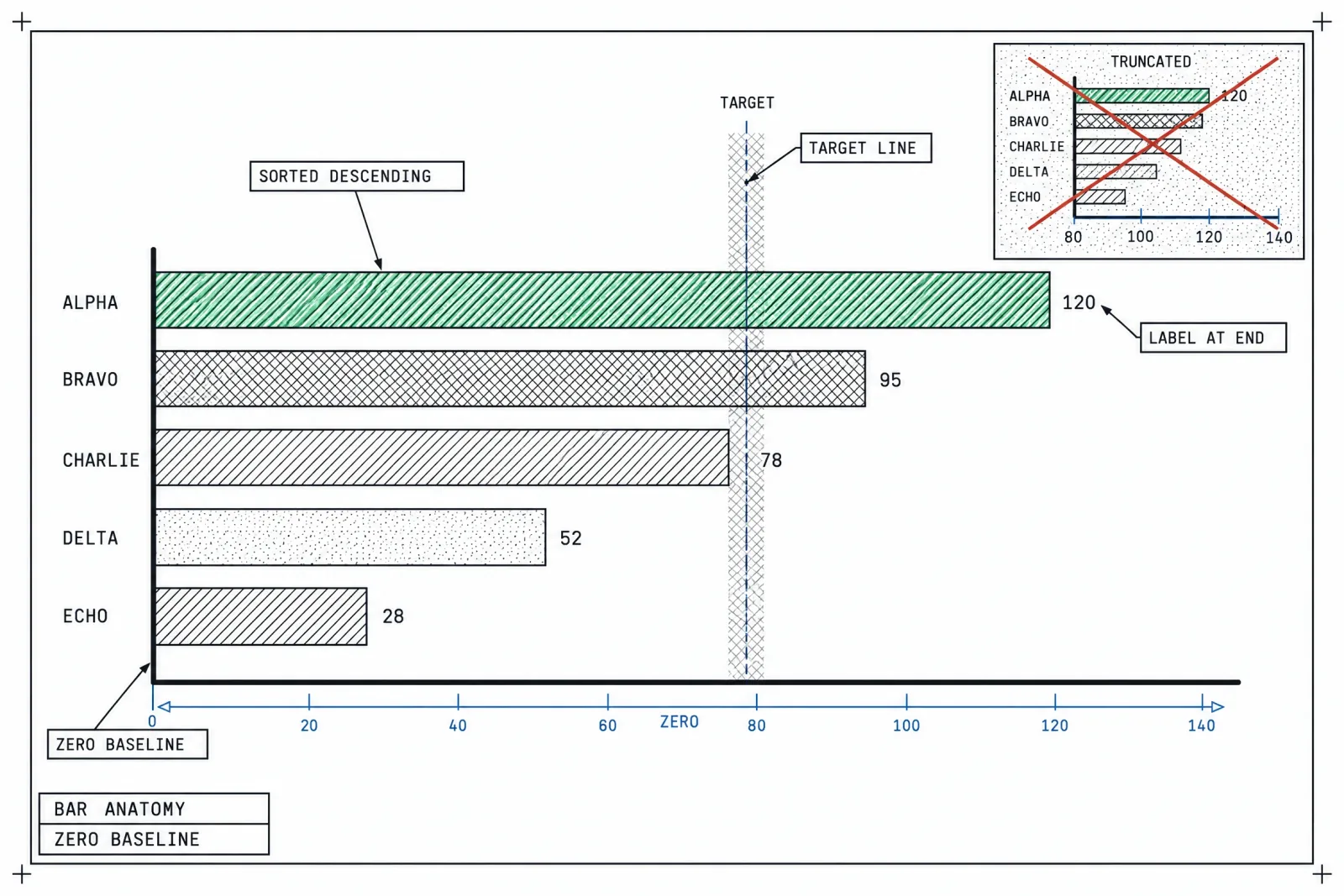
Sorted bars with labels at the ends remove the legend and the gridlines in one move.
Grouped bar
Serves: comparison across two dimensions, such as revenue by region per quarter.
Anatomy: 2 to 4 bars per group, identical series order in every group, a gap between groups wider than the gap inside them.
Breaks when a group holds 5 or more series. The eye stops finding its series and starts counting colors.
Rule of thumb: past 4 series, switch to small multiples, one mini bar chart per series on a shared scale.
Stacked bar and 100% stacked bar
Serves: totals plus composition. Only the bottom segment and the total share a baseline, so only those two read accurately. The 100% version drops totals and keeps the share.
Anatomy: segments stacked from a shared zero baseline, series order identical in every bar, direct labels inside segments wide enough to hold them, a total at the end of each bar or in the axis.
Breaks when readers need to compare middle segments across bars. Floating segments with different starting points defeat the eye.
Rule of thumb: the best stacked bar chart alternative is grouped bars for 2 or 3 series and small multiples beyond that.
Diverging bar
Serves: values that split around a meaningful center, such as Likert survey answers or budget variance.
Anatomy: a central zero line, one hue per direction, the neutral category split across the center or set aside.
Breaks when the neutral middle gets stacked on one side and drags every bar off balance.
Rule of thumb: sort rows by net value so the strongest positive sits on top.
Bullet chart
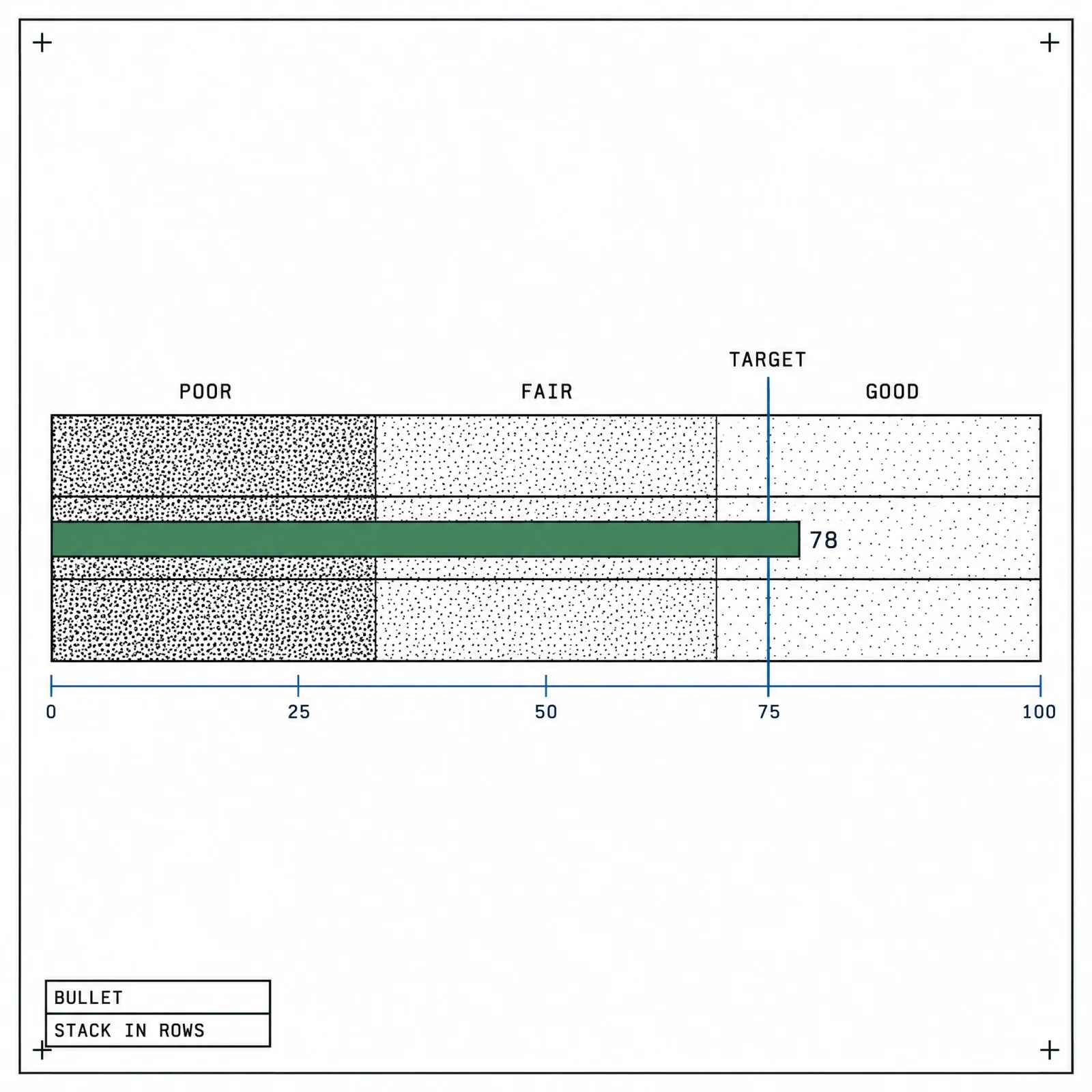
A bullet chart puts the value next to its target in one thin strip.
Serves: actual versus target with qualitative context.
Anatomy: a thin measure bar, a target tick, 2 or 3 gray bands for poor, fair and good. Stephen Few designed it as a replacement for the dashboard gauge and published a design specification for it.
Bullet chart vs gauge. Both show a value against a target, yet the bullet does it in a strip as thin as a progress bar and uses length instead of angle.
Breaks when the bands get saturated traffic-light colors that shout louder than the measure.
Rule of thumb: stack bullets in rows so every target aligns.
Dot plot and dumbbell chart
Serves: comparison when values cluster far from zero, such as NPS scores sitting between 62 and 71 across teams. A dot needs no zero baseline because position carries the value. A dumbbell connects two dots to show a gap or a before/after.
Anatomy: one row per category, a light guide line across each row, dots sized well above the line weight, two contrasting end colors for the dumbbell, values labeled beside the dots.
Breaks when dots overlap with no jitter or offset and two values read as one, or when the dumbbell end colors go unexplained in the header.
Rule of thumb: sort dumbbells by gap size, so the story runs top to bottom.
Slope chart
Serves: rank or value change between exactly two points in time.
Anatomy: two vertical axes, labels at both ends of each line, 1 to 3 highlighted lines in color, the rest in gray.
Breaks when 15 lines cross in the middle and nothing stands out.
Rule of thumb: two points only. Add a third and you are drawing a line chart.
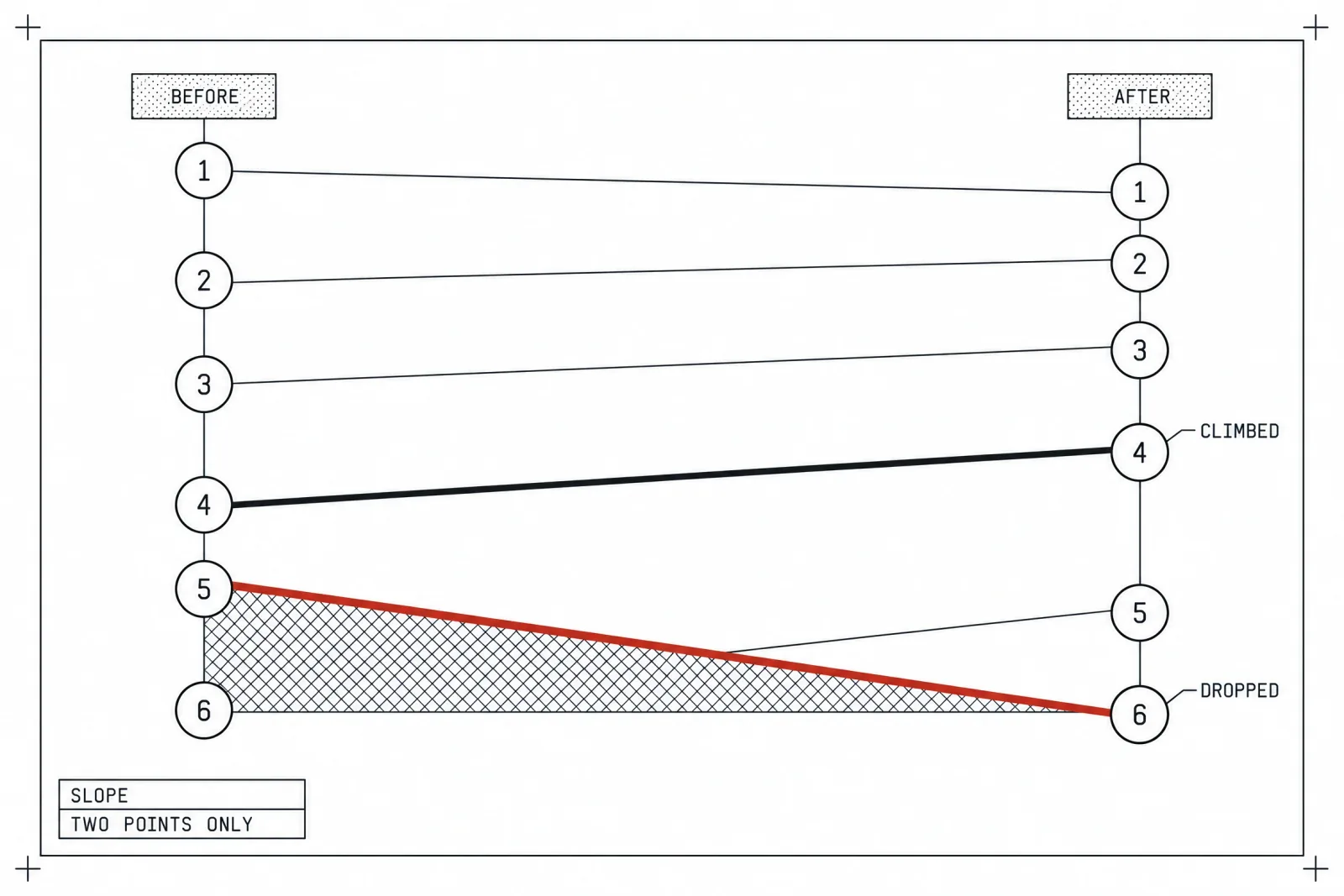
Keep the field hairline thin and give weight to the two lines that changed the ranking; that is the whole slope chart.
Trend over time
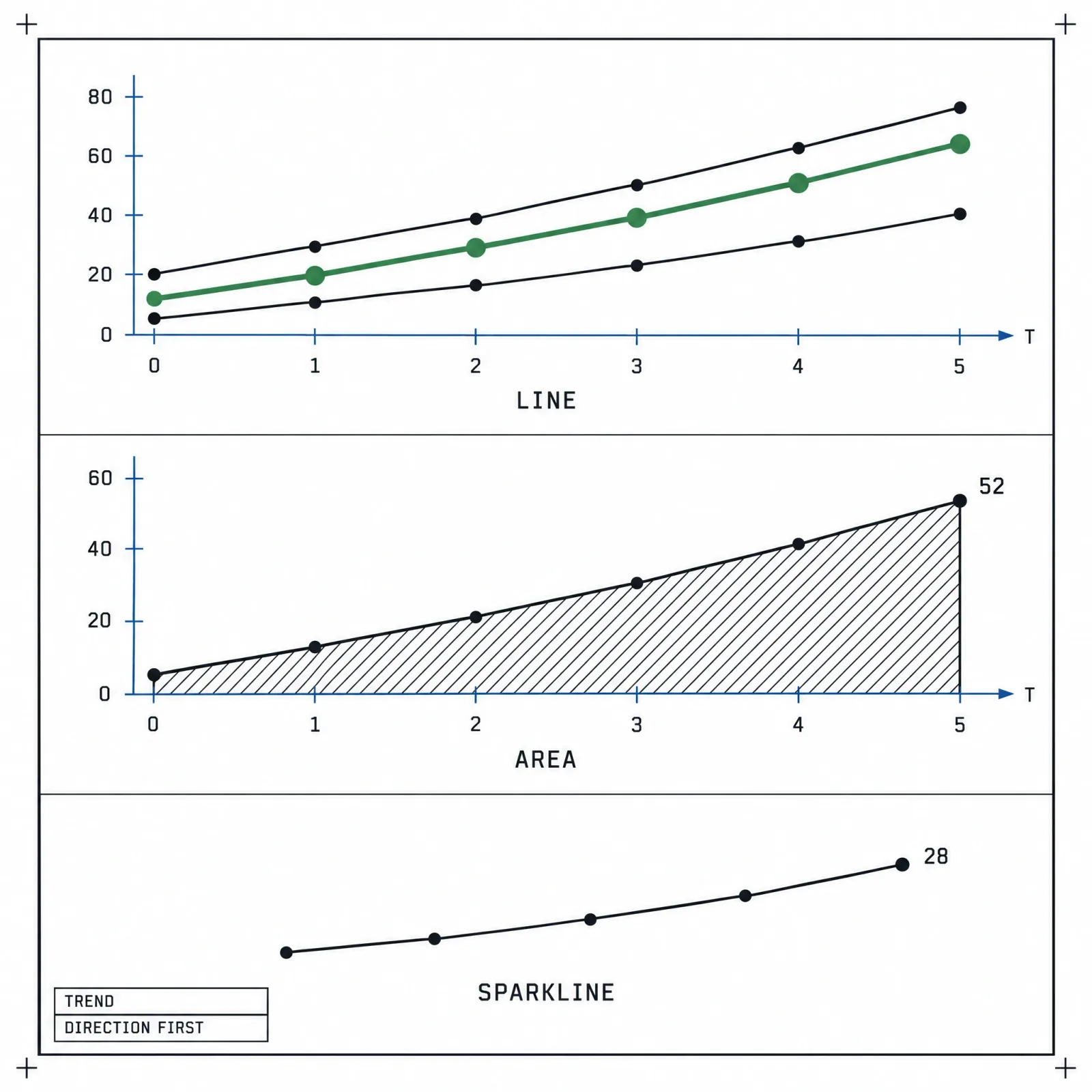
Trend charts sell direction first and exact value second.
Time runs left to right, always. Readers catch slope before any single value.
Line chart and multi-line
Serves: continuous change over time.
Anatomy: continuous x-axis, y-axis allowed to start above zero, direct labels at line ends, up to 4 colored series with the rest in gray.
Bar chart vs line chart. Use bars for discrete periods you compare one by one, such as 4 quarters or 12 months, and lines for shape and direction. My working threshold is around 20 points; past that, a line reads faster.
Breaks when 8 or more colored lines turn into spaghetti.
Rule of thumb: size the plot so the average slope sits near 45 degrees; flat or vertical lines hide change.
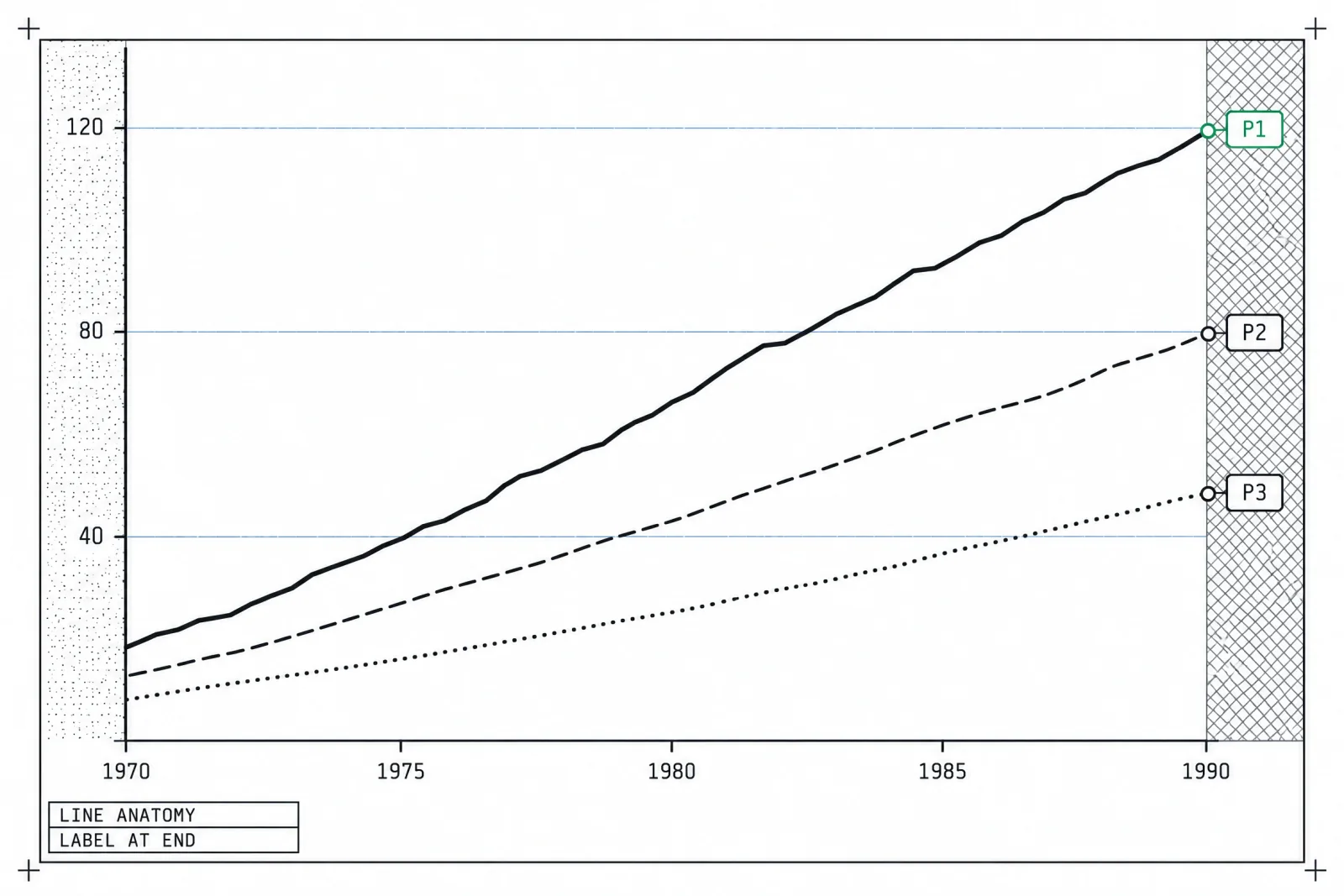
Labels at the line ends save the reader a round trip to the legend for every series.
Area chart and stacked area
Serves: volume over time for one series, or totals plus composition when stacked. Only the bottom layer and the top edge read accurately in a stacked area.
Anatomy: a filled region from zero to the line, a light fill with a solid stroke on top, direct labels at the series end, no gridlines behind the fill.
Breaks when layers go unlabeled or a gradient fill sits under a noisy line and turns jitter into a mountain range.
Rule of thumb: 4 layers maximum, labels placed inside the layers.
Stream graph
Serves: the rise and fall of 10 or more categories over a long period, such as music genres across decades or support ticket topics across a year.
Anatomy: layers stacked around a wobbling central baseline instead of zero, smooth curves, labels placed inside the widest part of each layer, a time axis with no y-axis values.
Breaks when anyone needs an exact value or a precise comparison. There is no fixed baseline to read from, and thin layers vanish at the edges.
Rule of thumb: use it for editorial and exploratory views where the shape is the story, never for a KPI someone acts on.
Sparkline
Serves: trend shape at word size.
Anatomy: 80 to 120px wide, no axes, an end dot with the latest value beside it, optional min and max dots or a range band.
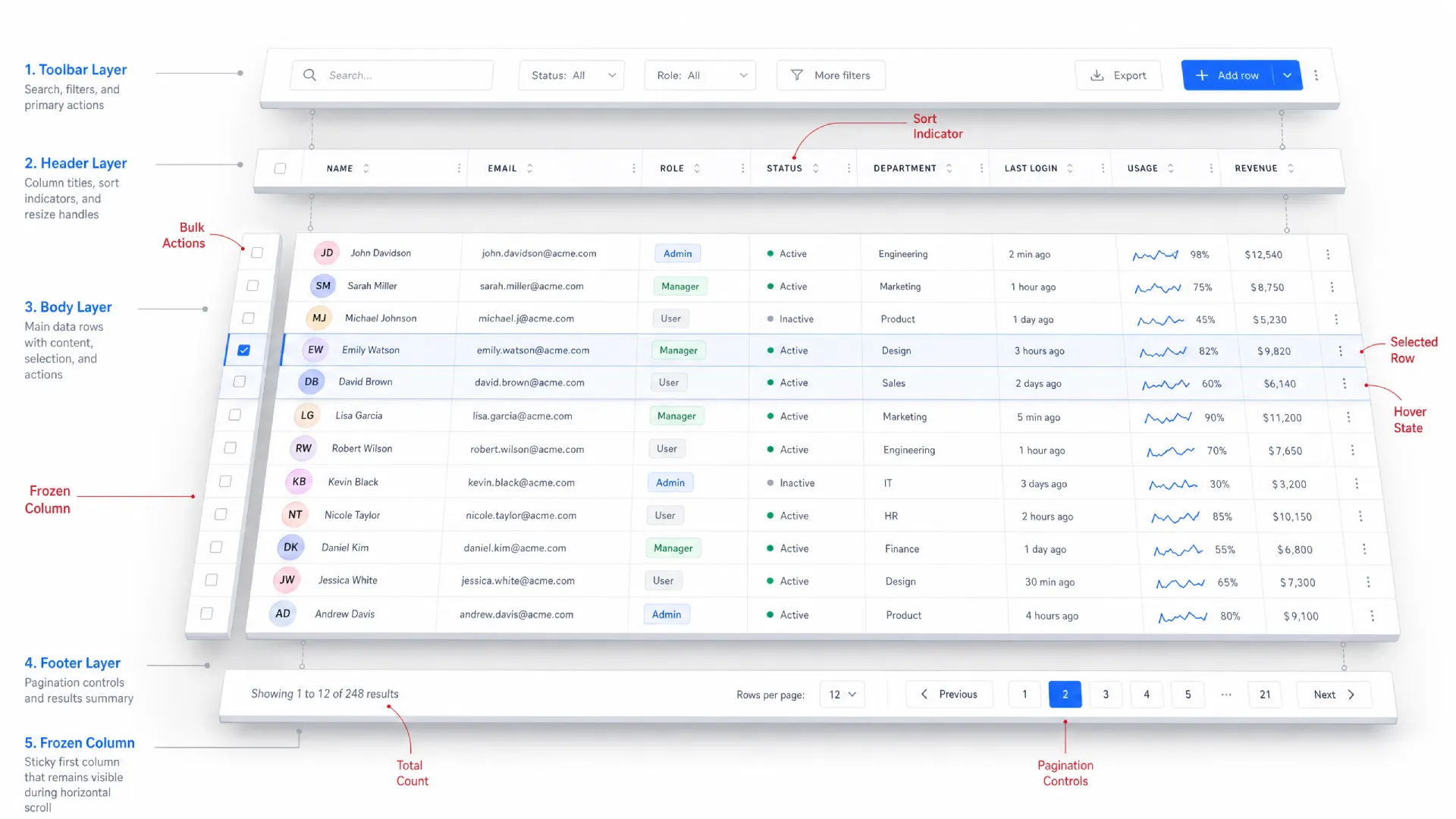
A sparkline in a table gives every row its own history. The data table UI design guide covers how those cells fit the grid.
Breaks when each row auto-scales and a flat row looks as volatile as a real spike.
Rule of thumb: state the scale, shared or independent, in the column header.
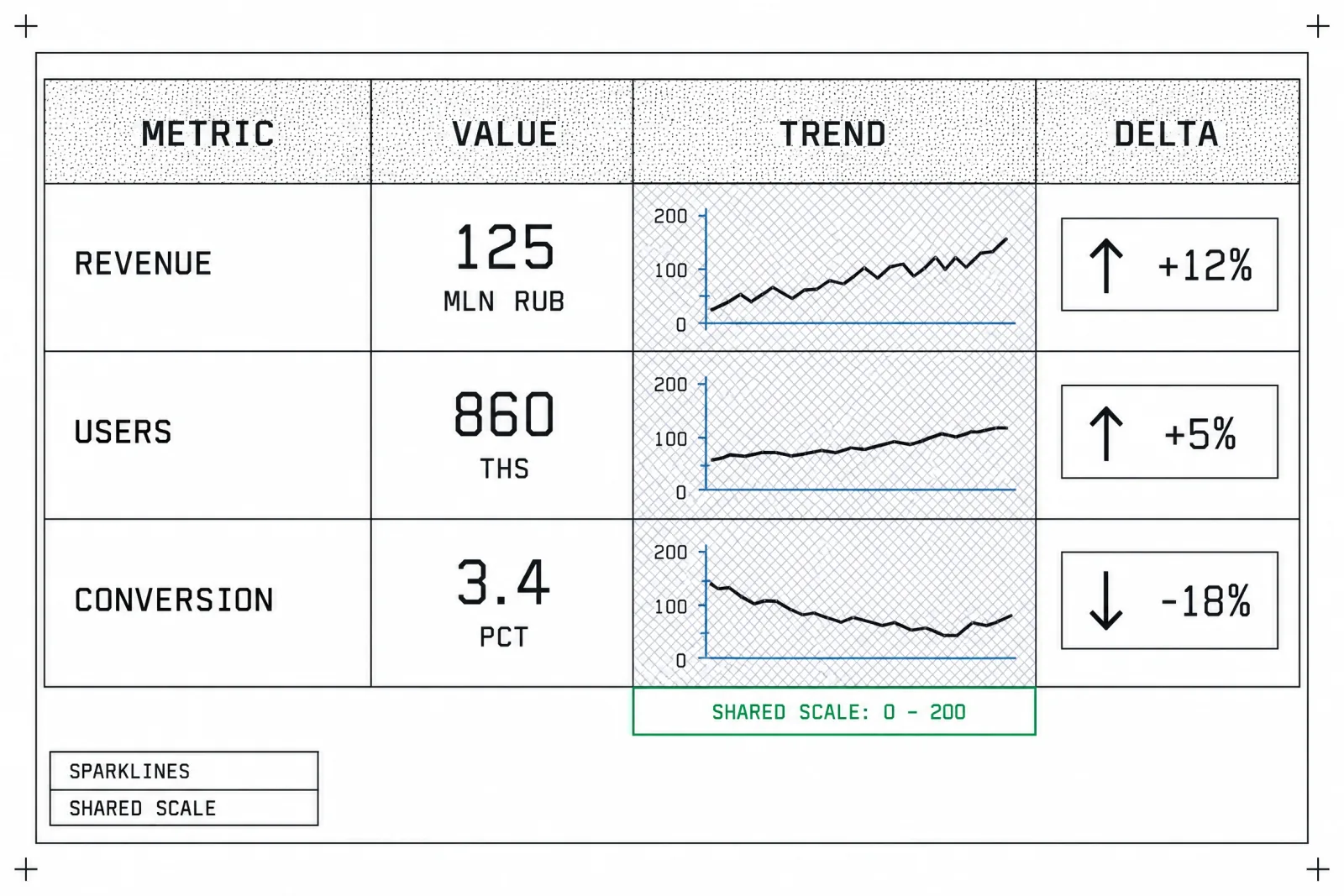
A shared y-scale across rows is what makes sparklines comparable instead of decorative.
Candlestick and OHLC
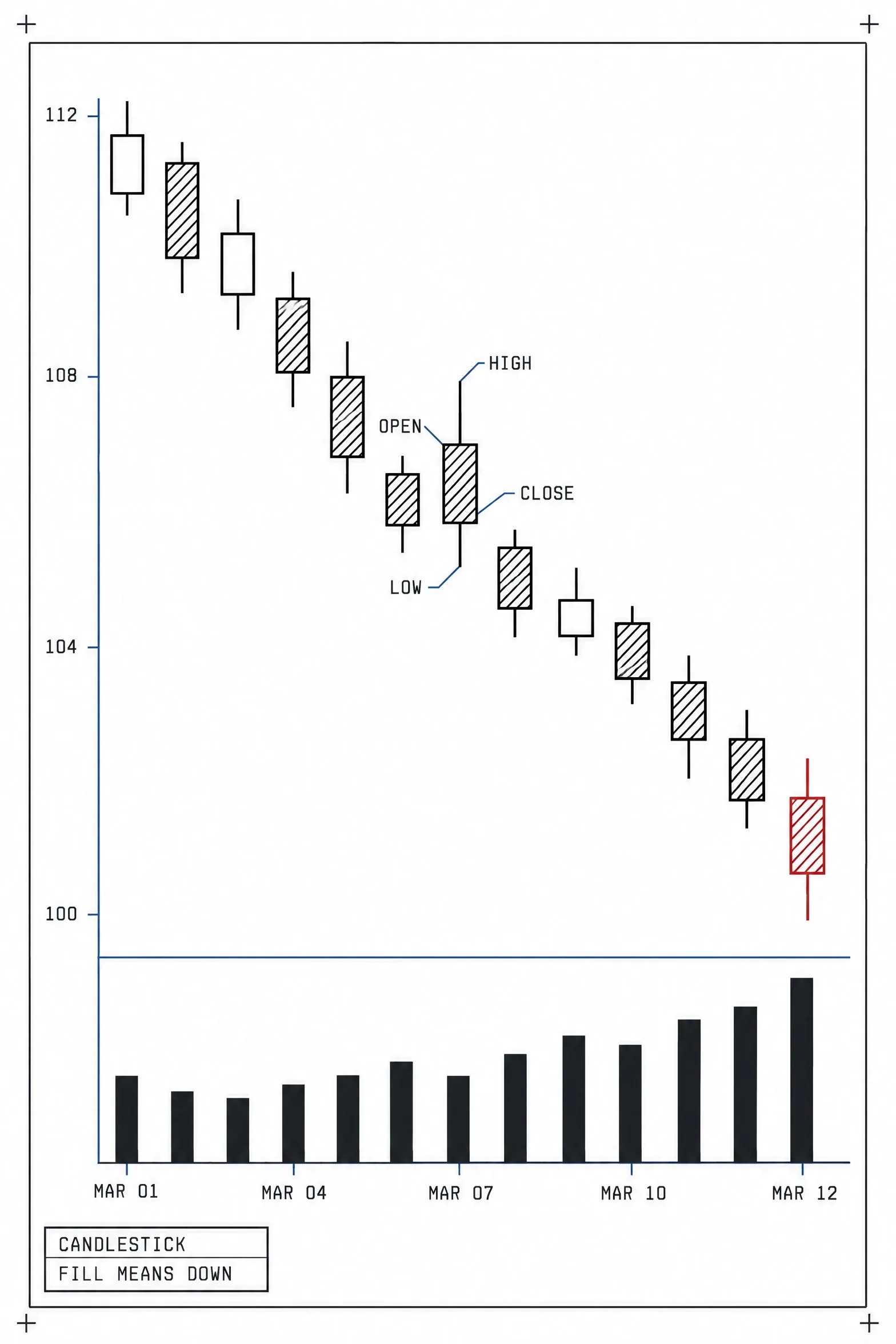
Fill and color both encode direction, so the chart survives color-blind readers.
Serves: price per period with open, high, low and close.
Anatomy: the body spans open to close, wicks span high to low, direction encoded by fill and color, a volume strip below on the same x-axis. OHLC bars carry the same data with ticks instead of bodies.
Breaks when 200 candles squeeze into 350px and each body drops below 2px.
Rule of thumb: keep bodies at 6px or wider and aggregate to longer periods when they shrink. For general audiences, a closing-price line does the job.
Part-to-whole charts
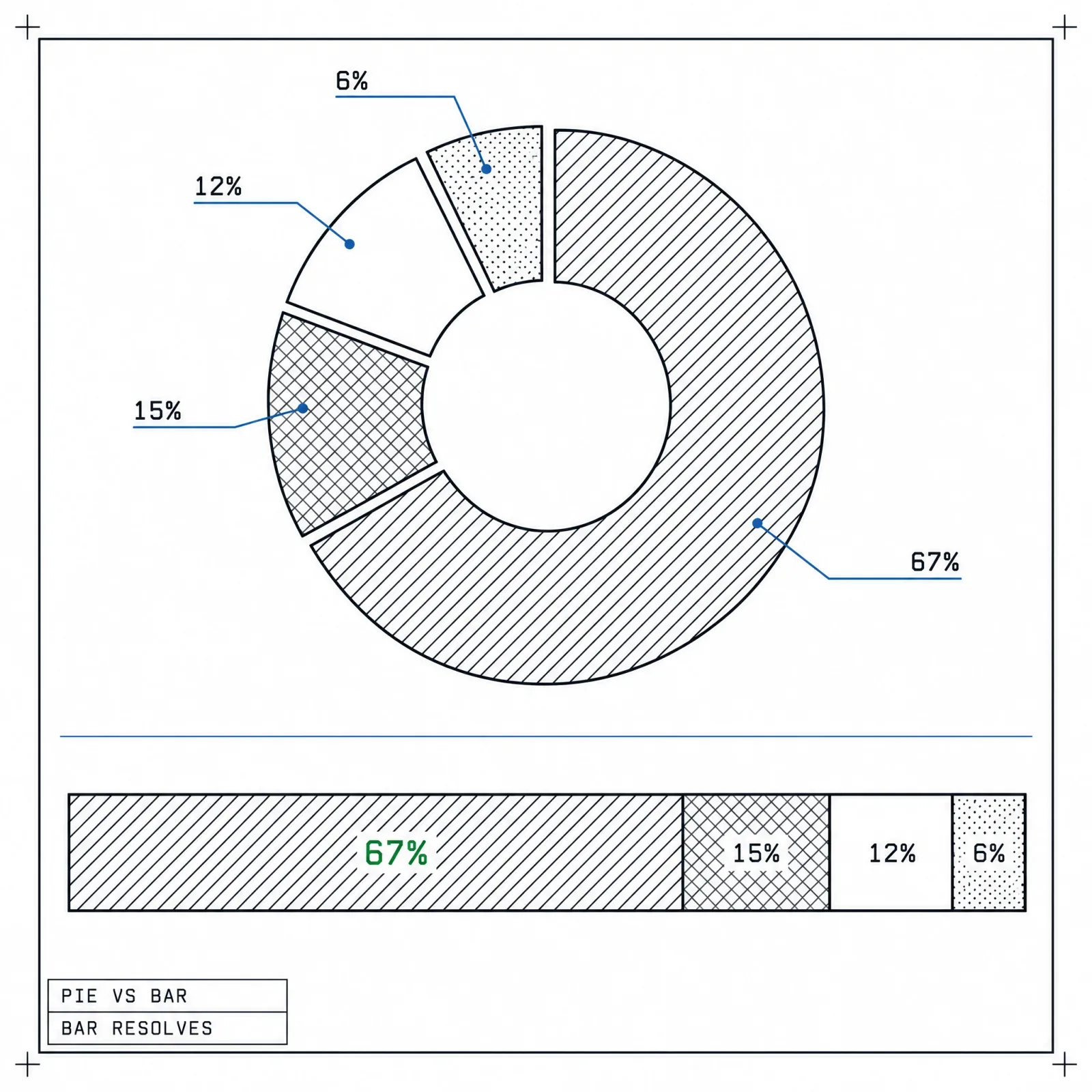
Same four values, and the stacked bar makes the two close shares readable.
Use these charts only when the parts sum to a meaningful 100%. If categories overlap or the total is arbitrary, go back to comparison charts.
Pie and donut
Serves: one dominant share story, such as "68% of sessions are mobile".
Anatomy: first slice at 12 o'clock, largest slice going clockwise, direct percentage labels, no legend. A donut uses the hole for the total.
When to use a pie chart. Only with five slices or fewer, and that cap is firm. A sixth slice means the reader is comparing thin angles.
Breaks when two slices sit within 5 points of each other.
Rule of thumb: if the reader needs to rank slices, use bars.
Waffle chart
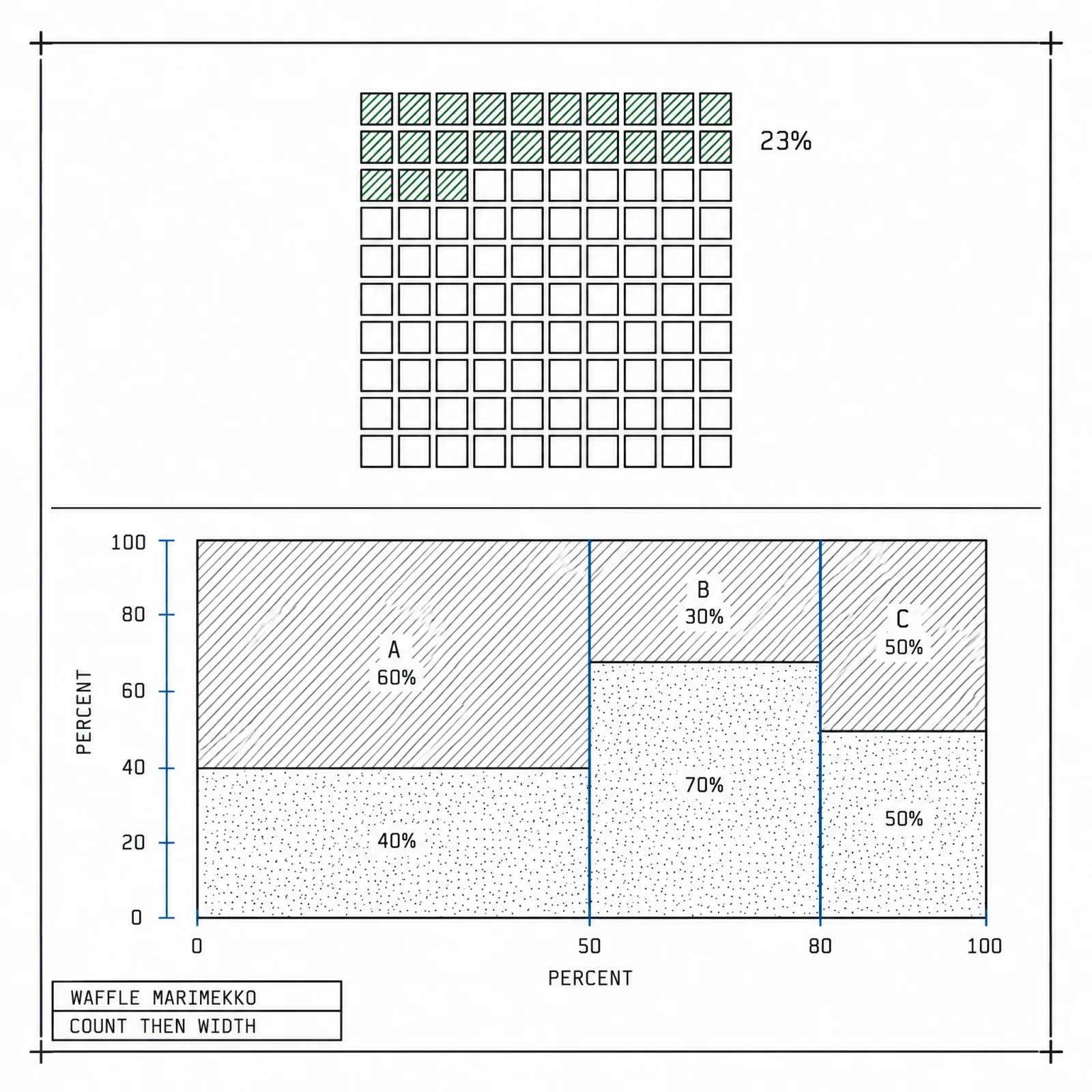
The waffle makes one share countable; the Marimekko adds market size as width.
Serves: one or two proportions you want people to count.
Anatomy: a 10×10 grid where each cell is 1%, filled cells in one hue, the remainder in light gray.
Breaks when you add 5 categories or values under 1%.
Rule of thumb: for comparisons, use small multiples of waffles, one per group.
Marimekko
Serves: two-level composition, where column width is segment size and height is share inside it.
Anatomy: labels inside the tiles, both axes in percent.
Breaks when the audience has never seen one, and tiny tiles carry unreadable labels.
Rule of thumb: consulting decks and market maps, rarely live dashboards.
Treemap
Serves: 20 to 200 items in a hierarchy, such as disk usage or a portfolio.
Anatomy: squarified layout, labels only on tiles above a minimum size, color reserved for the parent group or a second variable.
Breaks when every tile gets its own rainbow hue and color stops meaning anything.
Rule of thumb: show 2 levels and drill down for the rest.
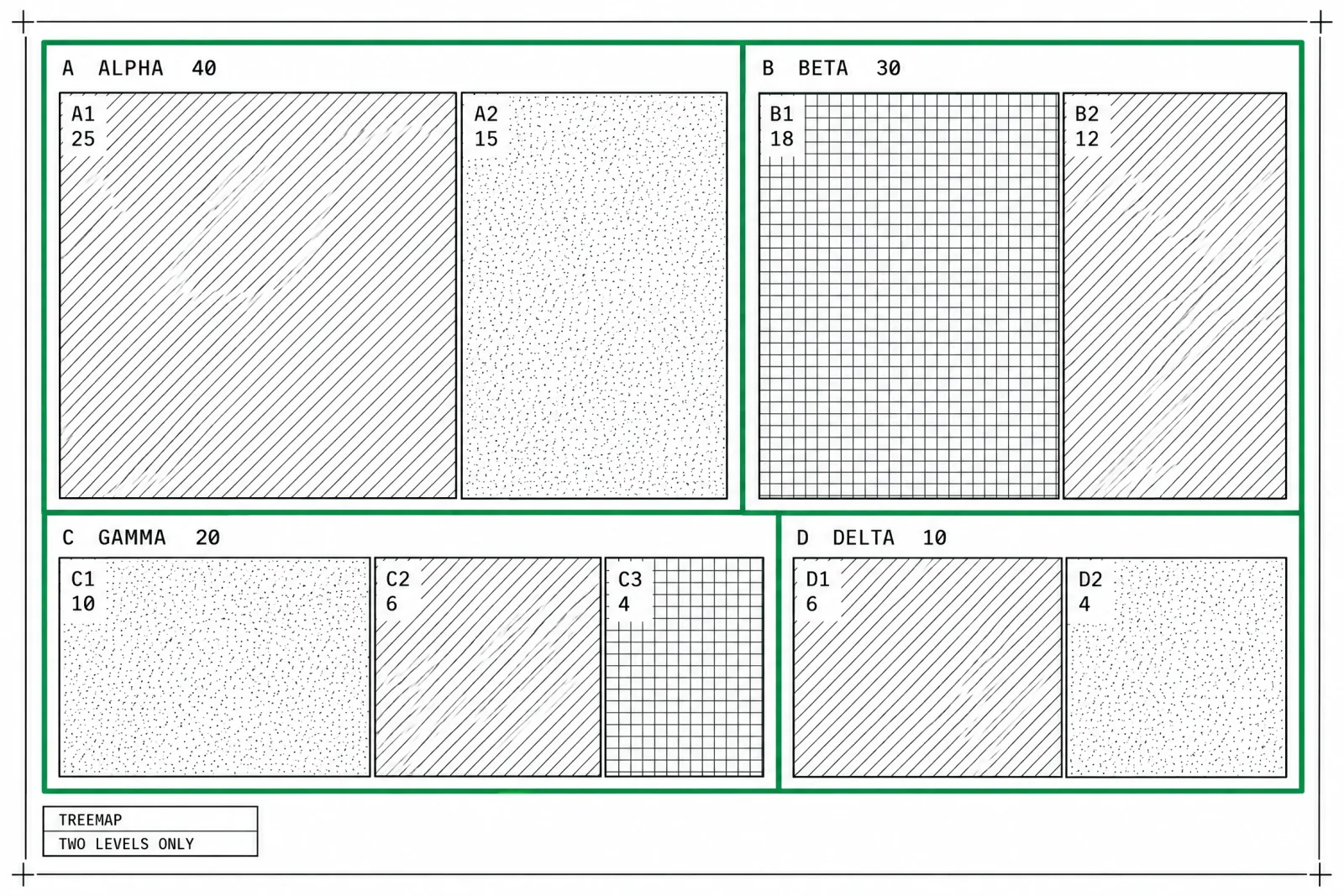
Color by parent group and let area carry the value; a rainbow treemap carries neither.
Sunburst
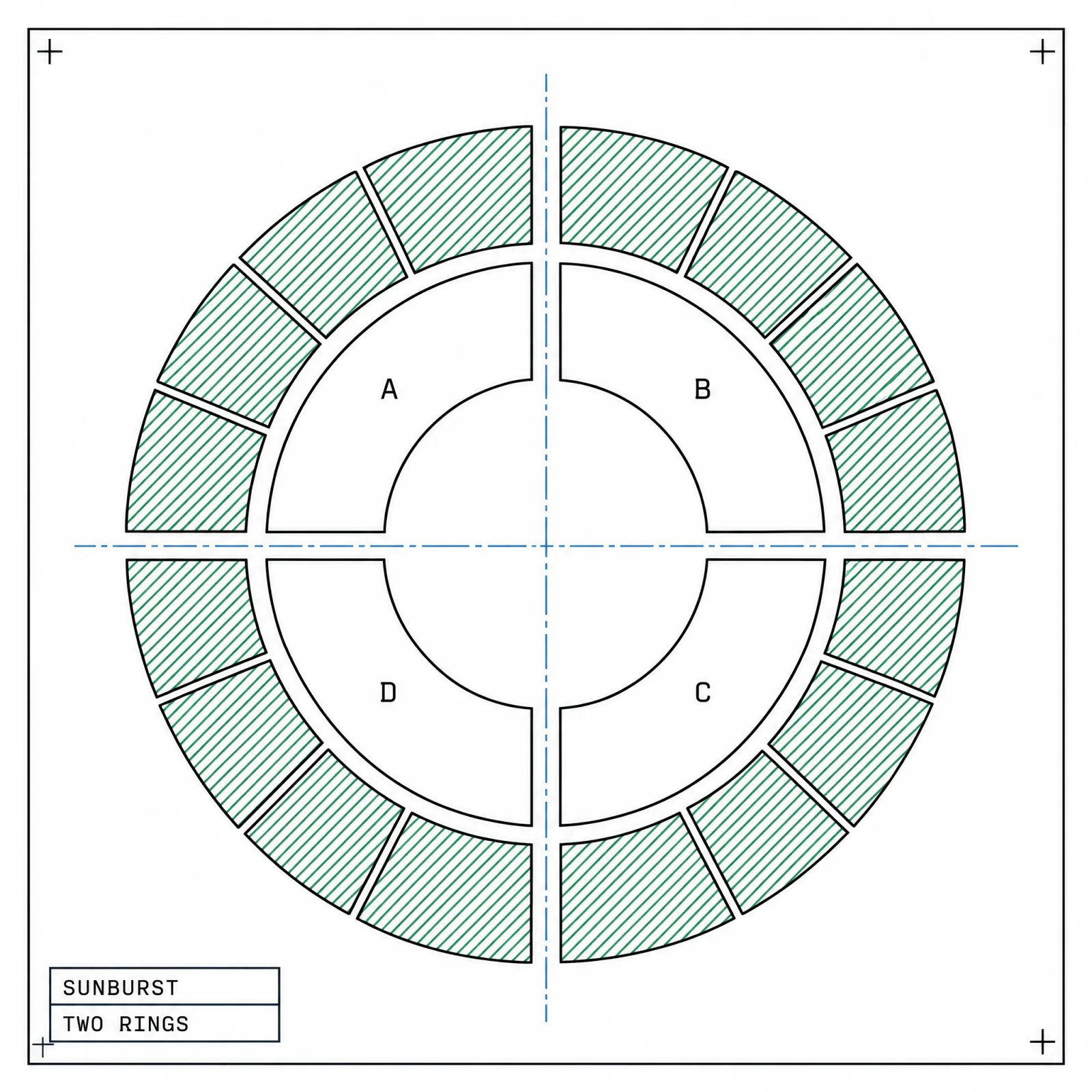
Two rings read; a third ring turns outer arcs into slivers.
Serves: hierarchy depth and path, root at the center and levels moving outward.
Anatomy: concentric rings for levels, arcs sized by value within each parent, a label on every arc wide enough to hold it, color by level or by parent branch.
Treemap vs sunburst. A treemap compares leaf sizes better because rectangles read as area, while a sunburst shows the path from root to leaf better. Outer-ring angles are hard to compare.
Breaks when you add a third ring.
Rule of thumb: two rings by default, click to re-root deeper.
Distribution charts
Averages lie by omission. A distribution chart shows the whole spread of values, including the outliers an average hides.
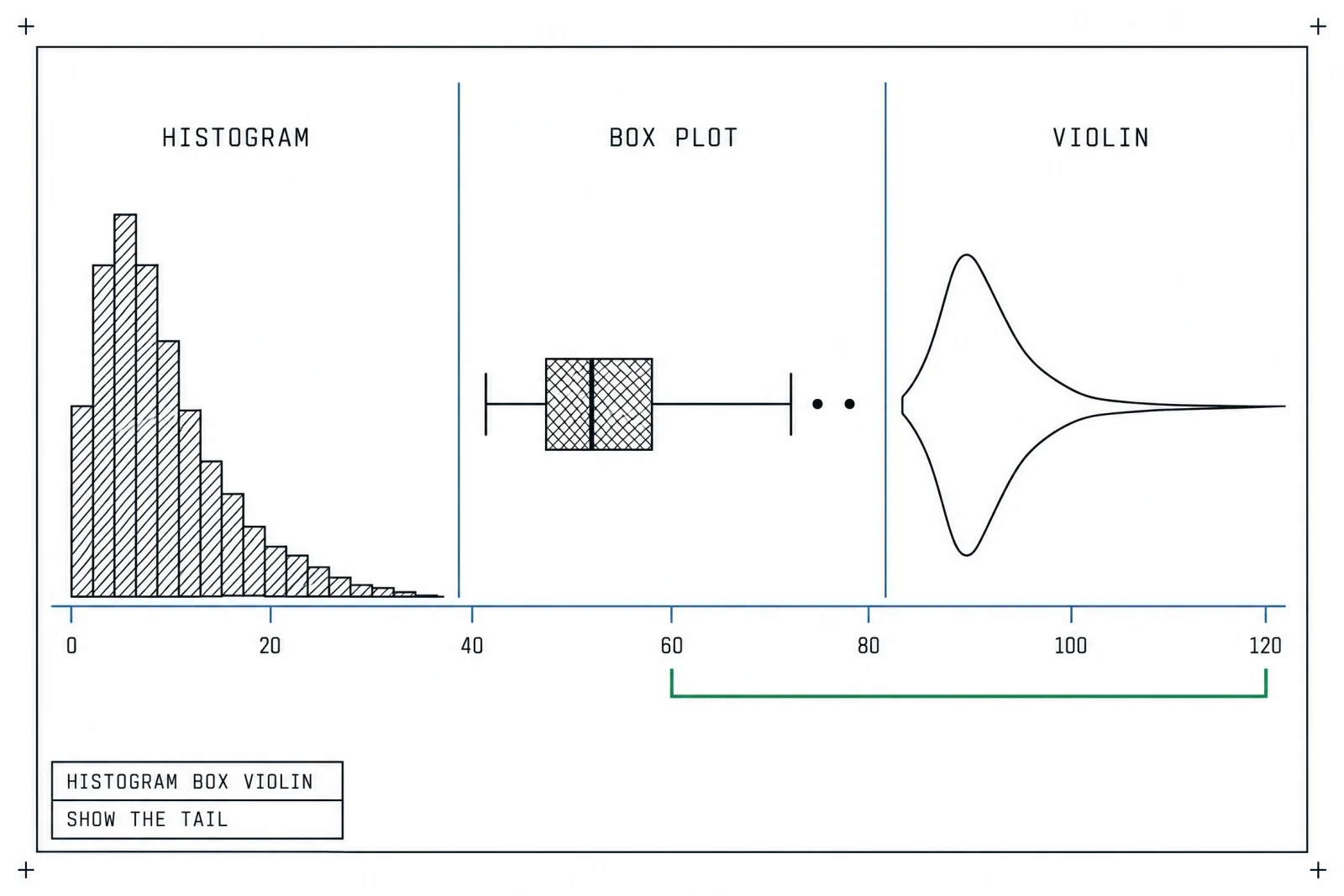
One dataset, three views; only the histogram and violin reveal the second peak.
Histogram
Serves: the shape of one continuous variable.
Anatomy: contiguous bars with no gaps, bin width stated, count or frequency on the y-axis.
Breaks when the bin width is wrong. Five bins hide a bimodal shape, 100 bins turn it into noise.
Rule of thumb: test 3 bin widths before you ship and keep the one that shows the real shape.
Box plot
Serves: compact comparison of spread across 3 to 20 groups. Among charts for distribution, the box plot packs the most groups into the least space.
Anatomy: median line, a box for the interquartile range, whiskers, outliers as dots.
Breaks when the data is bimodal, since the box looks identical either way, and when the audience has never been taught to read one.
Rule of thumb: with small samples, overlay the raw points.
Violin plot
Serves: distribution shape per group, including two peaks a box plot hides.
Anatomy: a mirrored density curve with a slim box plot inside.
Breaks when the sample is small and the smoothing invents a shape.
Rule of thumb: print the sample size under each violin.
Beeswarm and strip plot
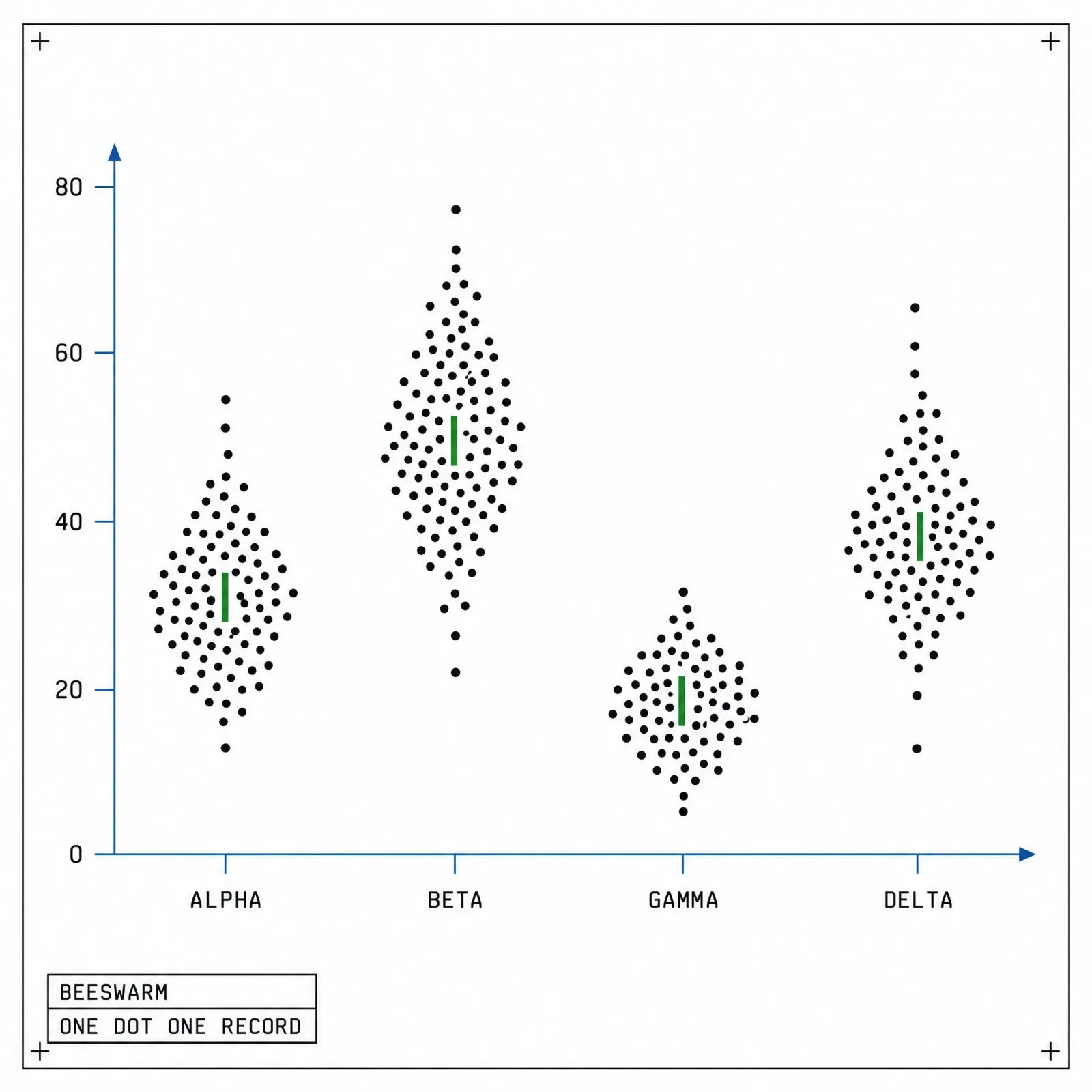
Every dot is one record, which builds trust a box plot cannot.
Serves: every individual value per category. A strip plot scatters points along a line with jitter; a beeswarm pushes them apart so none overlap.
Anatomy: one dot per record, dots displaced sideways but never along the value axis, a categorical axis with group labels, a median marker when the groups are compared.
Breaks when a category holds thousands of points and the swarm becomes a blob.
Rule of thumb: up to about 200 points per group, then switch to a violin.
Ridgeline
Serves: distribution shift across 6 to 20 groups or periods.
Anatomy: overlapping density curves stacked vertically, a shared x-axis, group labels on the left.
Breaks when heavy overlap hides the peaks behind the curve in front.
Rule of thumb: order ridges by median or by time, never alphabetically.
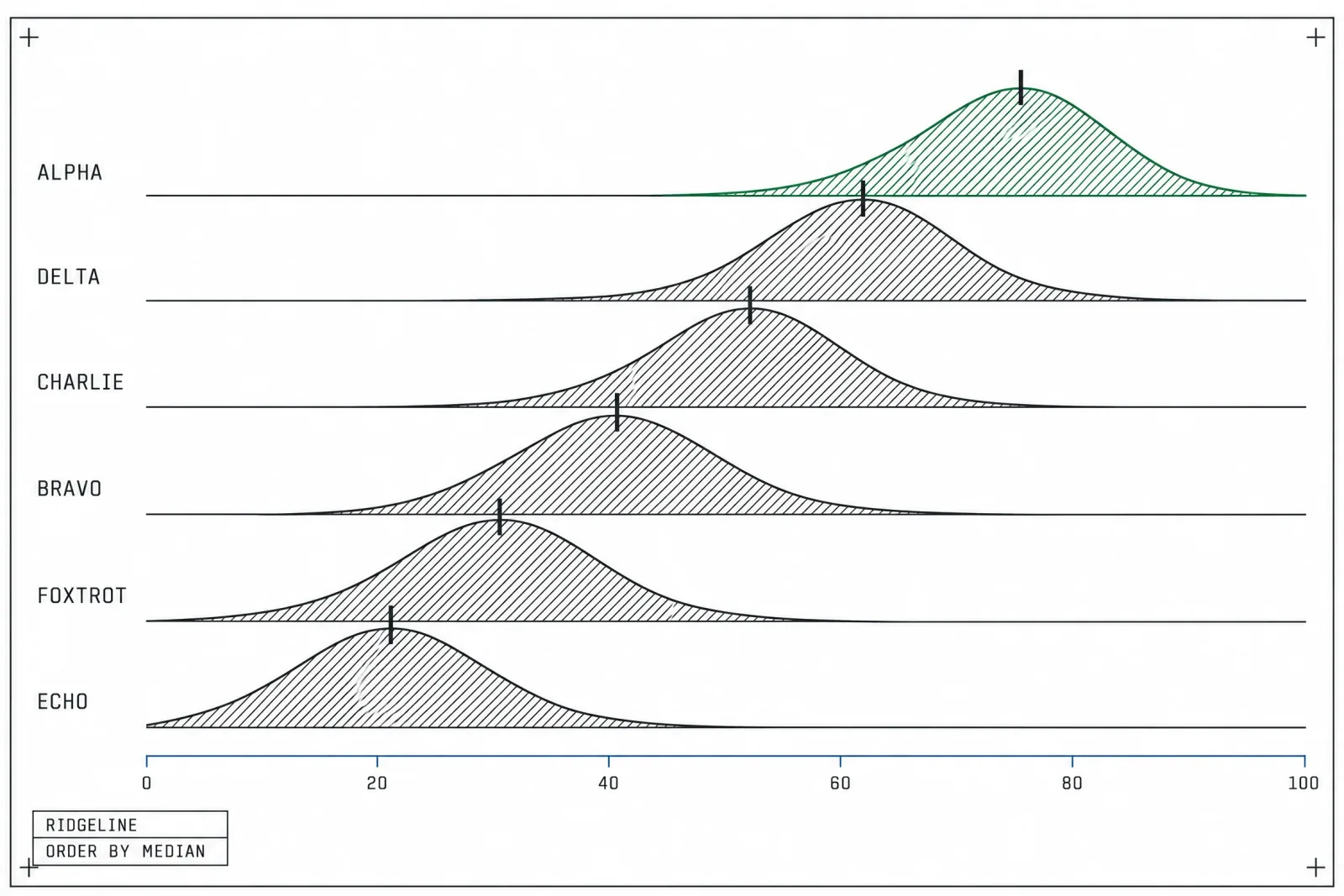
Ordered by median, the ridges show the shift without a single number on screen.
Correlation and relationship charts
These charts show whether measures move together. They say nothing about cause.
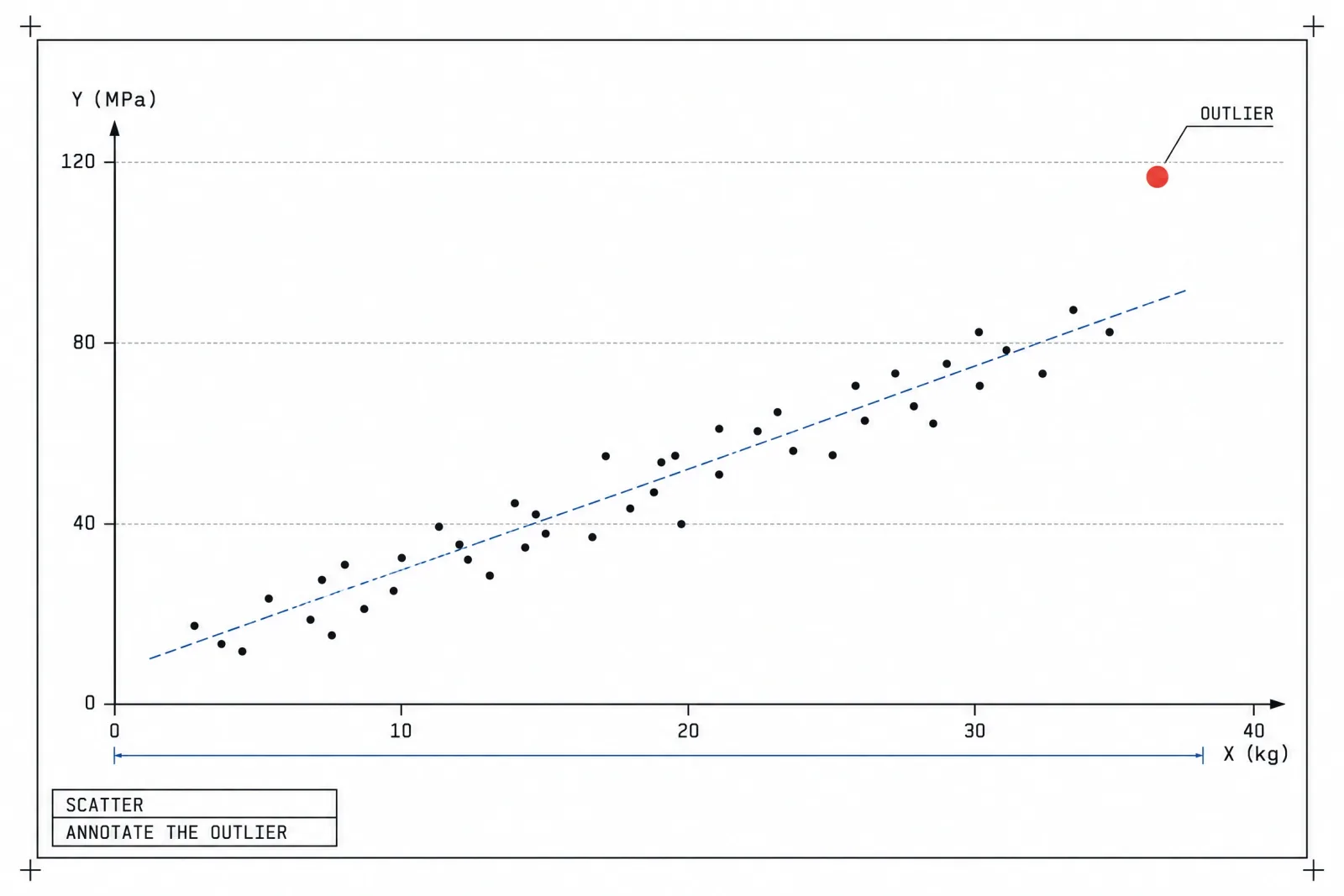
The annotated outlier is the reason the chart exists.
Scatter plot
Serves: relationship between two numeric measures, one dot per record.
Anatomy: both axes labeled with units, semi-transparent dots for overplotting, an optional trend line, annotated outliers.
Breaks when you plot 5,000 points and the core becomes solid ink.
Rule of thumb: above about 5,000 points, switch to a hexbin or density plot.
Bubble chart
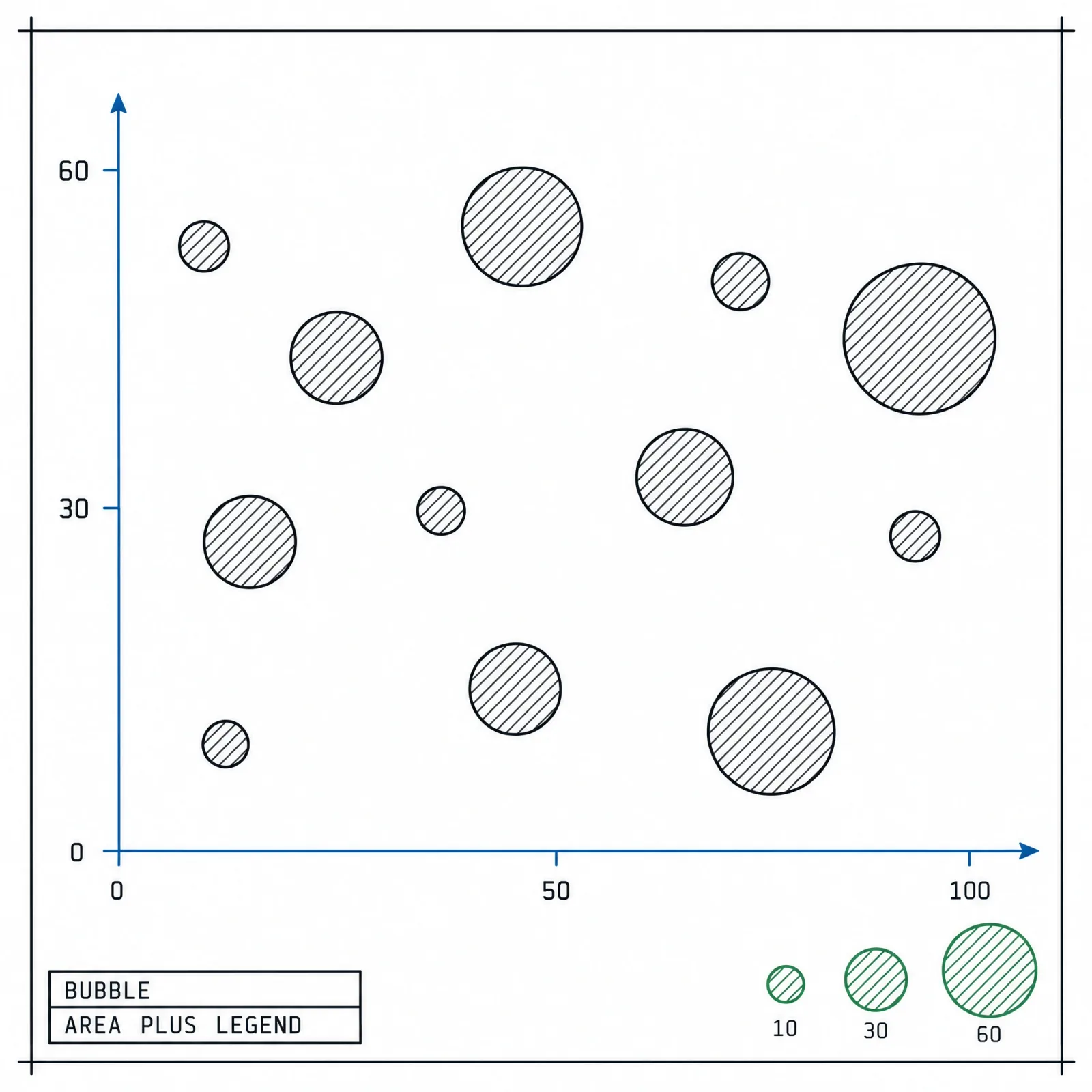
Without a size legend, bubble area is a guess.
Serves: a scatter plus a third variable as size. Scale the bubble area to the value, since doubling the radius quadruples the area.
Anatomy: x and y axes on the two measures that matter, area scaled to the third value, a size legend with three reference bubbles, semi-transparent fill so overlaps stay visible.
Breaks when readers try to compare sizes precisely, because area is one of the weakest encodings.
Rule of thumb: add a size legend and keep the count under 30.
Heatmap
Serves: a value across two categorical or ordinal dimensions, such as weekday × hour.
Anatomy: a sequential single-hue scale, a legend with stated breaks, values printed in cells when the grid is small.
A heatmap for retention is the cohort grid covered in the KPI section below.
Breaks when a rainbow scale creates fake boundaries between equal steps.
Rule of thumb: diverging palettes only when the midpoint means something.
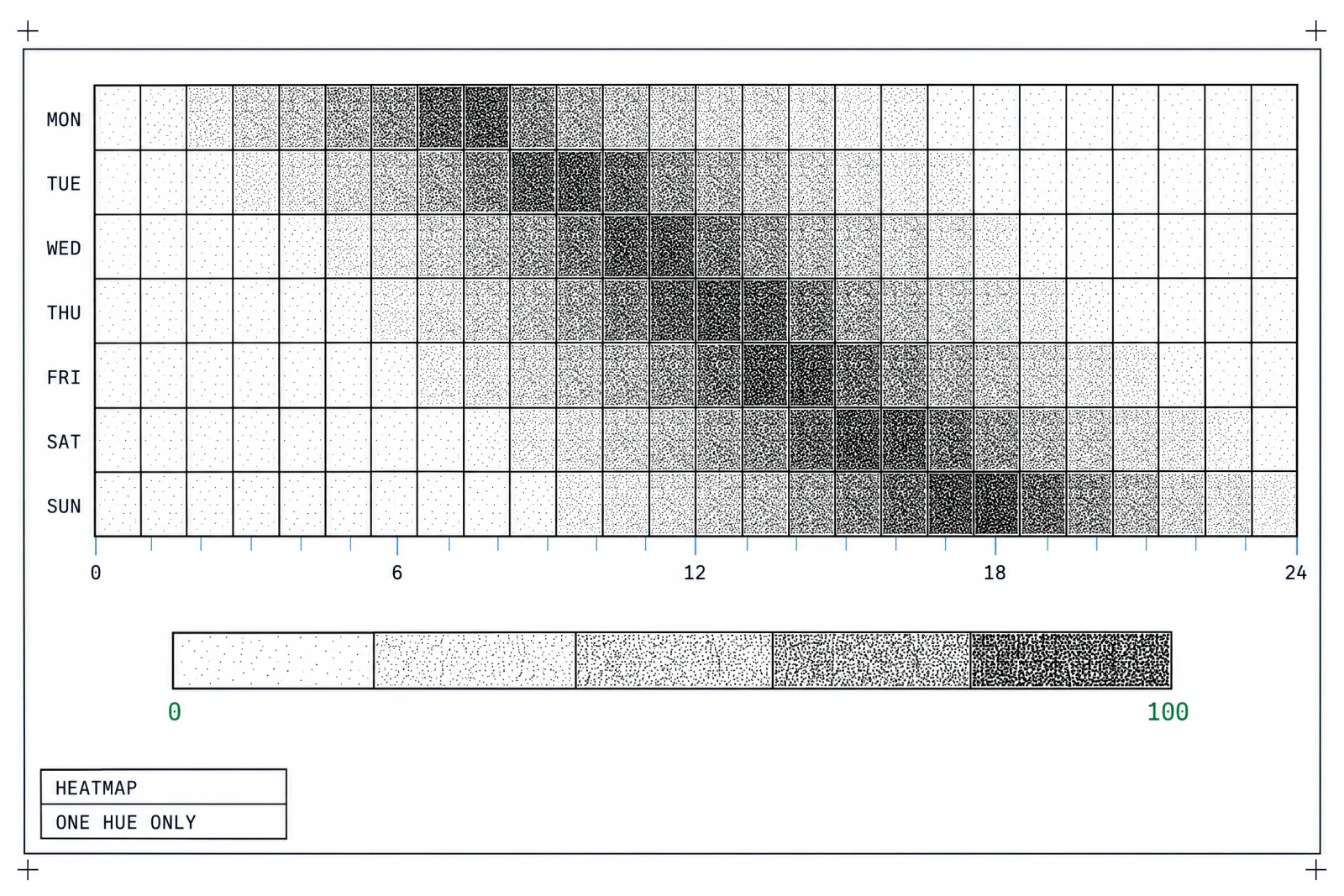
A single-hue scale reads as more or less; a rainbow reads as different categories.
Radar chart
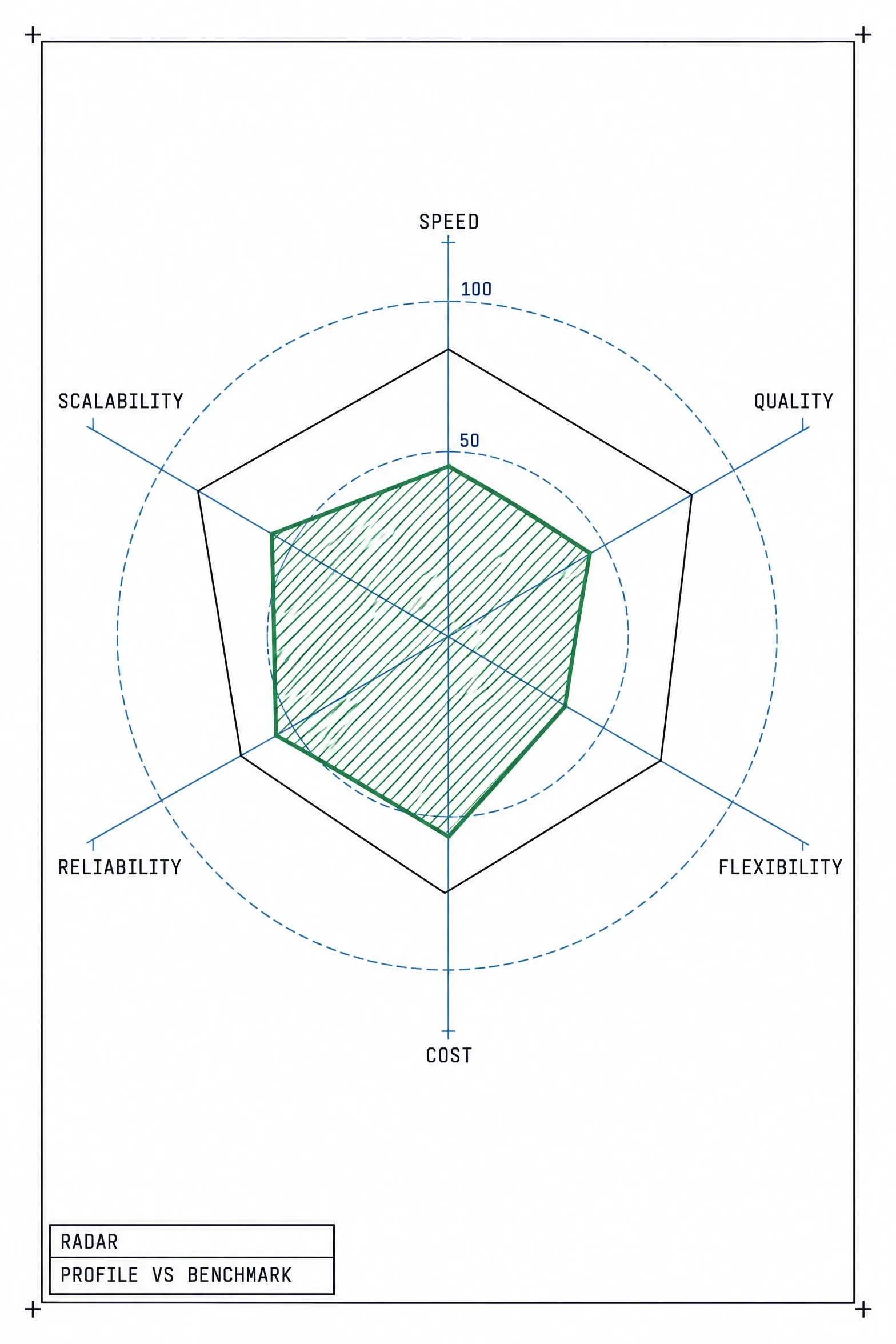
Radar works for one profile against a benchmark; it lies when used to rank.
Serves: a multivariate profile of 1 to 3 items across 5 to 8 axes. It works legitimately for comparing one profile against a benchmark, such as a skill assessment or a spec sheet.
Anatomy: axes evenly spaced around the center, one shared scale with explicit max values, a filled polygon at low opacity with a visible stroke, a legend for 2 or 3 profiles.
Breaks when used to rank. Polygon area depends on axis order, so reshuffling axes changes the winner.
Rule of thumb: same scale on every axis, 3 series maximum. If you need a starting point, the free radar chart template comes in light and dark with every viewport covered.
Parallel coordinates
Serves: records across 5 to 15 dimensions, each dimension a vertical axis and each record a polyline. It is a tool for analysts screening options, such as comparing laptops by price and battery life.
Anatomy: axes ordered so related dimensions sit next to each other, thin semi-transparent lines, brush handles on every axis, selected lines in color with the rest faded.
Breaks when shipped static, because 500 lines with no brushing look like noise.
Rule of thumb: ship it only with brushing on axes and highlighting.
Network graph
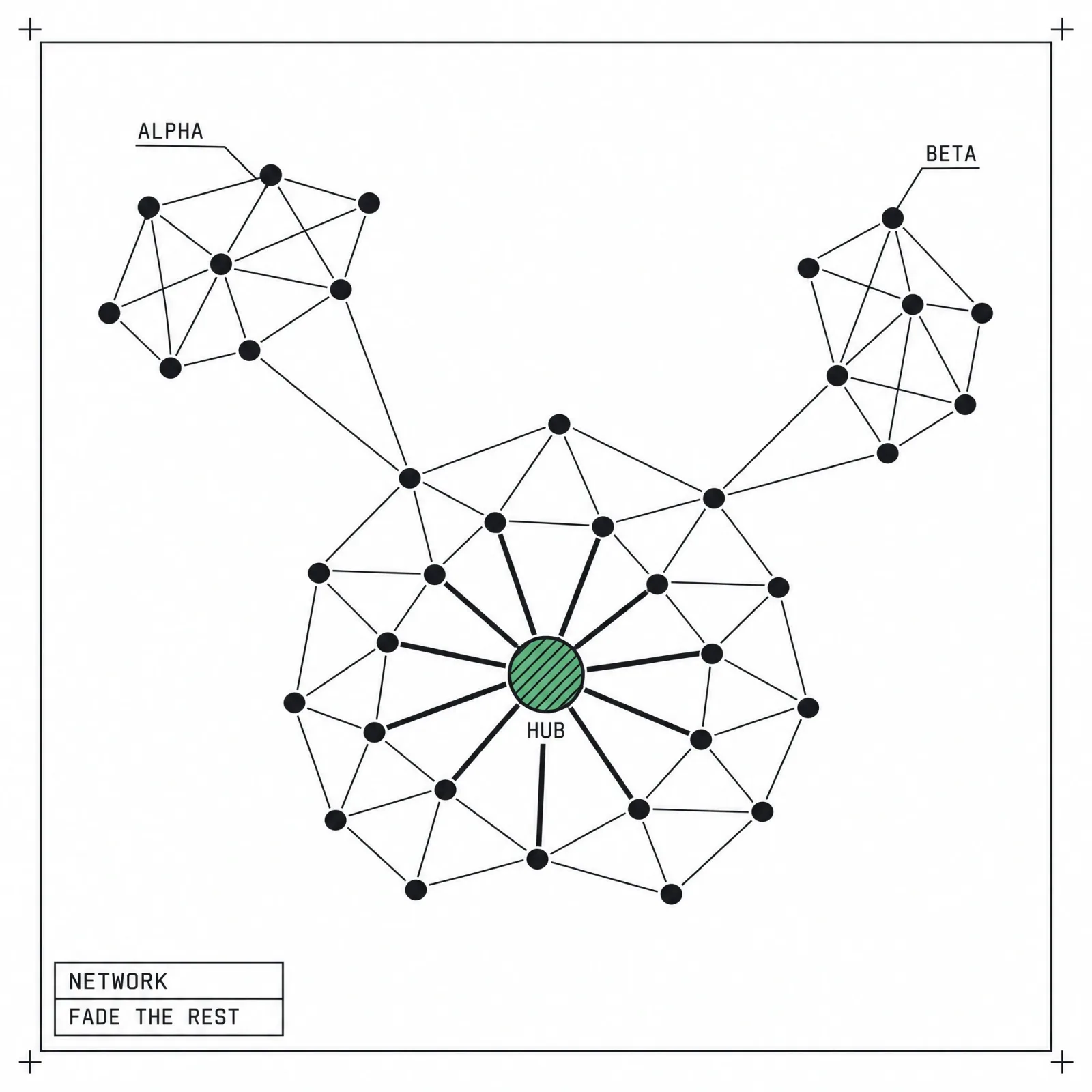
Highlight the hub and fade the rest, or the graph becomes a hairball.
Serves: relationships between entities: accounts, services, people.
Anatomy: nodes sized by degree, edges weighted by strength, a force-directed layout.
Breaks when the node count grows past what a screen can untangle and nothing filters it down.
Rule of thumb: default to an ego network around one selected node.
Chord diagram
Serves: two-way flows among 4 to 10 groups arranged on a circle, such as migration between regions or users moving between pricing plans.
Anatomy: outer arcs sized by each group's total, ribbons whose width at each end shows volume in that direction, ribbons colored by source, a tap or hover state that isolates one group.
Breaks when the group count outgrows the ring (my working limit is around 10) and the ribbons tangle into a knot nobody can trace.
Rule of thumb: a heatmap matrix of the same data reads values more accurately, so ship the chord next to it.
Flow and hierarchy charts
Flow charts show where quantities move between stages or states. Hierarchy charts show what contains what.
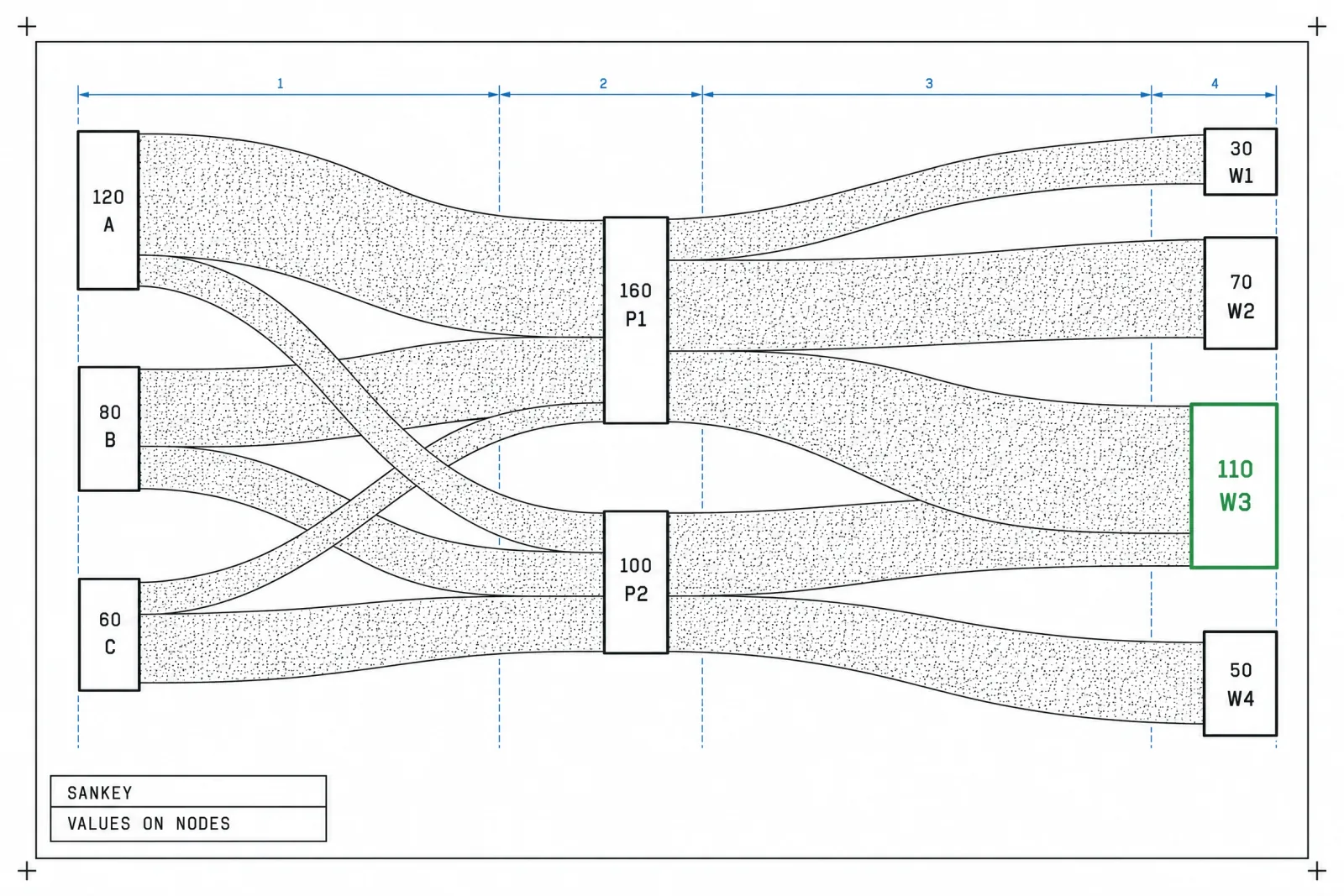
Color by source and the reader can follow each stream to its outcome.
Sankey diagram
Serves: quantity moving across stages. Common Sankey diagram use cases: energy balance, budget allocation, traffic source to conversion, user paths.
Anatomy: node columns, link width proportional to quantity, links colored by source.
Breaks when flows loop back or the diagram passes 5 columns.
Rule of thumb: print values on the nodes so nobody has to estimate ribbon widths.
Funnel
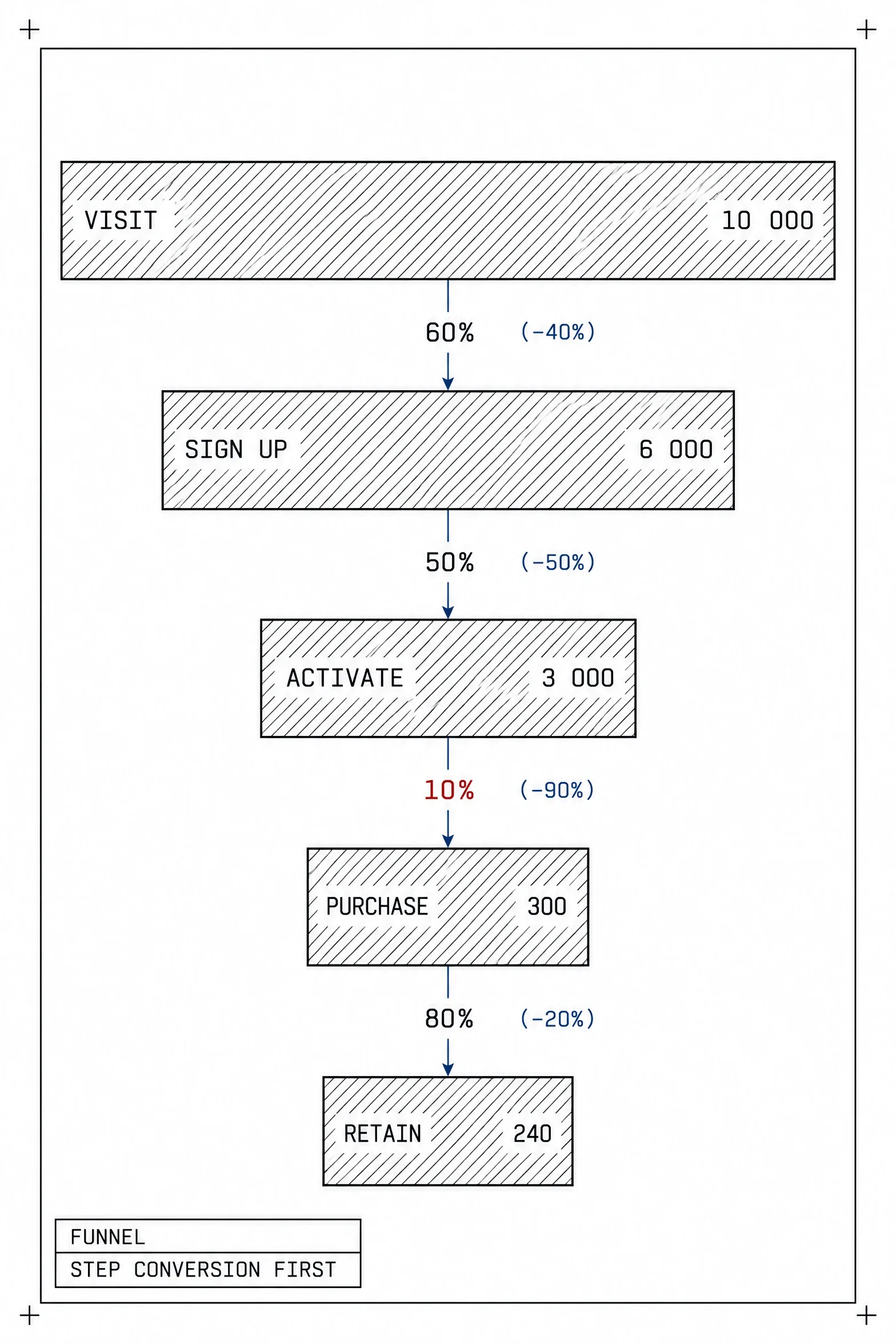
Step conversion between stages tells you where to fix; the overall rate tells you how much it matters.
Serves: drop-off through strictly sequential stages.
Anatomy: stages top to bottom, absolute counts, step conversion and overall conversion. The marketing dashboard guide shows funnels in their natural habitat.
Breaks when the journey is non-linear, and when trapezoid shapes distort the widths.
Rule of thumb: centered horizontal bars beat a drawn funnel shape.
Waterfall
Serves: how a starting value becomes an ending value through positive and negative changes.
Anatomy: a start bar, floating delta bars, color plus sign for direction, connector lines, a closing total bar.
Breaks when subtotals look like deltas.
Rule of thumb: anchor every subtotal to the baseline and give it a neutral color.
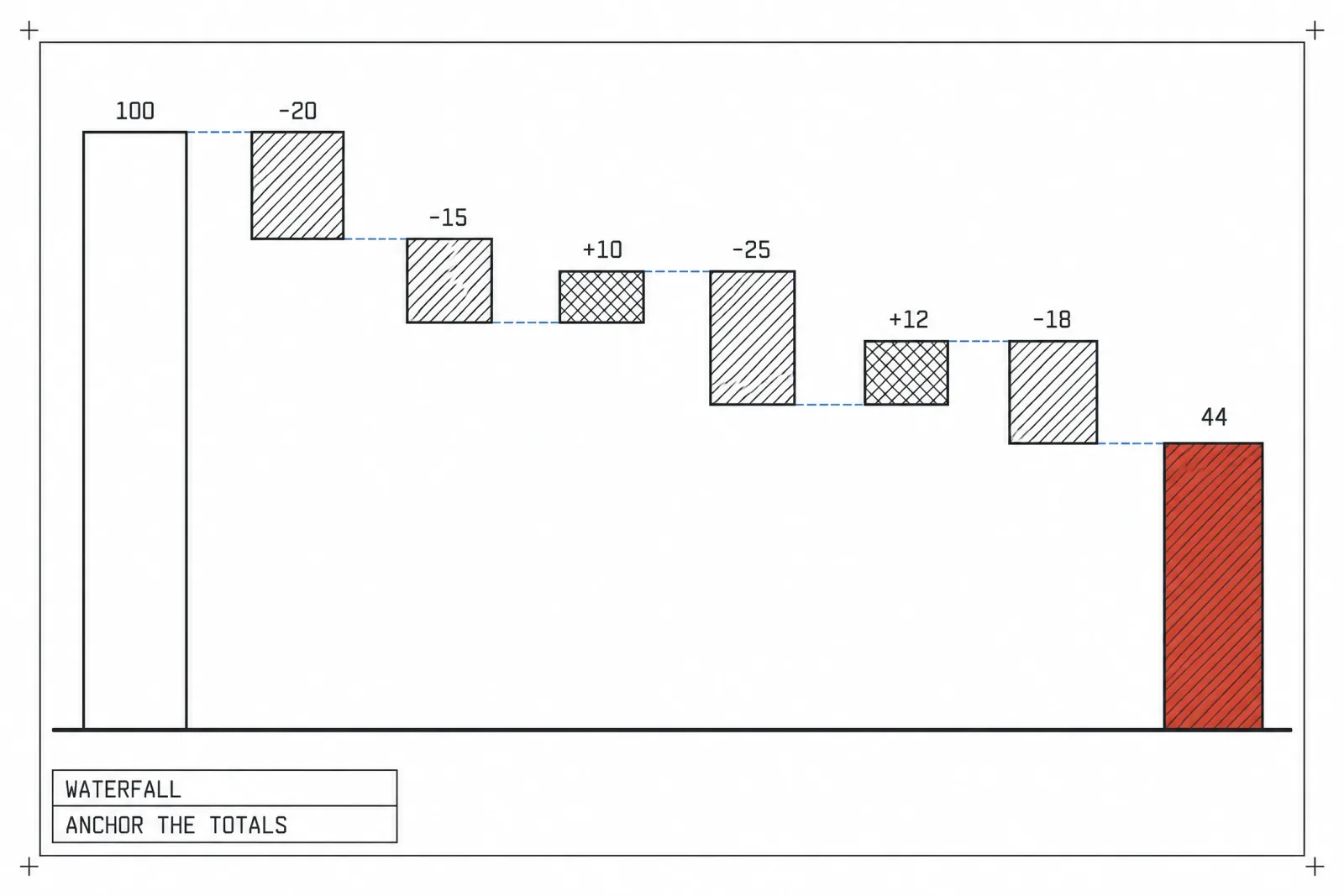
Anchored totals and signed labels let the reader audit the bridge in seconds.
Gantt chart
Serves: tasks over time with dependencies.
Anatomy: one task per row, bars for duration, dependency arrows, diamond milestones, a vertical today marker.
Breaks when 50 ungrouped rows scroll past the fold.
Rule of thumb: group tasks into collapsible phases.
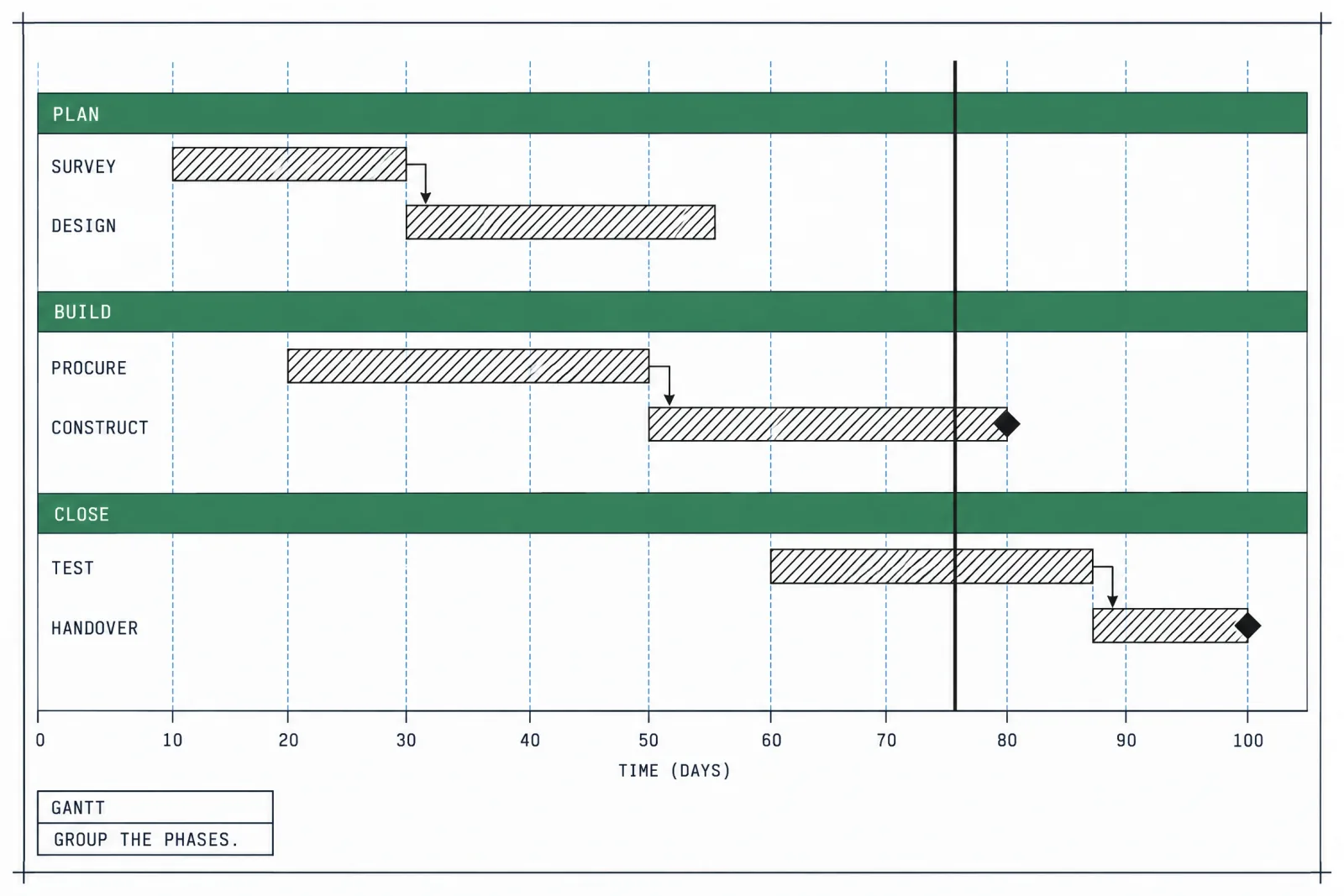
The today marker answers the only question most viewers bring: are we late.
Dendrogram and icicle
Serves: hierarchy. A dendrogram shows clustering results, with merge height as distance between clusters. An icicle is a rectangular sunburst stacked top to bottom, and its labels read horizontally.
Anatomy: a dendrogram puts leaves along one axis, a distance scale on the other and a cut line marking the chosen clusters. An icicle puts the root as a full-width bar on top, with each child row splitting its parent's width.
Breaks when a dendrogram is shown to people who never ran the clustering, or an icicle goes deeper than its labels can fit.
Rule of thumb: pick an icicle over a sunburst whenever labels matter.
Geography charts
A map is the right axis only when location is the question. If the user wants a ranking, a sorted bar chart of regions beats any map.
Choropleth
Serves: a value per region as shading.
Anatomy: a classed sequential or diverging scale with 5 to 7 steps, a legend, a hatched pattern for no data.
The normalization trap: raw totals map population. Show per capita or per 1,000 users instead of totals.
Breaks when large, sparse regions dominate the visual weight.
Rule of thumb: normalize every time, no exceptions.
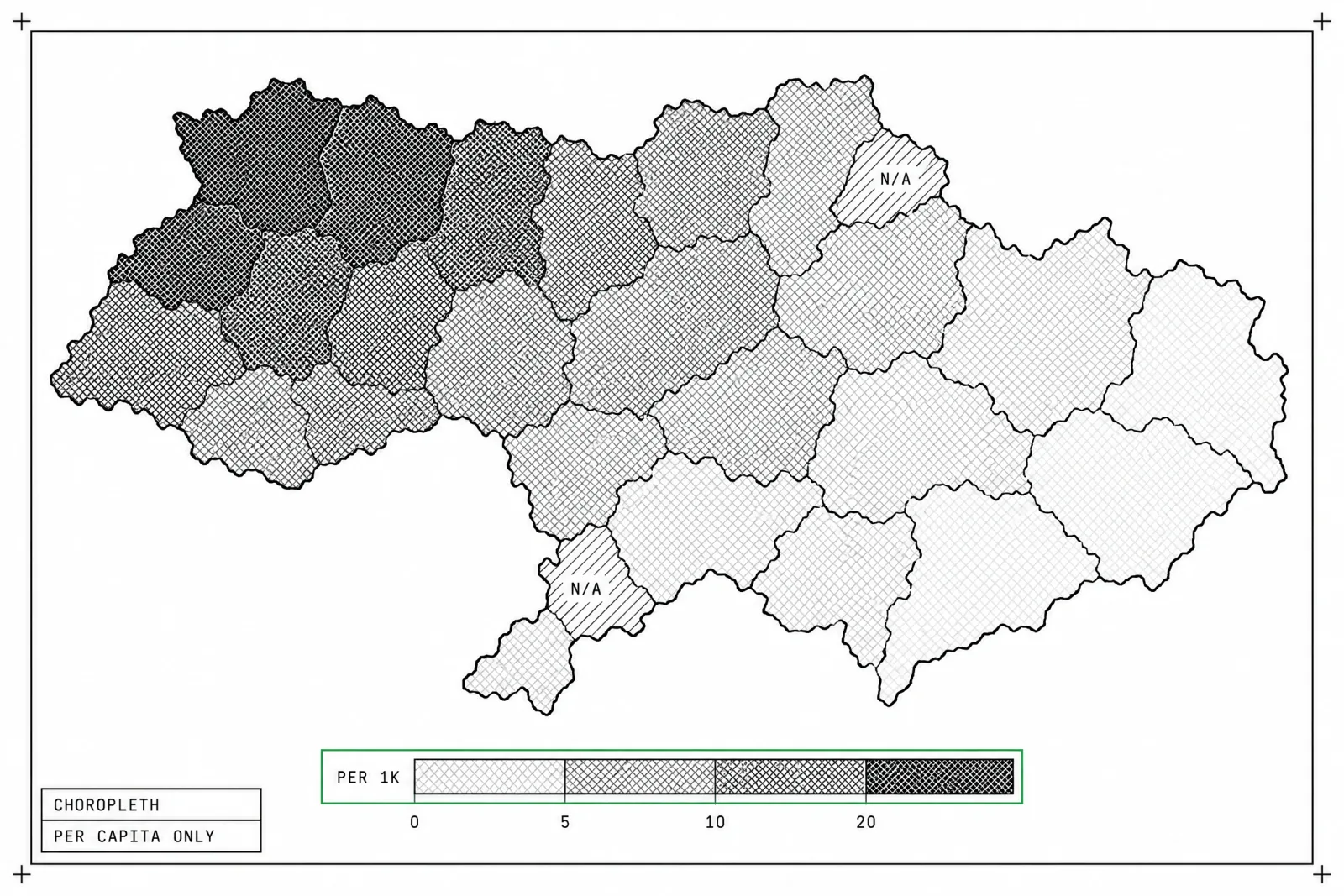
Per-capita shading shows the rate; raw totals would only show where people live.
Point and hexbin map
Serves: individual locations as points, such as store locations or signups. Hexbin aggregates dense areas into hexagonal cells colored by count.
Anatomy: a muted basemap with roads and place names faded, small semi-transparent points, hex cells on a sequential scale with a legend that states the cell size.
Breaks when thousands of points overlap in cities and empty rural areas look important by contrast.
Rule of thumb: switch to hexbin once points start to pile up. I start testing it at around 1,000 points.
Flow map
Serves: movement between origins and destinations, such as shipments or migration, with line width as volume.
Anatomy: curved lines so routes do not stack on top of each other, arrowheads or a tapering stroke for direction, width on a stated scale, labeled origin and destination nodes.
Breaks when every route is drawn and the map turns into spaghetti.
Rule of thumb: draw the top 10 flows in color and fade the rest. A selector lets users bring any other route forward.
Cartogram
Serves: regions resized by value, so small dense regions get their fair share of ink. A tile grid cartogram gives every region one equal square.
Anatomy: in a tile grid, squares or hexes sit roughly where each region lies, with a short region code in every tile and color carrying the value. Contiguous cartograms stretch the real borders instead.
Breaks when the audience cannot recognize the distorted shapes and spends the first look hunting for their own region.
Rule of thumb: use tile cartograms for familiar sets like US states or EU countries.
Progress and KPI charts
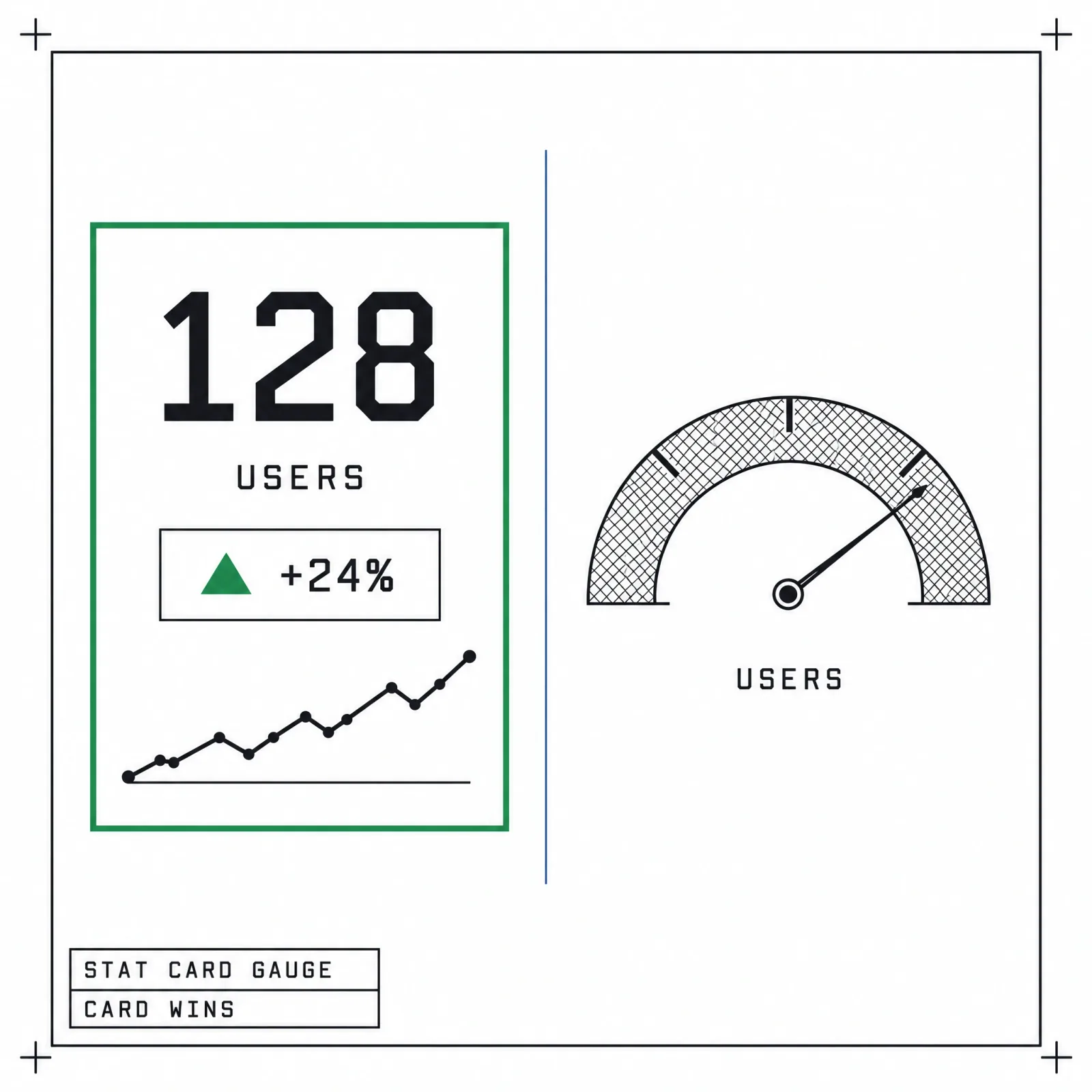
Same metric, and the stat card adds direction and history in less space.
These charts get the most screen time and the least design thought.
Gauge and radial progress
Serves: a single value against a range. Gauges waste space: a semicircle spends a whole card on one number, encodes it as angle and shows no history.
Anatomy: an arc with a stated min and max, the value printed as a number in the center, bands or ticks marking thresholds, the unit next to the number.
Radial progress earns its place for a single goal in a small widget, like activity rings.
Breaks when six gauges line up in a "gauge wall".
Rule of thumb: replace with a bullet chart or a stat card.
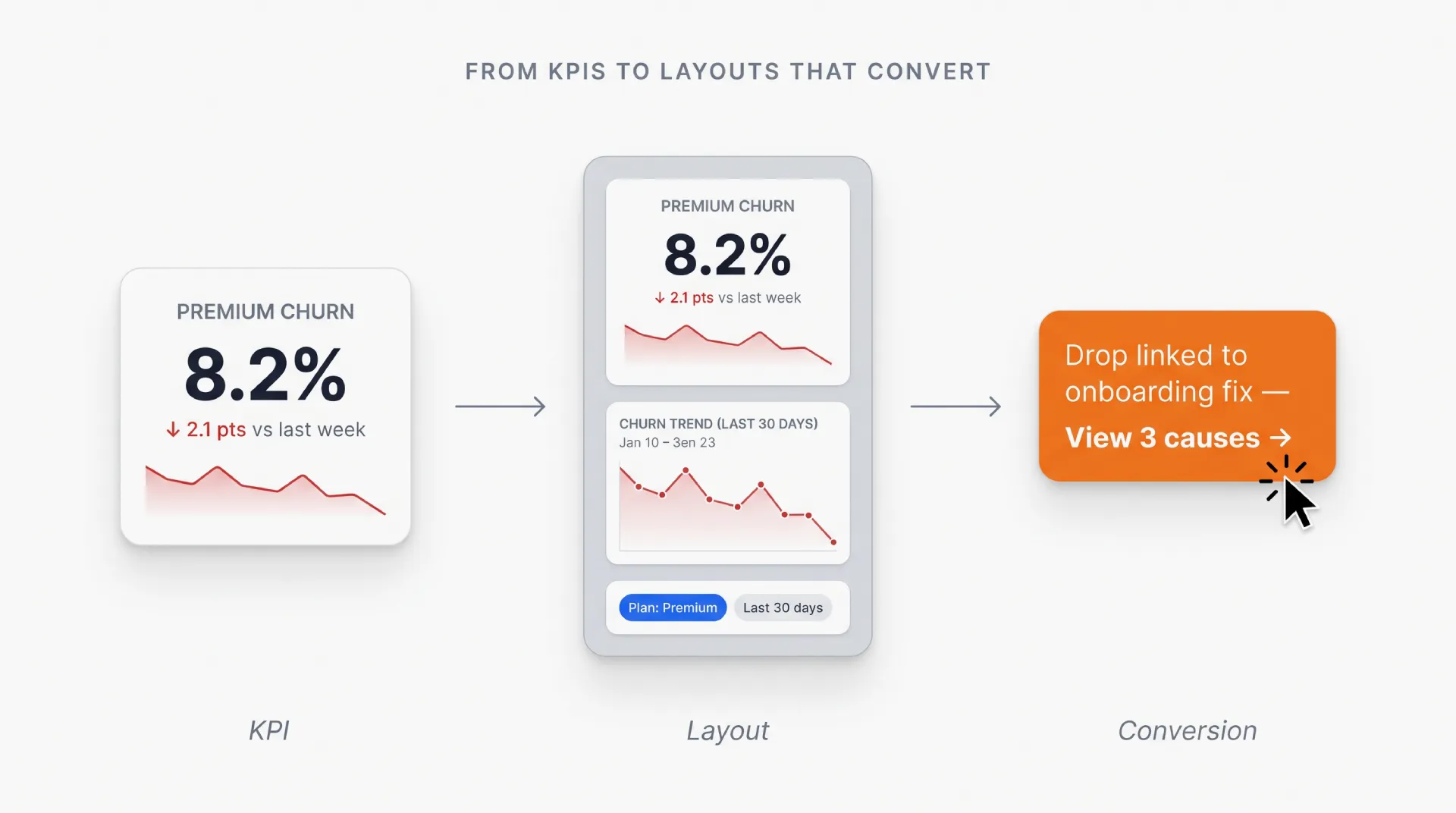
Stat card with delta
Serves: one number with direction and context.
Anatomy: label, value, a delta chip with the comparison period ("+4.2% vs last week"), an optional sparkline.
A stat card beats both gauge and bullet when the question is "up or down, and by how much".
Breaks when the delta has no comparison period, or direction is shown by color alone.
Rule of thumb: pair every color with an arrow and a sign.
Progress and ratio bars
Serves: completion or capacity, such as 64 of 100 GB used.
Anatomy: a track, a fill, the label with both numbers, an optional threshold mark where a warning state begins. Mini-bars inside table cells turn a column of percentages into a scannable shape.
Breaks when the value can exceed 100% and the bar quietly clips, or when the fill changes color with no text explaining the threshold.
Rule of thumb: show an overflow state, print the numbers and keep every bar in a column on one scale.
Cohort retention grid
Serves: retention by signup cohort.
Anatomy: a triangular table, cohorts as rows, periods since signup as columns, percent retained in each cell, sequential shading.
Cohort grids are a staple of the SaaS dashboard examples worth studying.
Breaks when cells show raw counts, so cohorts of different sizes cannot be compared.
Rule of thumb: row-normalize to percent and read down a column to compare cohorts.
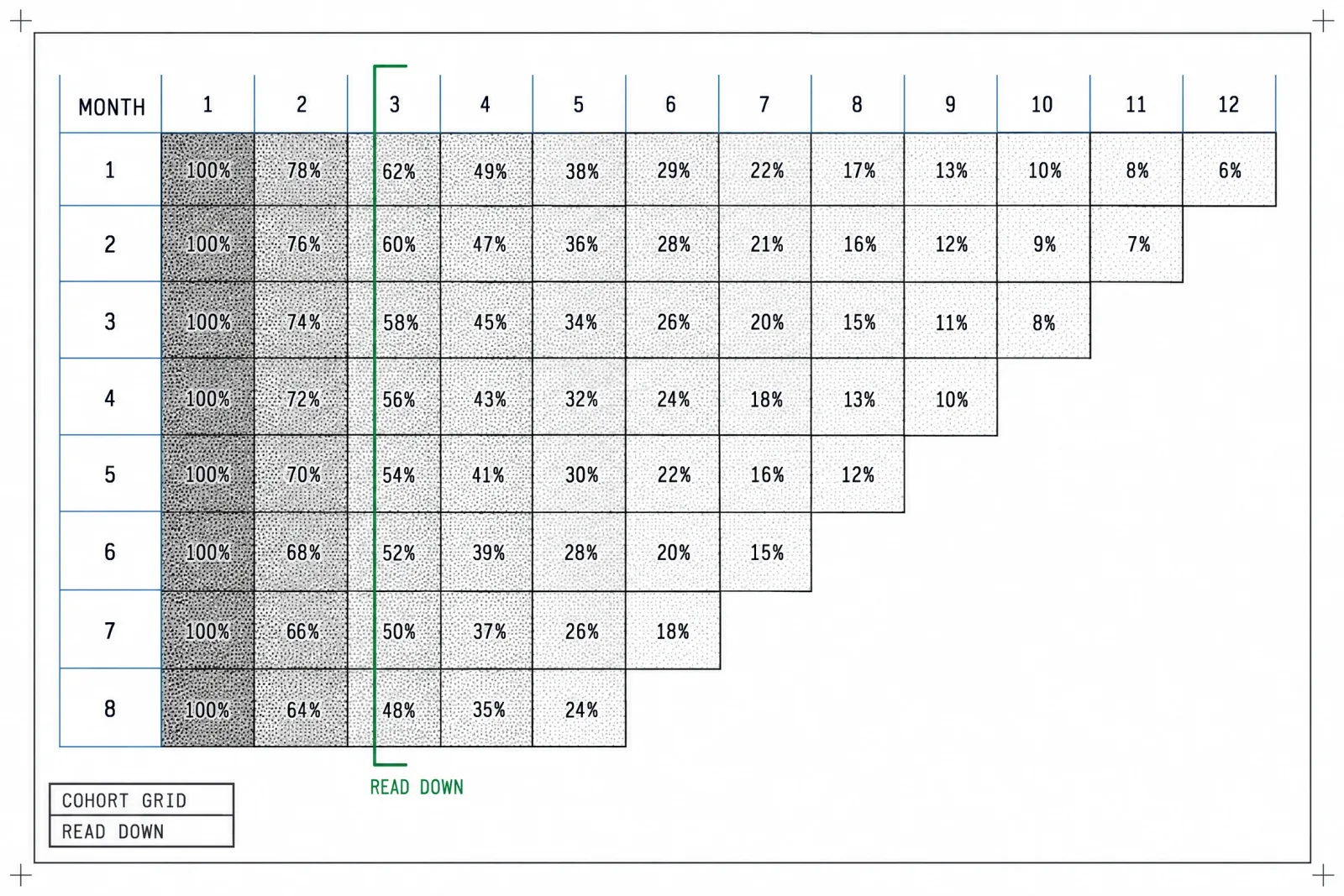
Read down a column to see whether newer cohorts retain better than older ones.
Calendar heatmap
Serves: daily rhythm over a year, seasonality and streaks.
Anatomy: days in a week-by-week grid with weekdays as rows, 4 or 5 shade steps plus a distinct empty zero, month labels on top, a small legend running from less to more. GitHub's contribution graph is the version most people already know.
Breaks when readers need exact daily values, or when the zero shade looks like the lowest data step.
Rule of thumb: pair it with a tooltip and a total for the visible range.
Mobile charts that survive a 390px screen
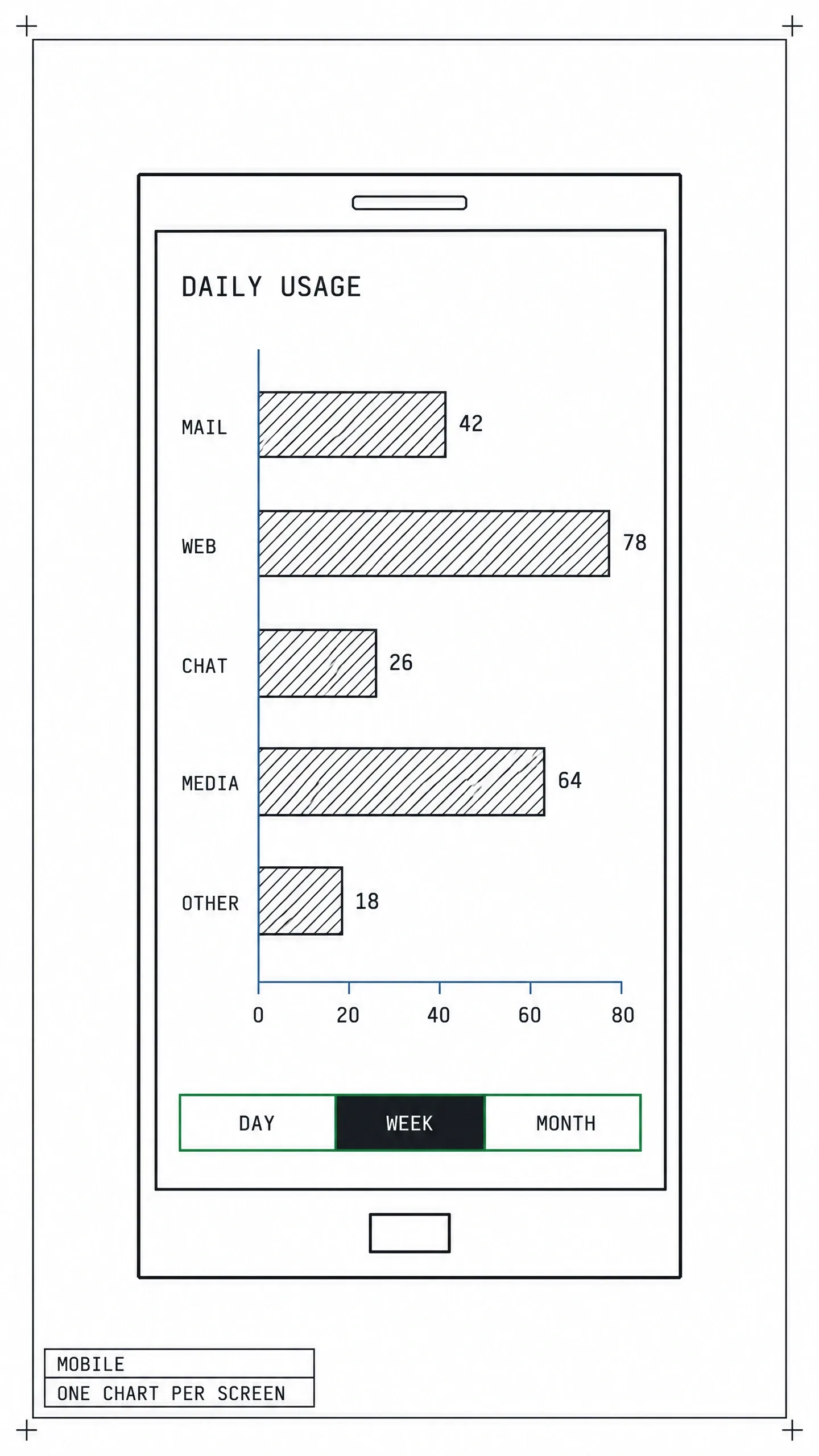
One chart per screen, labels you can read at arm's length.
A 390px phone with 16px gutters leaves about 358px of chart width. Twelve monthly bars get under 30px each, labels included. Bars, lines and sparklines survive that squeeze. The charts below need a swap.
Swap the chart, keep the question
The question stays the same on mobile. The chart that answers it changes.
→ Pie or donut → one 100% stacked bar with direct labels.
→ Multi-line → small multiples, one line per mini chart on a shared y-scale.
→ Gauge → stat card with a delta chip.
→ Grouped bar → horizontal bars, one group per row.
For time series, show the last 7 to 14 periods and let the user scroll back horizontally. Pin the y-axis so values stay readable mid-scroll, and open the scroll at the most recent period. The mobile dashboard templates show this pattern at real phone sizes.
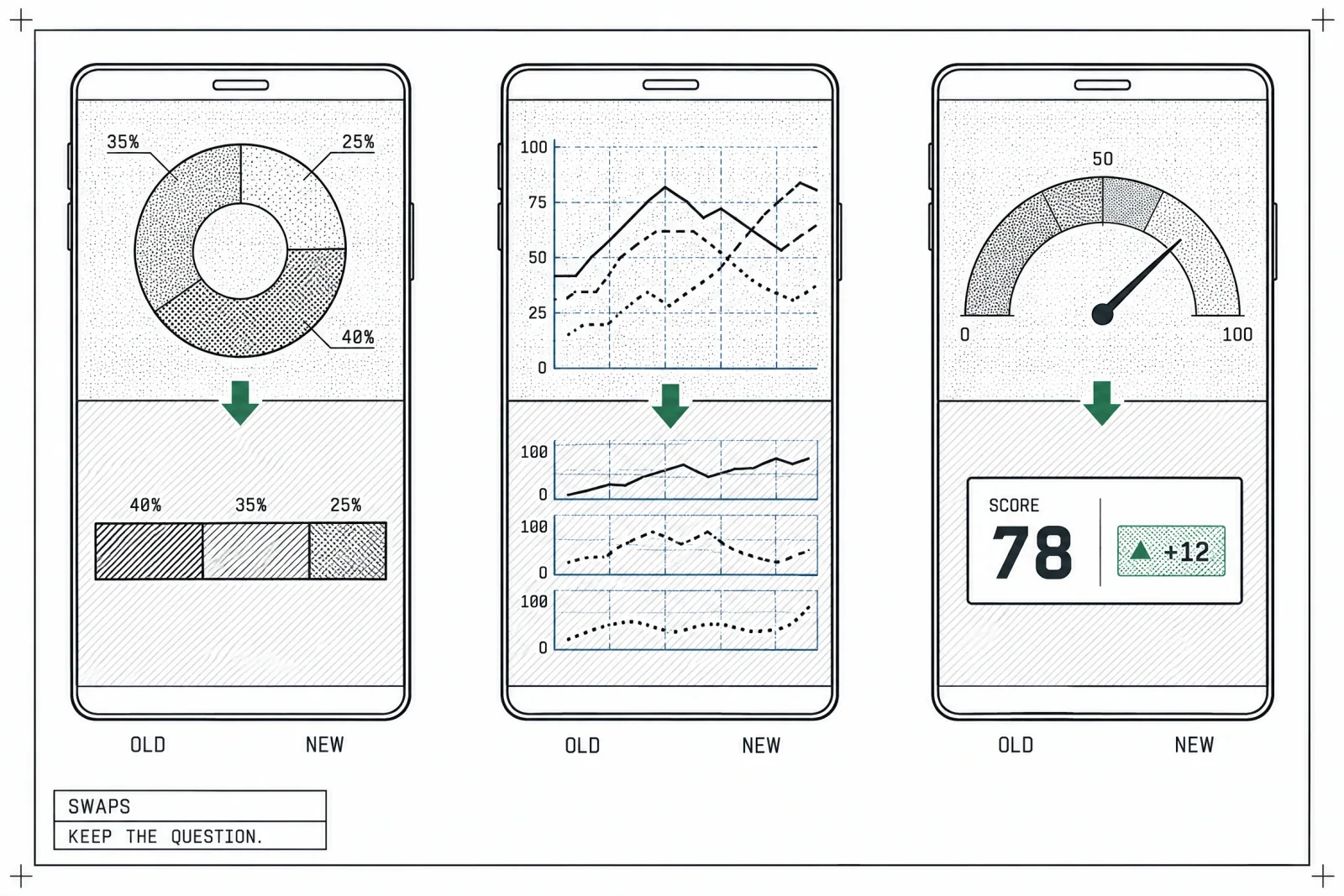
Each swap keeps the question and changes the encoding to one a thumb-sized screen can carry.
Inline charts and tap tooltips

Tap pins the value; hover never existed on this screen.
Sparklines in list rows and mini-bars inside table cells carry trend and magnitude without a full chart. Hover does not exist on touch, so tooltips become tap-to-reveal: tap pins the value with a crosshair, tap outside dismisses. The tooltip UI design guide covers the touch rules in detail.
Put time-range filters in the bottom third of the screen, inside thumb reach, as a segmented control or a bottom sheet. Apple's accessibility guidelines put the minimum touch target at 44x44pt, which rules out tapping individual 6px bars.
Thin labels instead of shrinking them. Keep the first and last label, show every second or third in between, abbreviate months and numbers ("1.2k"), and never rotate text.
Three charts that never ship on mobile at full density
❶ Network graph. Replace with a ranked list of top connections.
❷ Parallel coordinates. Replace with 2 or 3 small scatter plots.
❸ Chord diagram. Replace with a heatmap matrix or a sorted bar list.
Anatomy every chart shares
→ Axis baseline. Bars start at zero, always. Lines may truncate when the change matters more than the magnitude, as long as the axis labels say so.
→ Labels. Horizontal text only. Label the data directly at the bar end or line end, and drop the legend whenever you can.
→ Sorting. Sort by value unless the categories carry an inherent order like time or rank bands.
→ Reference lines. A target, a previous-period line or an average gives the number something to be compared against.
→ Units. Put the unit in the axis title or the value itself ("$1.2M", "42 ms"). Unitless numbers force guessing.
→ Title as a sentence. "Churn fell to 2.1% after the March pricing change" beats "Churn rate". The finding goes in the title; the chart proves it.
☞ A title that states the finding is the single cheapest upgrade in chart UI design. It also forces you to know what the chart is for.
These rules sit inside a broader set of dashboard design principles about hierarchy and density.
Color in charts
Three palette types cover every chart. Pick by the data type, never by mood.
| Palette | Data type | Rule |
|---|---|---|
| Categorical | Unordered groups | 6 to 8 distinct hues at most |
| Sequential | Low to high values | One hue, light to dark steps |
| Diverging | Values around a midpoint | Two hues meeting at a neutral center |
Highlight the series that matters in your brand color and set everything else in gray.
To study how shipped products color small chart cards, browse dashboard screens in the AI inspiration gallery and note where they spend saturation and where they hold back.
Never use hue alone for a critical distinction. Red-green is the most common type of color vision deficiency, and a reader who has it struggles to tell your red and green series apart. Pair hue with lightness, a pattern or a label. Blue with orange is the safest default pair.
In dark mode, desaturate. Fully saturated hues vibrate against near-black surfaces, so drop saturation and raise lightness for each step.
For a full system, the Hyper Charts kit styles every chart card in a dark theme.
Accessibility for charts
Accessible charts are readable charts with a fallback attached.
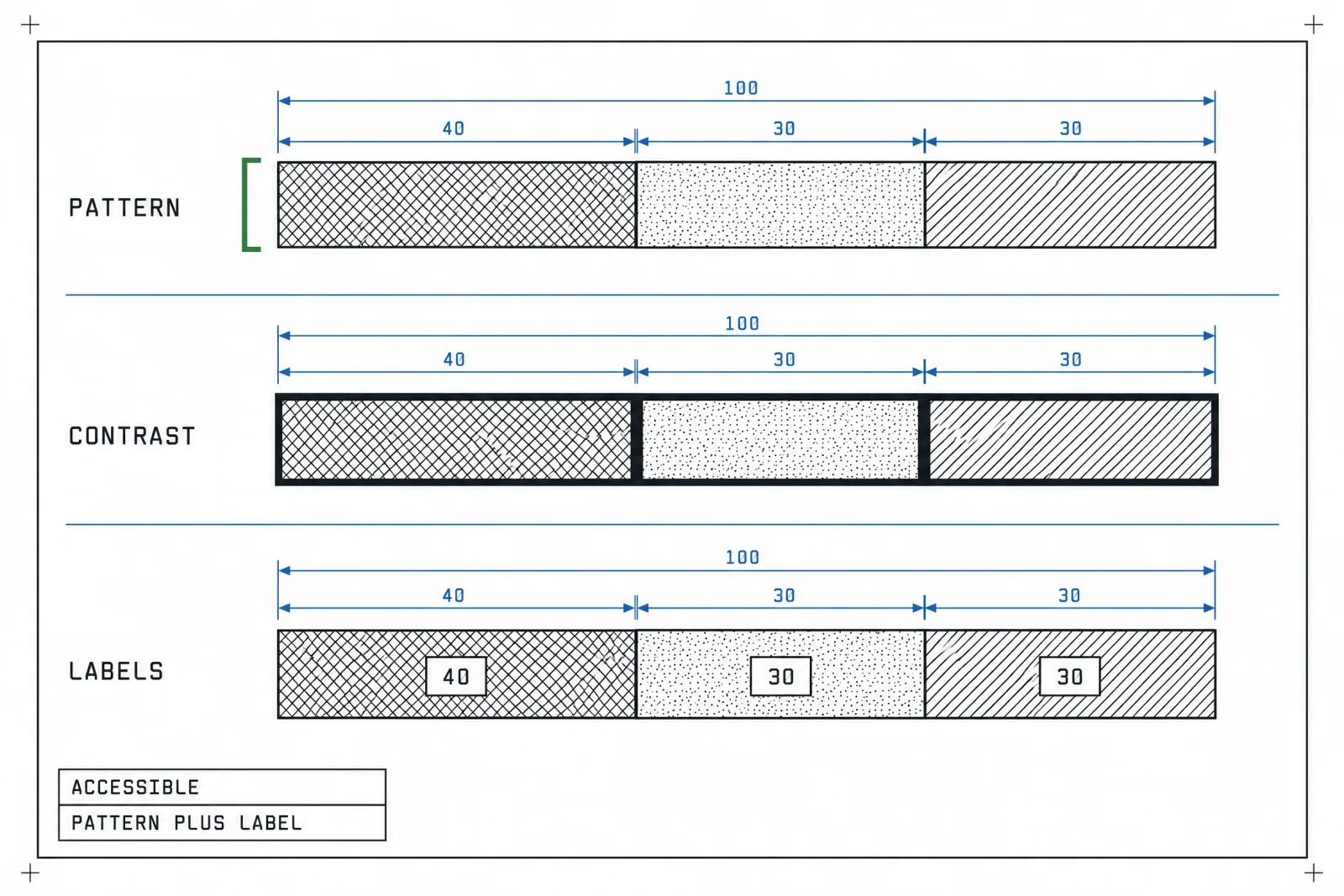
Patterns and direct labels carry the meaning when color fails.
→ Pattern fills for stacked and grouped series, so print and grayscale still work.
→ Direct labels instead of a legend that forces a color lookup.
→ A data table fallback, one toggle away, for screen readers and for anyone who wants exact numbers.
→ An aria description that states the finding, the same sentence as your title, on the chart container.
→ Keyboard tooltips. Arrow keys move between data points with a visible focus ring.
→ 3:1 minimum contrast for bars, lines and focus indicators against their background, per WCAG 2.2 non-text contrast.
☞ The most common failure I see is red versus green as the only signal for down versus up. Add an arrow and a sign, and the delta chip works for everyone.
14 chart anti-patterns
Each of these costs the reader seconds. The worst of them cost the reader the right conclusion.

Each of these trades accuracy for looks, and readers pay the difference.
1. 3D charts. Perspective distorts size. Fix: flat 2D, always.
2. Dual y-axis. Two scales let you draw any correlation you want. Fix: two charts stacked on a shared x-axis.
3. Truncated bar baseline. Bar length stops matching value. Fix: start bars at zero or switch to a dot plot.
4. Pie with more than five slices. Thin angles are unreadable. Fix: sorted bars.
5. Rainbow sequential scale. Hue jumps create fake boundaries. Fix: one hue, light to dark.
6. Gradient fills under noisy lines. Random jitter starts to look like a trend. Fix: a plain line or a flat light fill.
7. Unlabeled stacked areas. Readers cannot tell which layer is which. Fix: labels inside layers.
8. Gauge walls. Six semicircles say less than six numbers. Fix: a row of stat cards.
9. Chartjunk gridlines. Heavy grids compete with data. Fix: 3 to 5 light horizontal lines, or none with direct labels.
10. Animating every load. A long intro animation on every filter change delays every answer. Fix: animate transitions between states only.
11. Tooltip-only values. Hidden numbers fail on touch and screen readers. Fix: print key values on the chart.
12. Legend-only encoding. Color lookups slow every read. Fix: direct labels.
13. Radar for ranking. Area changes with axis order. Fix: sorted bars.
14. Choropleth without normalization. You end up mapping population. Fix: per-capita rates.
Pre-ship chart checklist
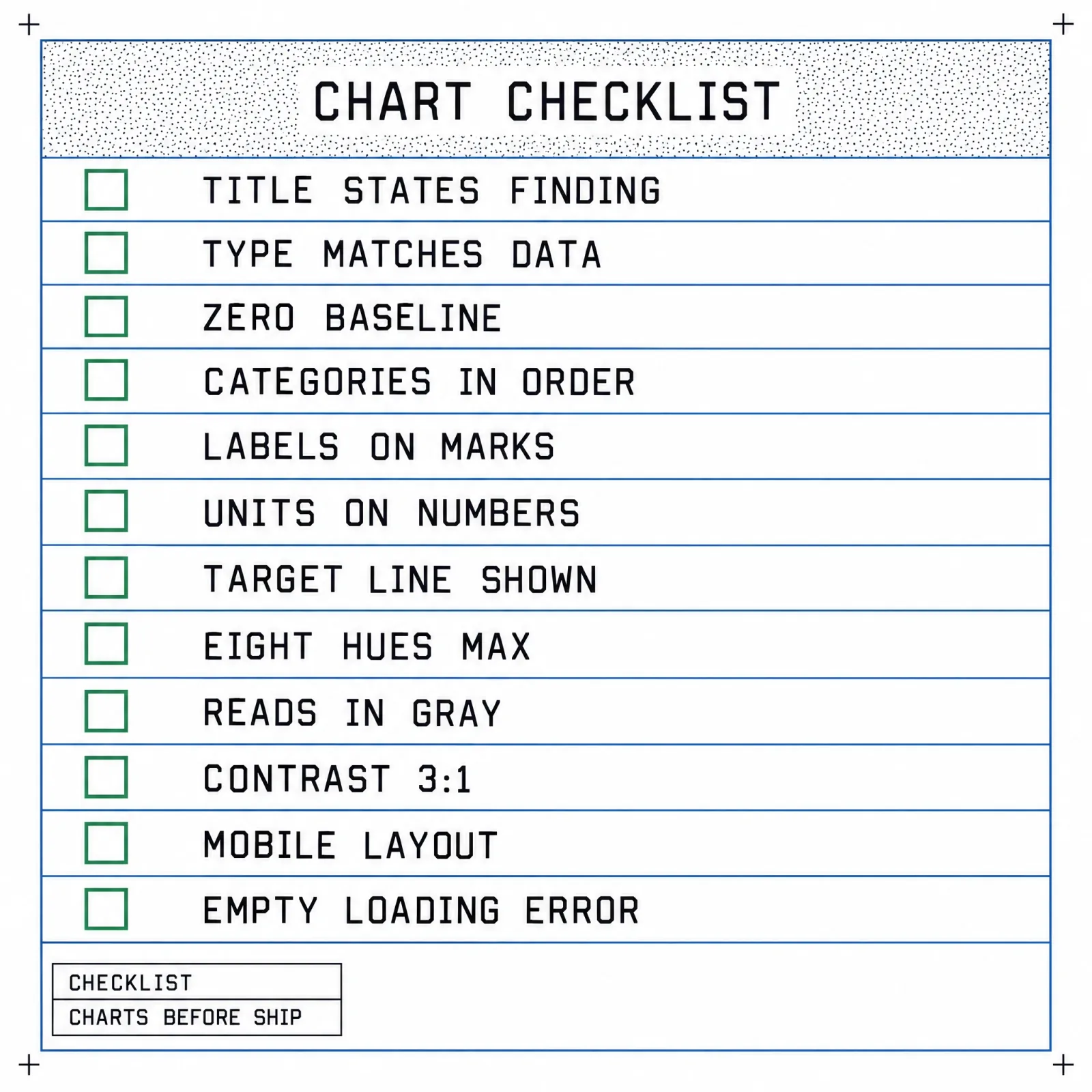
Twelve yes-or-no questions, answered before the chart reaches review.
→ Does the title state the finding as a sentence?
→ Does the chart type match the data relationship?
→ Do bars start at zero?
→ Are categories sorted by value or by an inherent order?
→ Are values labeled directly, with the legend removed where possible?
→ Does every number carry a unit?
→ Is there a target or comparison line where one exists?
→ Do 8 or fewer hues appear, with everything secondary in gray?
→ Does meaning survive in grayscale?
→ Do marks meet 3:1 contrast against the background?
→ Is there a mobile version with tap tooltips and thinned labels?
→ Are the empty, loading and error states designed? The empty state UI design guide covers what a blank chart card should say.
Frequently asked questions
What is the most readable chart type?
The sorted horizontal bar chart. People judge length along a shared baseline more accurately than angle, area or color, which is why bars beat pies and bubbles for exact comparison. Horizontal orientation also leaves room for long category labels without rotated text, which matters on mobile.
When should you use a pie chart?
Use a pie or donut only when the parts add up to a meaningful whole, you have five slices or fewer, and the story is one dominant share, such as 70% of traffic coming from mobile. If two slices sit within 5 points of each other, a bar chart shows the gap and the pie hides it.
How do you decide between a bar chart and a line chart?
Ask whether the x-axis is continuous. A line connects points, so it claims continuous change between them, which fits time series. Bars treat each value as separate, which fits categories and short runs of periods you compare one by one. A common threshold is around 20 time points; past that, a line reads faster.
What charts work on mobile dashboards?
Stat cards with a delta, sparklines, horizontal bars, single stacked bars and line charts trimmed to the last 7 to 14 periods. Swap pies for a stacked bar, multi-line charts for small multiples and gauges for stat cards. Replace hover tooltips with tap-to-reveal and keep labels at 12px or larger.
How many colors should a chart use?
For categorical data, 6 to 8 distinct hues at most, and fewer is better: highlight the series that matters and gray the rest. Sequential data needs one hue in light-to-dark steps. Diverging data needs two hues meeting at a neutral midpoint that means something, like zero or the target.
Are 3D charts ever acceptable?
For business dashboards, no. Perspective makes front slices and bars look larger than rear ones, so the reader decodes the projection instead of the data. The exceptions are data that is three-dimensional by nature, such as terrain or physical spaces, where depth carries information and the user can rotate the view.
The short version
Name the relationship first. The chart family follows from that answer, and the shared anatomy rules do the rest. Every decoration on top, from a 3D tilt to a gauge, costs the reader time.
Design the 390px version alongside the desktop card. Choosing the mobile swap early is cheaper than retrofitting it.
Shipping a data product or a dashboard and want its design story in front of 17,000 designers and founders? Publish on Setproduct.