

Roman Kamushken
Sidebar navigation is the component your users touch most and the one your team designed least. It sits on every screen of every session and holds the whole information architecture together.
Most teams copy a 240px column with icons and labels and move on. Then the product grows.
At 30 items the list scrolls past the fold. At the third nesting level nobody can tell where they are. On a 1024px laptop the content column gets squeezed, and the day a second workspace appears there is nowhere to put the switcher.
This is the reference I wish I had before my first admin panel. It covers 16 sidebar patterns with specs: 5 width modes, 5 hierarchy models, 3 multi-pane layouts and 3 mobile replacements. Teardowns of 8 products and a pre-ship checklist close it out.
Sidebar vs top bar vs both, when the sidebar wins
My threshold is 7. Past 7 top-level items, a horizontal bar starts pushing entries into a "More" menu, and hidden destinations get used less.
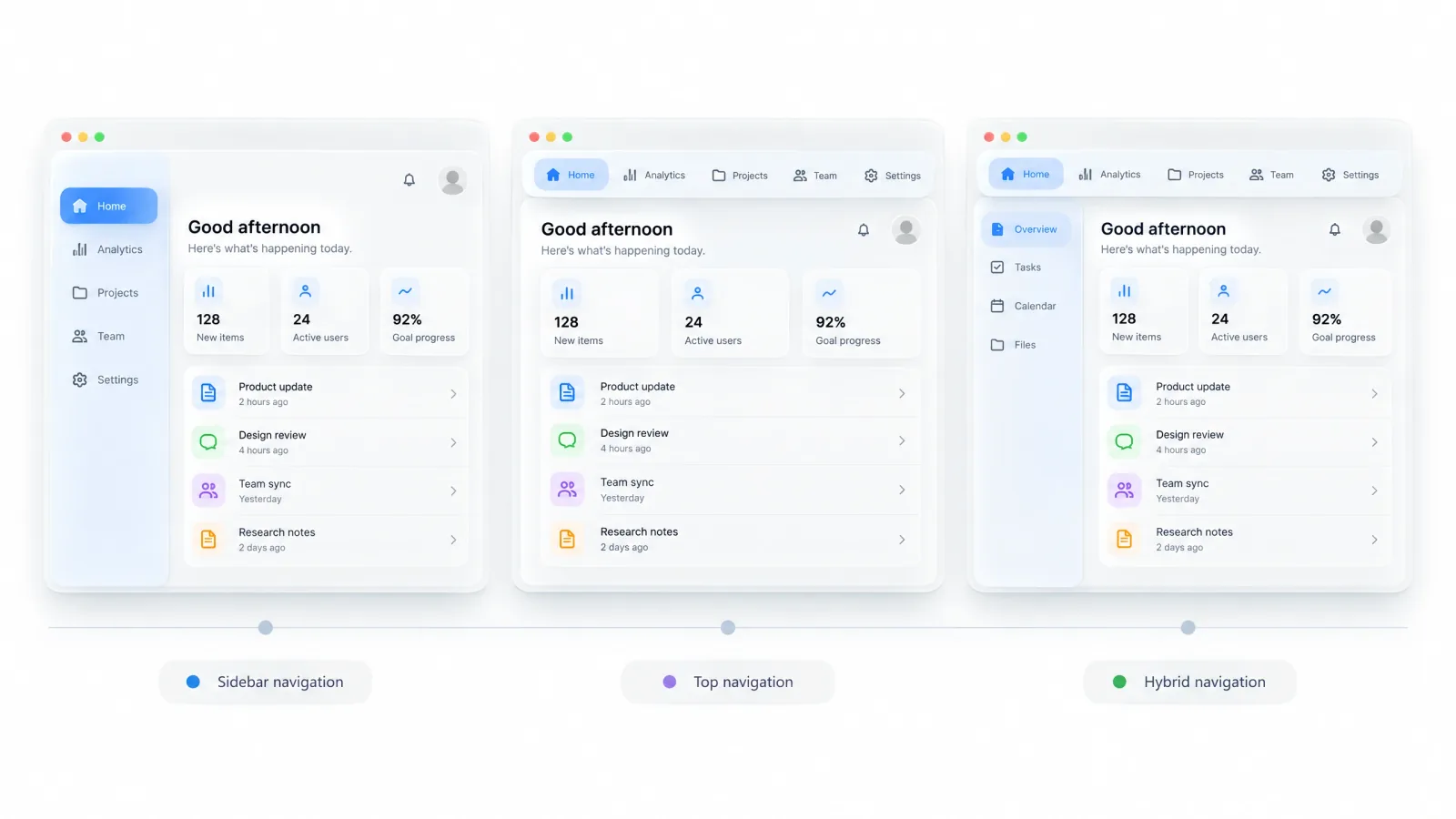
Pick the sidebar for 7+ destinations or for context that must stay visible, like the current workspace. Pick a top bar for 3-6 flat destinations.
Large platforms need both: global search and account in the top bar, the current section in the sidebar. The app bar UI design guide covers the top half of that hybrid.
| Signal | Sidebar | Top bar | Hybrid |
|---|---|---|---|
| Top-level destinations | 7+ | 3-6 | 7+ split across 2 levels |
| Hierarchy depth | 2-3 levels | 1 level | 3+ levels |
| Persistent context | Workspace or project | None | Org in top bar, section in sidebar |
| Screen cost | 240px of width | 56-64px of height | Both |
The dashboard UI design guide covers the grid that has to live next to whatever sidebar you pick.
Anatomy of a sidebar
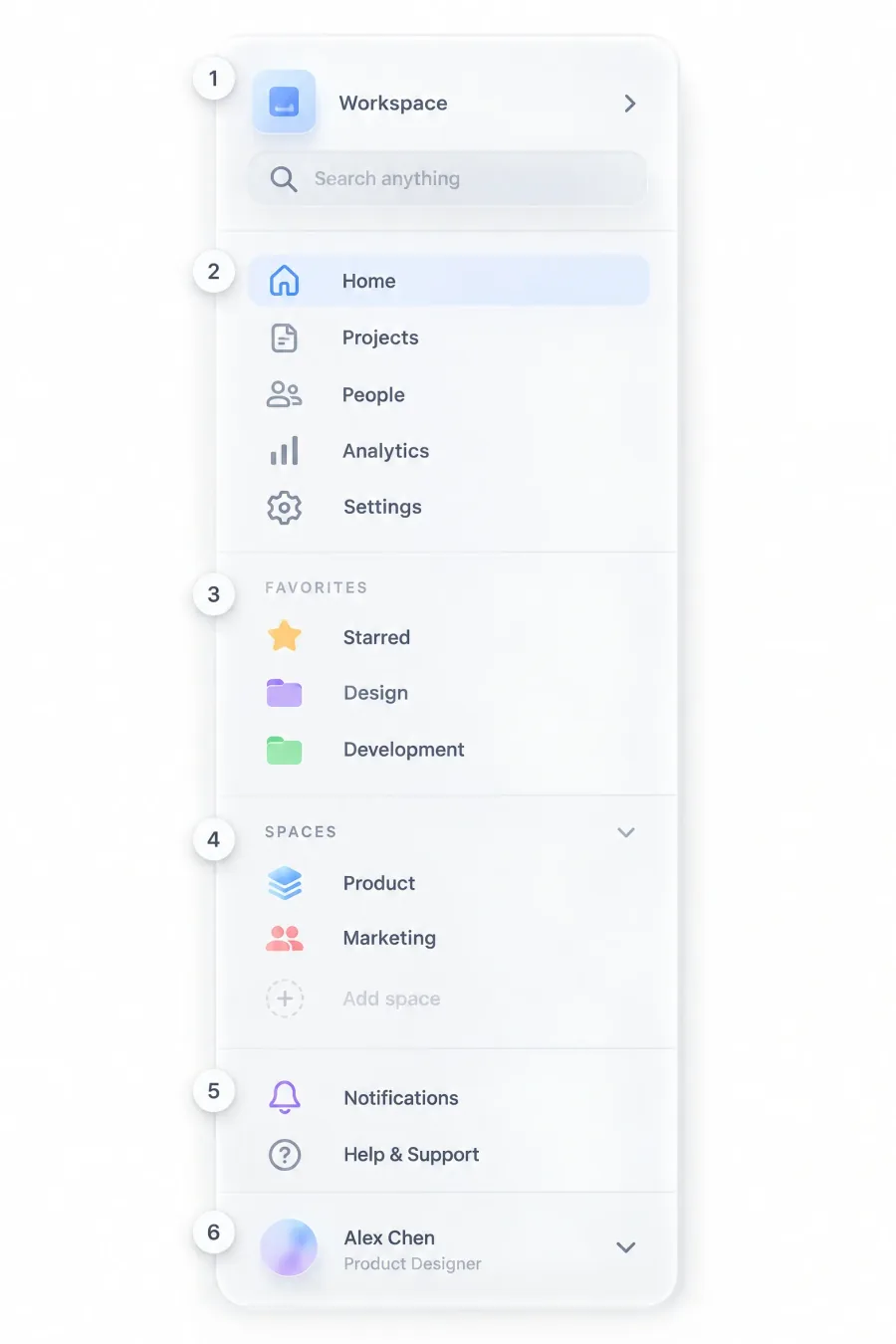
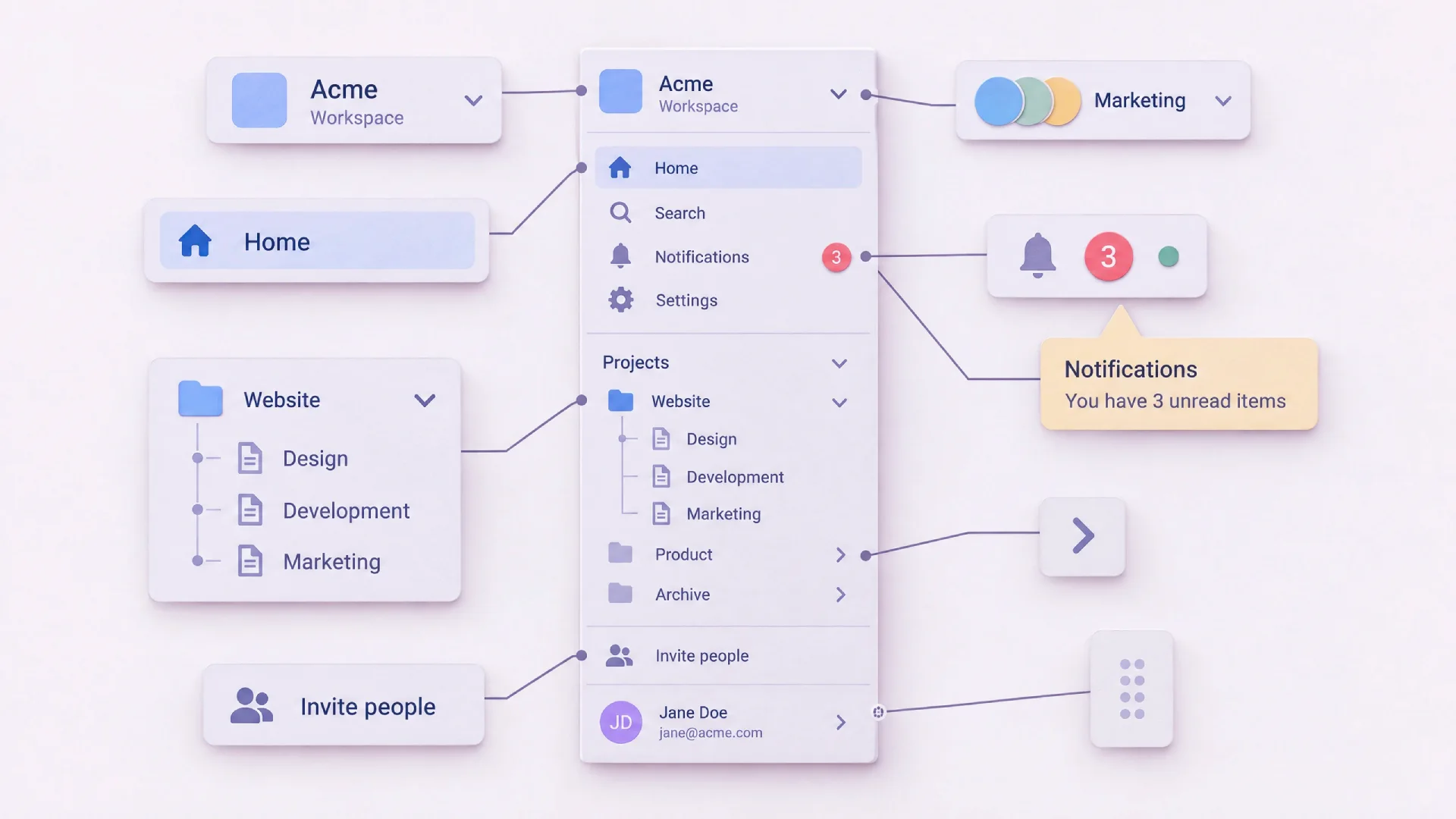
A working sidebar is 6 stacked zones, read top to bottom. Each zone has one job. Most broken sidebars I audit fail because 2 zones got merged.
❶ Header zone. The logo or workspace switcher, with a search field or command trigger right below. It answers "where am I" first. Keep notifications and promos out.
❷ Primary navigation. The 4-8 destinations people open daily: Home, Inbox, Projects, Reports. These never scroll out of reach.
❸ Secondary groups. Labeled sections for lower-frequency areas such as integrations or exports. A group with a single item is a primary item in disguise.
❹ Dynamic sections. Favorites, recents, projects, teams. Users create this content, so its length is unpredictable. Give each section a collapse control and a "Show all" cap.
❺ Utility zone. Help and settings, next to the changelog link and the upgrade prompt. People need these occasionally, so they sit low and quiet.
❻ Footer. The avatar with the account menu, plus the collapse toggle. Keep it to one row, because 4 stacked controls eat the space dynamic sections need.
☞ If a user cannot name the zone an item lives in, the item is in the wrong place.
Width states, the 5 modes
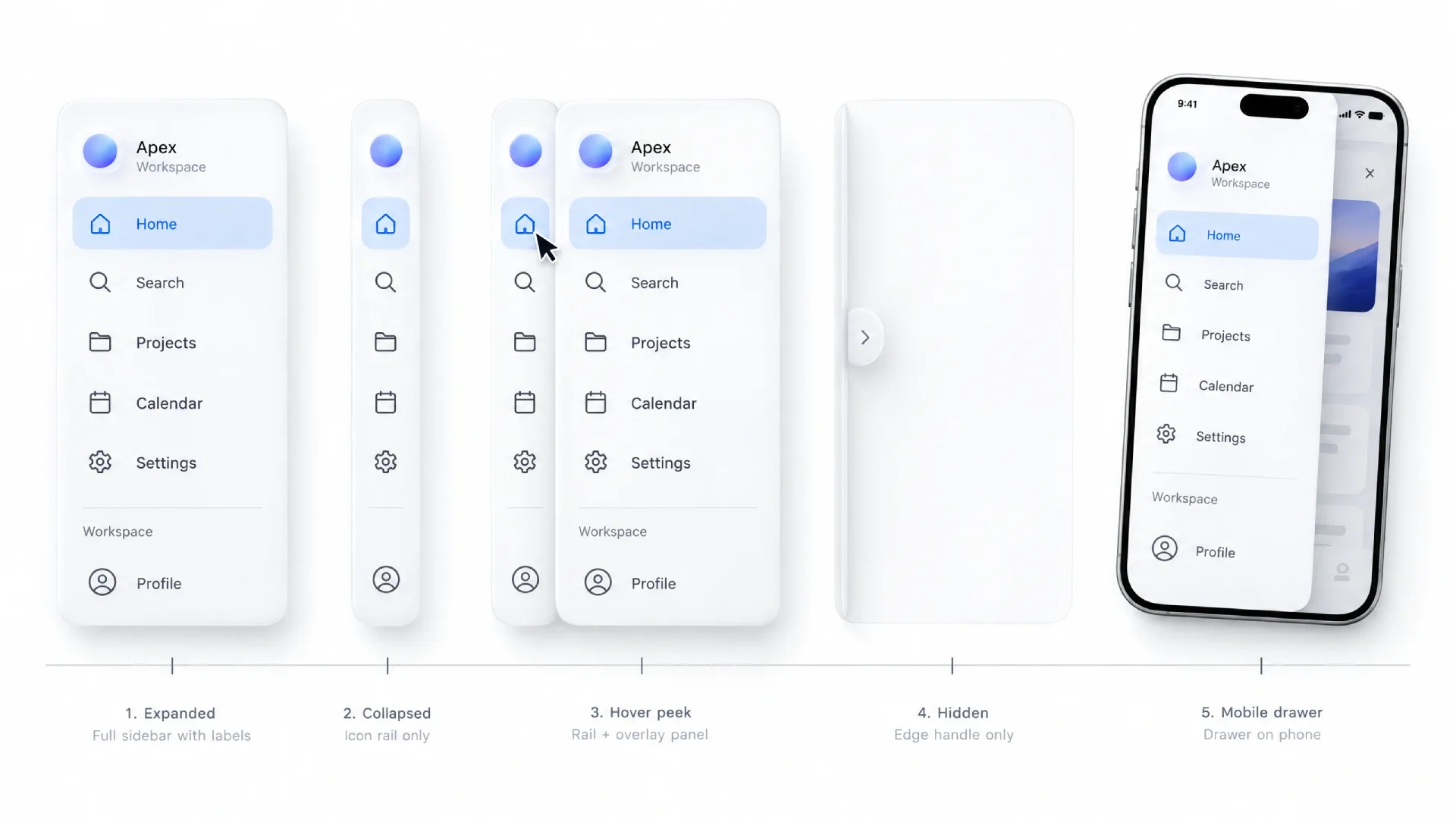
A sidebar is a set of widths with rules for switching between them. Decide the set before you draw a single icon.
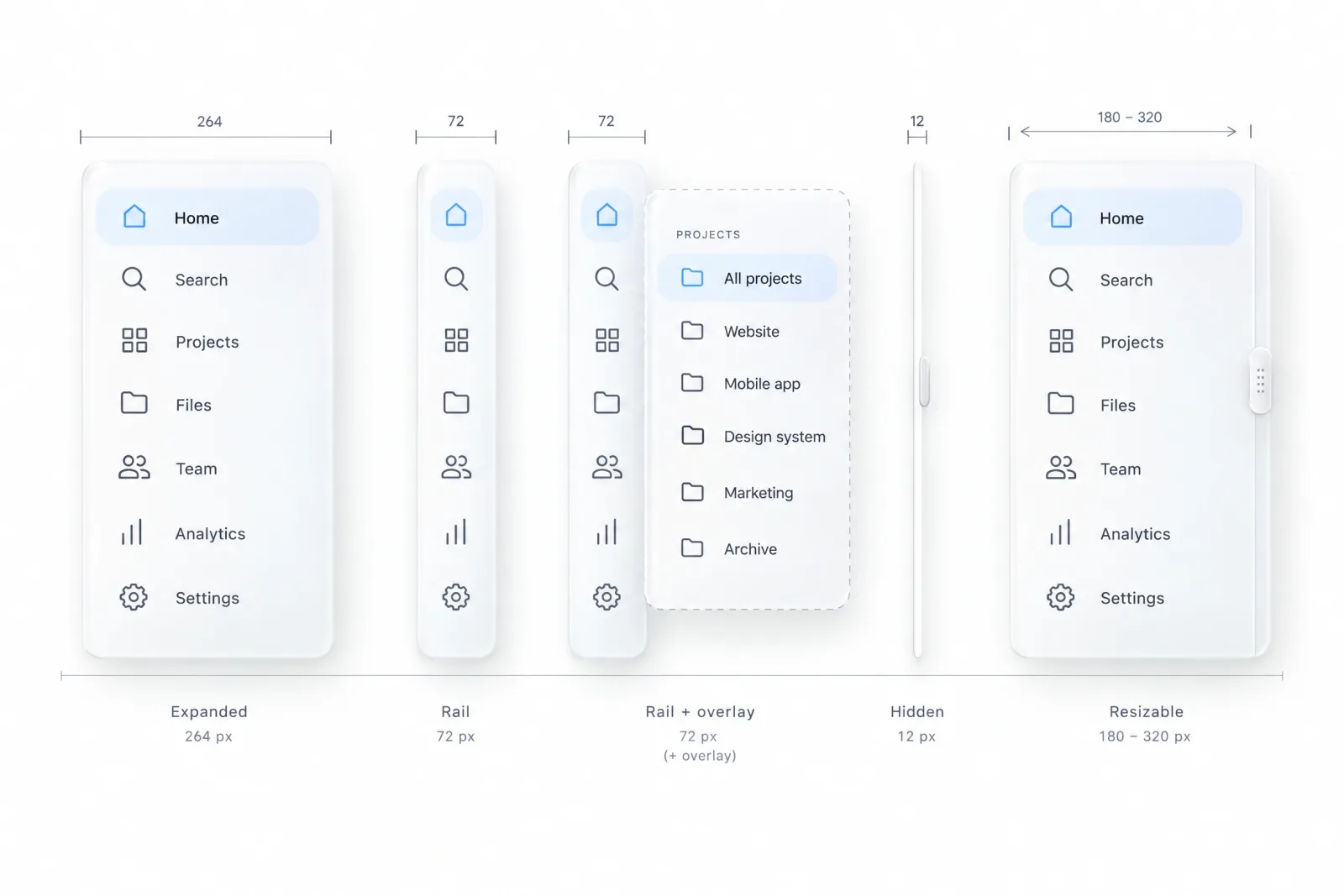
Expanded, 240-280px
The default for any dashboard with labels. 240px fits a 20px icon plus labels up to about 22 characters at 14px, with 12px between them.
Go to 280px for long project names or a nested tree. Labels truncate with an ellipsis plus a tooltip, and never wrap.
Test the width against the longest localized label, since German labels often run about 30% longer than English.
Collapsed rail (collapsible sidebar), 56-72px
Icons only, with a tooltip on hover and focus. Rails work when destinations are concrete objects with obvious icons: inbox, calendar, files, people. They fail for abstract sections such as Governance or Operations, where every icon is a guess.
The navigation rail vs sidebar choice comes down to labels: a rail trades them for about 180px of width, while a full sidebar keeps them readable at all times.
The Material 3 navigation rail puts a short label under each icon for exactly this reason. Its spec is 80dp wide with 24dp icons and 12sp labels. On the web, 56px holds a 20px icon in a 40px target, and 72px leaves room for an 11px label.
Tooltip timing decides whether a rail feels fast or sticky. I covered the delays in the tooltip UI design guide.
Hover-peek
A rail that expands into an overlay when the cursor rests on it, so the page does not reflow. Open it after 150-300ms of hover and close it after a 300ms grace period.
Skip the delays and you get flicker: a user heading for a table's first column grazes the rail, and a 260px panel flashes over their work.
Hidden or off-canvas
Editors and canvases need the whole width, so the sidebar leaves the screen entirely. Restore it with a visible edge button plus a shortcut, such as the Cmd+B default in shadcn/ui.
☛ A shortcut alone is a trap. New users never discover it and assume the navigation is gone.
Resizable
A drag handle on the edge, 200px minimum, 400-480px maximum, width persisted per user. It pays off in docs and file trees. For a 12-item admin panel it is wasted engineering time.
| Mode | Width | Icon | Item height | Label | Side padding |
|---|---|---|---|---|---|
| Expanded | 240-280px | 16-20px | 32-36px | 14px, weight 500 | 8-12px |
| Rail | 56-72px | 20-24px | 40px square | tooltip only, or 11px below | 8px |
| Hover-peek | 240-280px overlay | 16-20px | 32-36px | 14px | 8-12px |
| Hidden | 0px | n/a | n/a | n/a | n/a |
| Resizable | 200-480px | 16-20px | 32-36px | 14px | 8-12px |
Hierarchy models
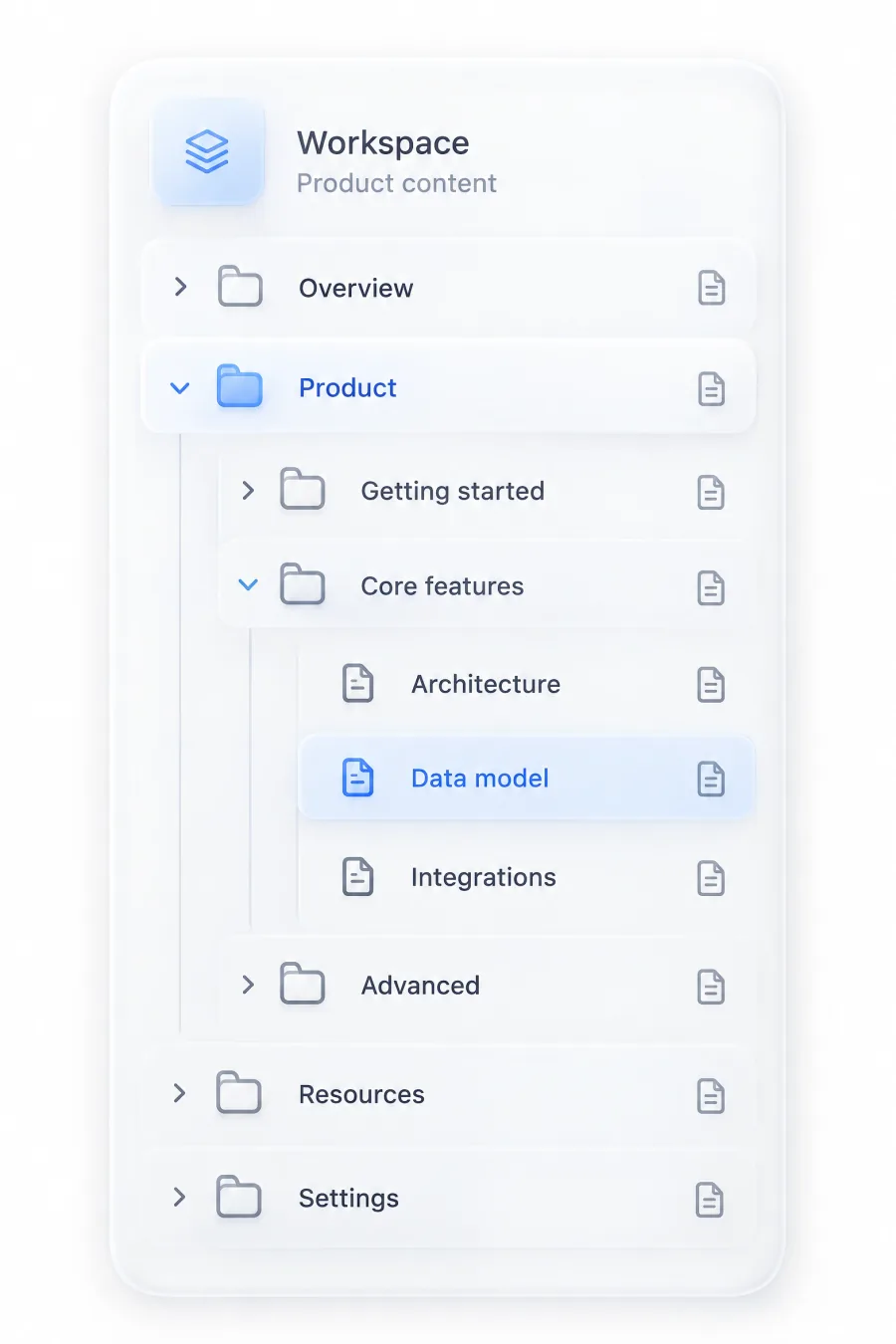
Pick the simplest model that holds your current structure plus a year of growth.
Flat list
Up to about 8 items, no headers, no nesting. Past 8, people start reading instead of recognizing, and you need groups.
Grouped sections with headers
The dashboard default. Items cluster under small headers (Workspace, Analytics, Admin) with 16-24px between groups.
Make headers collapsible once the sidebar runs past one screen height, and remember the collapsed state per user.
Nested tree
Docs, file systems, Notion pages. Indent 12-16px per level and put the expand chevron left of the label, so the click target never moves. Faint vertical guide lines help the eye track parents at level 3.
Three levels is the practical maximum. Past that, labels get crushed and people lose their place.
Once you go deeper than 2 levels, add breadcrumbs to the content header.
☞ The sidebar shows where you can go, and the breadcrumb shows where you are.
Accordion groups vs independent groups
Accordion behavior opens one group and closes the others. It keeps the sidebar short, yet opening the second section hides the first. I default to independent groups and keep accordions for mobile menus.
Tab-switched sidebars
IDE-style tools put 2-3 modes inside one sidebar, switched by an icon strip. VS Code does this with Explorer, Search and Source Control in its activity bar.
It works when the modes are different tools over the same workspace. Treat the switcher like real tabs, with one clear active state.
Choosing a model
| Items | Depth | Model |
|---|---|---|
| Up to 8 | 1 | Flat list |
| 8-30 | 1-2 | Grouped sections |
| 30+ | 2-3 | Collapsible groups plus search |
| Unbounded, user-created | 3 | Nested tree with breadcrumbs |
| 2-3 distinct tools | any | Tab-switched sidebar |
Double sidebars and multi-pane
When one column cannot hold global and local navigation, split it. The first column picks the context, the second lists its contents.
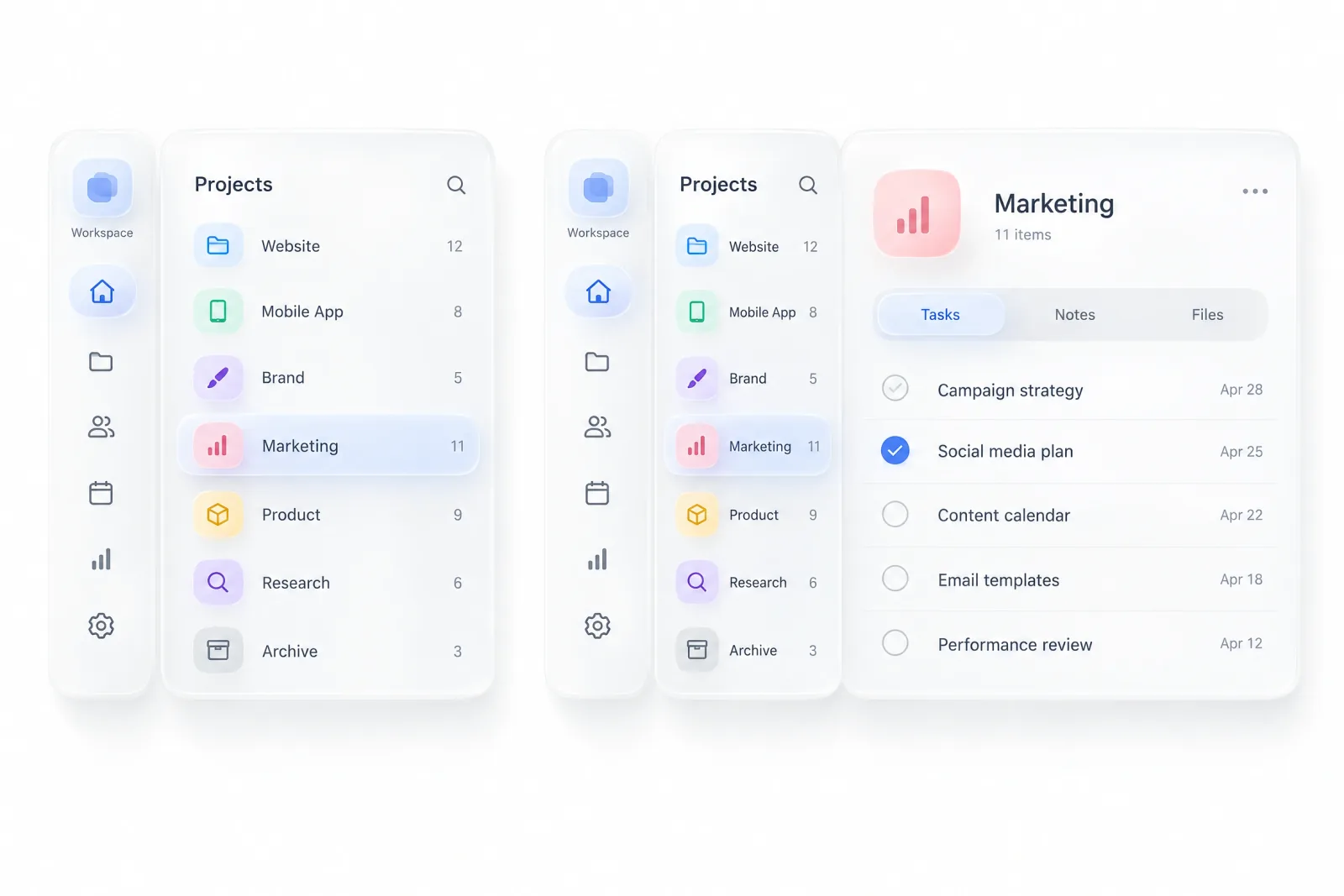
Rail plus contextual panel
Slack is the reference. A narrow rail holds the workspace and top-level views, and a wider panel lists channels for the selected view.
Primary sidebar plus section sidebar
Settings pages are the classic case. Either the app sidebar collapses to a rail beside a category column, or the settings list replaces it with a back link. Replacement is cleaner on laptops, and the settings UI design article explains why people still get lost there.
Three-pane master-detail
Mail and inbox apps add a third pane: navigation, then a list of items, then the open item. Each pane needs a minimum width, and the list pane is the one that flexes.
Three rules keep multi-pane layouts honest:
→ The innermost level owns the strong active state. The rail shows a quieter indicator for the parent, so users see both levels at once.
→ Changing the rail selection swaps the panel content instantly. The panel remembers the last selected item per context.
→ Rail plus panel stays under 320px combined (64 + 240). That leaves about 1,040px for content on a 1,366px laptop, which is where data tables start scrolling sideways.
Right sidebars and inspectors
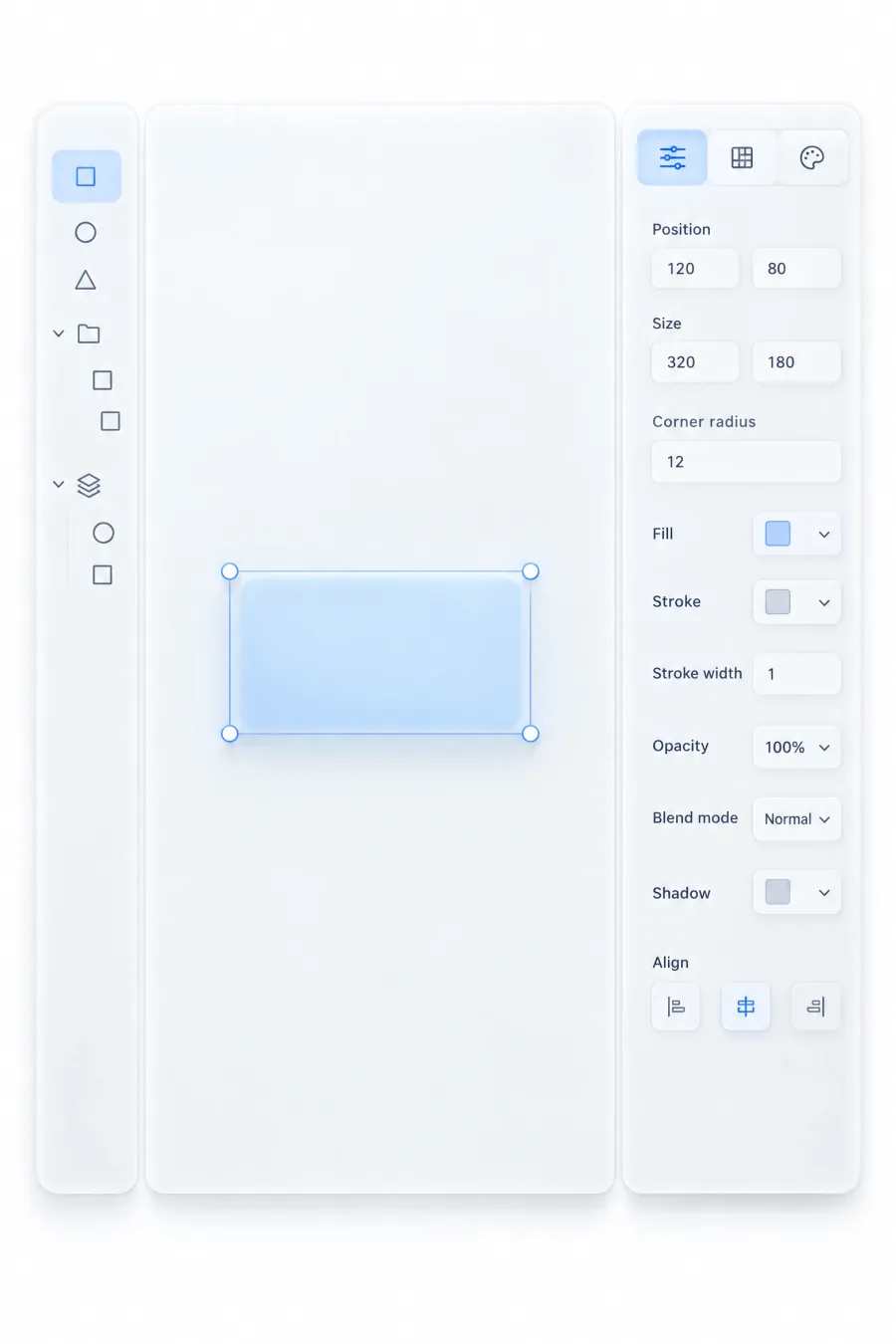
The right side is for context and properties, and navigation stays on the left. Figma's inspector and Notion's page properties describe the selected thing instead of moving you somewhere. CRM record panels and AI assistant panels follow the same logic.
Dual sidebars squeeze content from both sides. Give the right panel 280-360px and make it closable, so content keeps at least 640px on a 1,280px screen.
When the window narrows, the inspector closes first, and the left sidebar drops to a rail after that. Selection context is temporary, while navigation is how people get back.
Documentation sites add one legitimate exception. The left sidebar holds the page tree, and a right "On this page" table of contents lists the article's H2 and H3 headings, highlighting the one in view.
It moves people within one page and never across pages, which is why it may live on the right. Below 1280px it collapses first, usually into a dropdown above the content, while the left tree survives as a rail or drawer.
Sidebar content elements
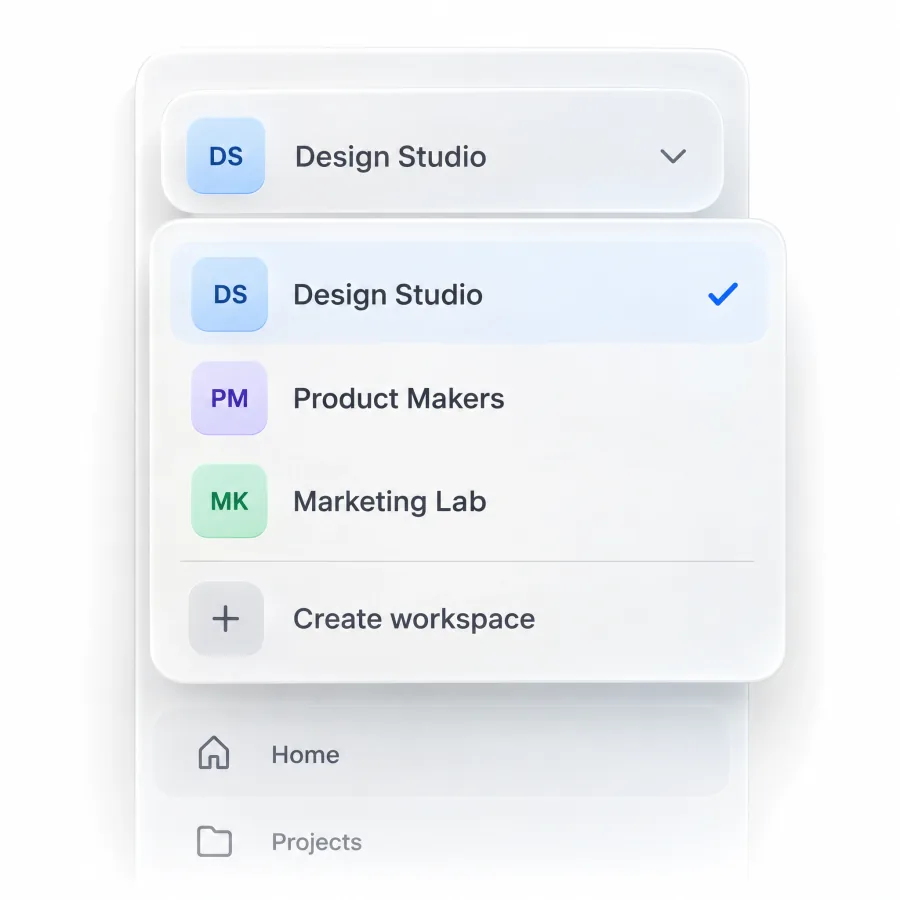
Workspace and organization switcher
Top of the sidebar, always. It shows the workspace name with a 24-28px initials tile and a chevron. The dropdown lists workspaces with shortcuts, plus a create action.
Rule: if a user can belong to 2 workspaces, the switcher keeps the top slot even in the rail, shrunk to the tile. Burying it in the footer turns a frequent action into a hunt.
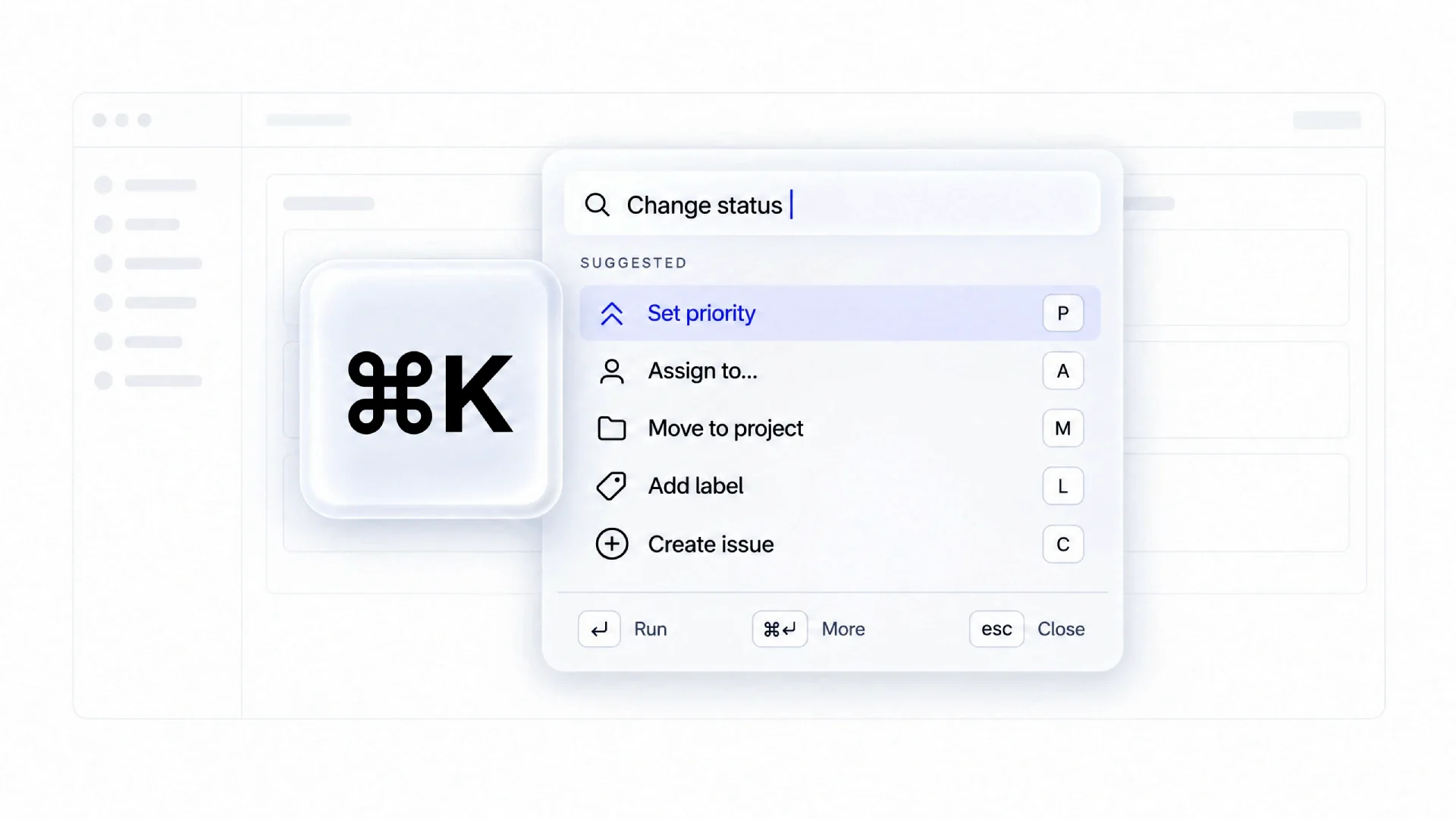
Search and command trigger
A search field or a "Search ⌘K" button sits directly under the header. In practice it opens a command palette instead of filtering the list, which is the right call once you pass 30 destinations.
Keep the trigger 32-36px tall to match nav items. Rule: print the shortcut inside the trigger. In the rail it shrinks to a magnifier with the shortcut in its tooltip.
Nav item states
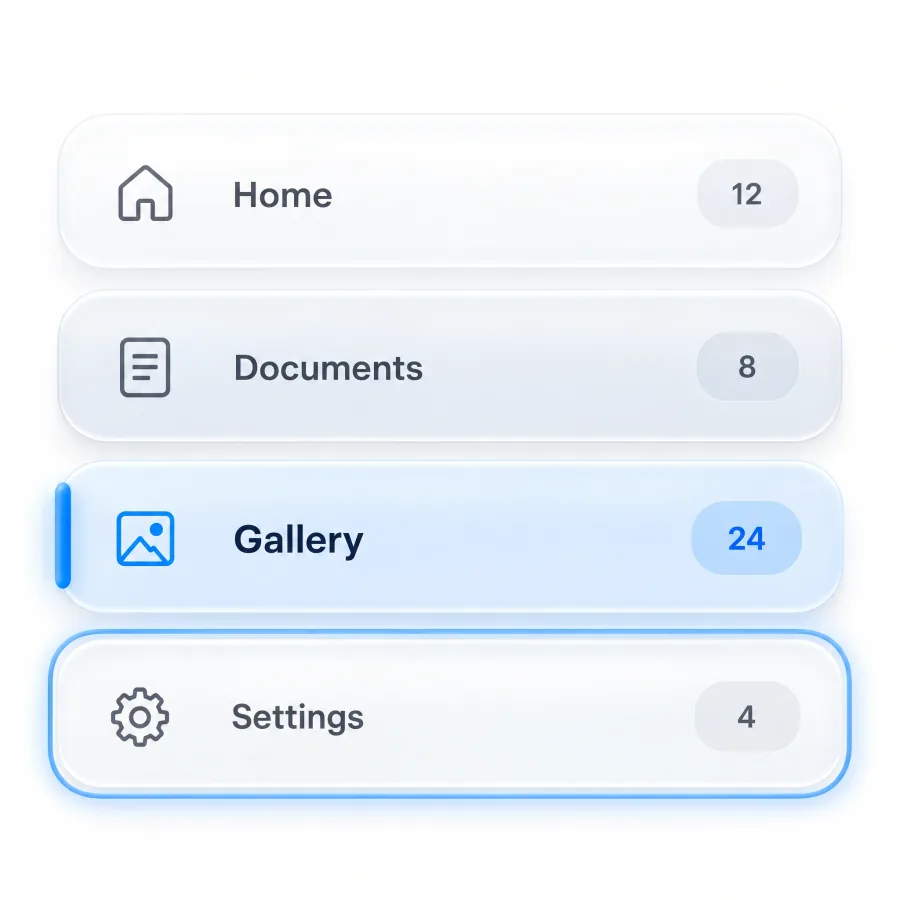
Hover is a subtle surface shift, about 4-6% darker. Active (the current page) gets a filled background plus a stronger weight, and optionally a 2-3px accent bar on the left edge. Focus gets a 2px ring offset from the item, distinct from active, so keyboard users see both at once.
Selected is a fourth state for multi-select trees, such as files picked for a bulk move. Rule: active must survive nesting. When the current page is 3 levels down, its parent groups stay expanded with a quieter indicator.
The free Navigation layout 4 samples file shows active highlights and badges in Material X styling.
Badges and counters
Counters sit on the right edge of the item, 18-20px tall, capped at 99+. A 6-8px status dot signals "something new" without a number. In the rail, the counter moves to the icon's top-right corner.
Rule: a sidebar where 9 items carry badges has zero badges in practice, because nothing stands out.
Favorites and recents
A Favorites section near the top lets people pin the 3-7 items they open daily. Recents fill themselves, so cap them at 5.
For reordering, show a drag handle on hover (long-press on touch) and persist the order per user.
When Favorites is empty, show a one-line hint ("Star a page to pin it here") instead of a bare header. The empty state guide explains why a blank section reads as a bug.
Create button inside the sidebar
A "New" button under the header gives the primary action a permanent home: full width at 36px expanded, icon-only in the rail, with a single-key shortcut such as C.
Rule: one create button per sidebar. For 5 object types, use a split button with the most frequent type as the label.
Upgrade and billing banners
An upgrade card in the sidebar works because users see it every session. Keep it to 2 lines plus a button above the footer, dismissible for 30 days.
Rule: the banner yields space first, so hide it before you clip navigation.
User footer and account menu
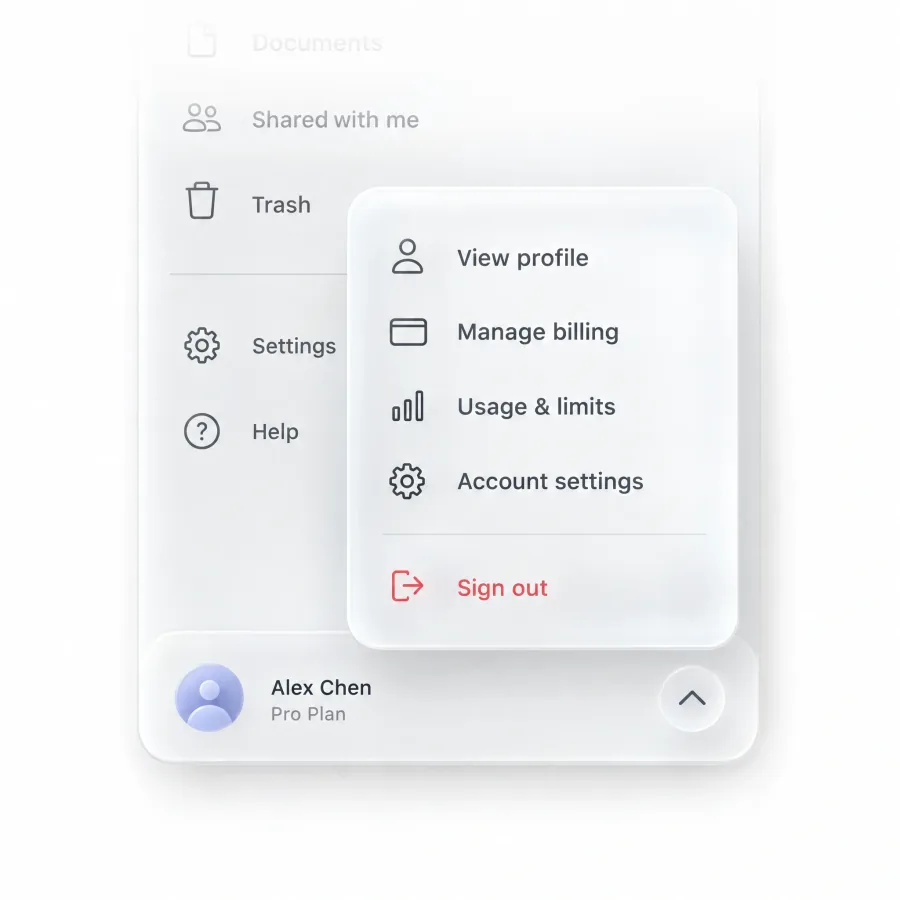
A 28-32px avatar sits next to the user name, with the plan on a second line. A chevron opens the menu upward, with sign out last behind a divider.
Rule: the footer belongs to the person, and product help lives in the utility zone above. In the rail, the footer shrinks to the avatar alone.
Collapse toggle placement
A header button next to the logo is the most discoverable option. A footer button hides the control below a long list, and a hover edge handle stays invisible to new users.
Use the header button, optionally backed by an edge handle, and print the shortcut in its tooltip.
Scrolling and overflow in long sidebars
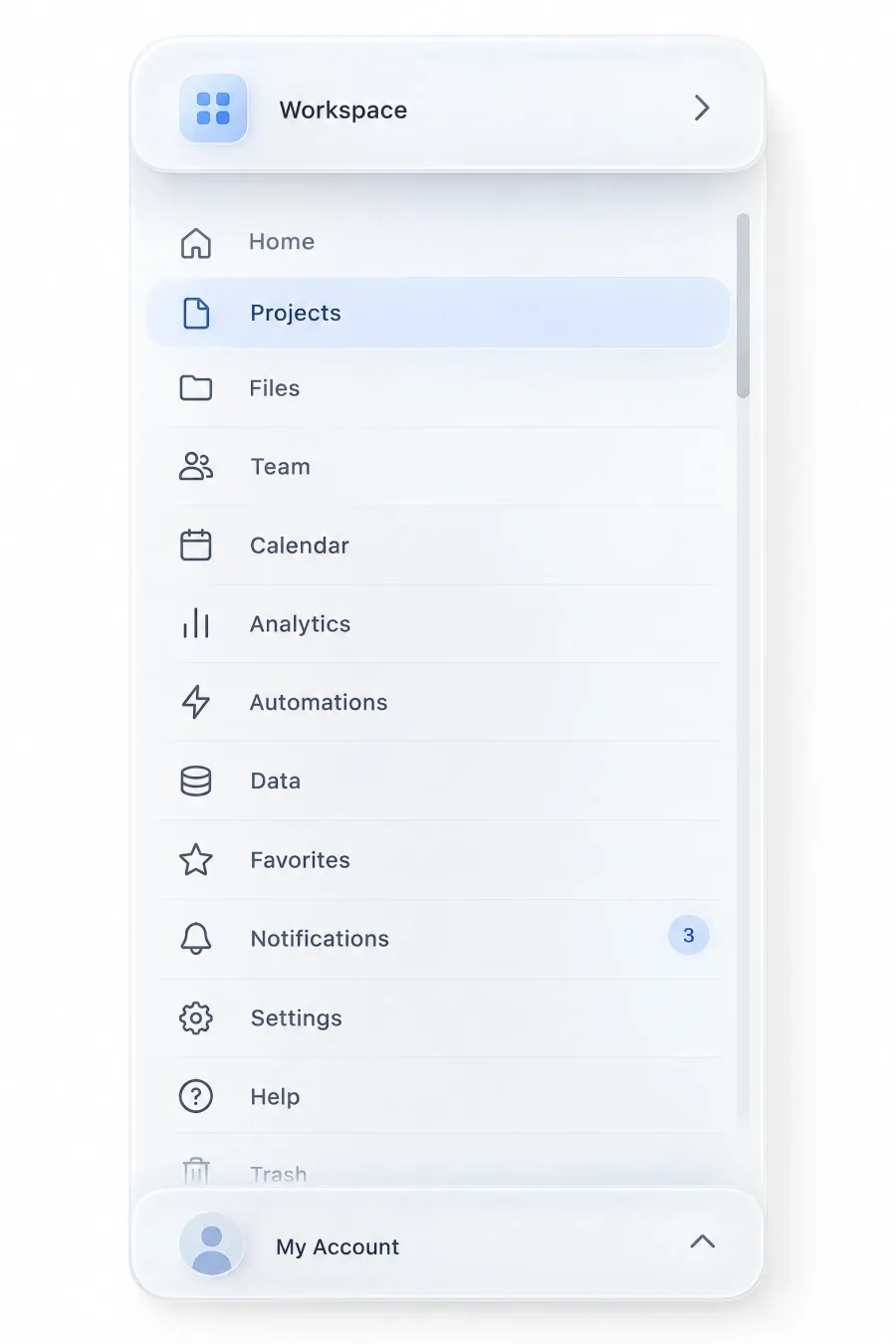
A long sidebar scrolls inside its own region. Pin the header and the footer, and let only the middle scroll. If the page scrolls the sidebar away, the workspace switcher disappears exactly when someone needs to jump.
Signal hidden content with a 16-24px fade at the scroll edges. Add overscroll-behavior: contain so the scroll does not chain into the page.
Past 40 items, scrolling alone stops working. Four tools help, in this order:
❶ Permission pruning. Hide what the user's role cannot use.
❷ Collapsible groups. Remember their state per user.
❸ Search within navigation. Route it through the command trigger or a small filter field.
❹ A "More" overflow. Rarely used destinations open in a popover.
Visual styles
Style comes last, after structure. Six treatments cover almost every product I have reviewed.
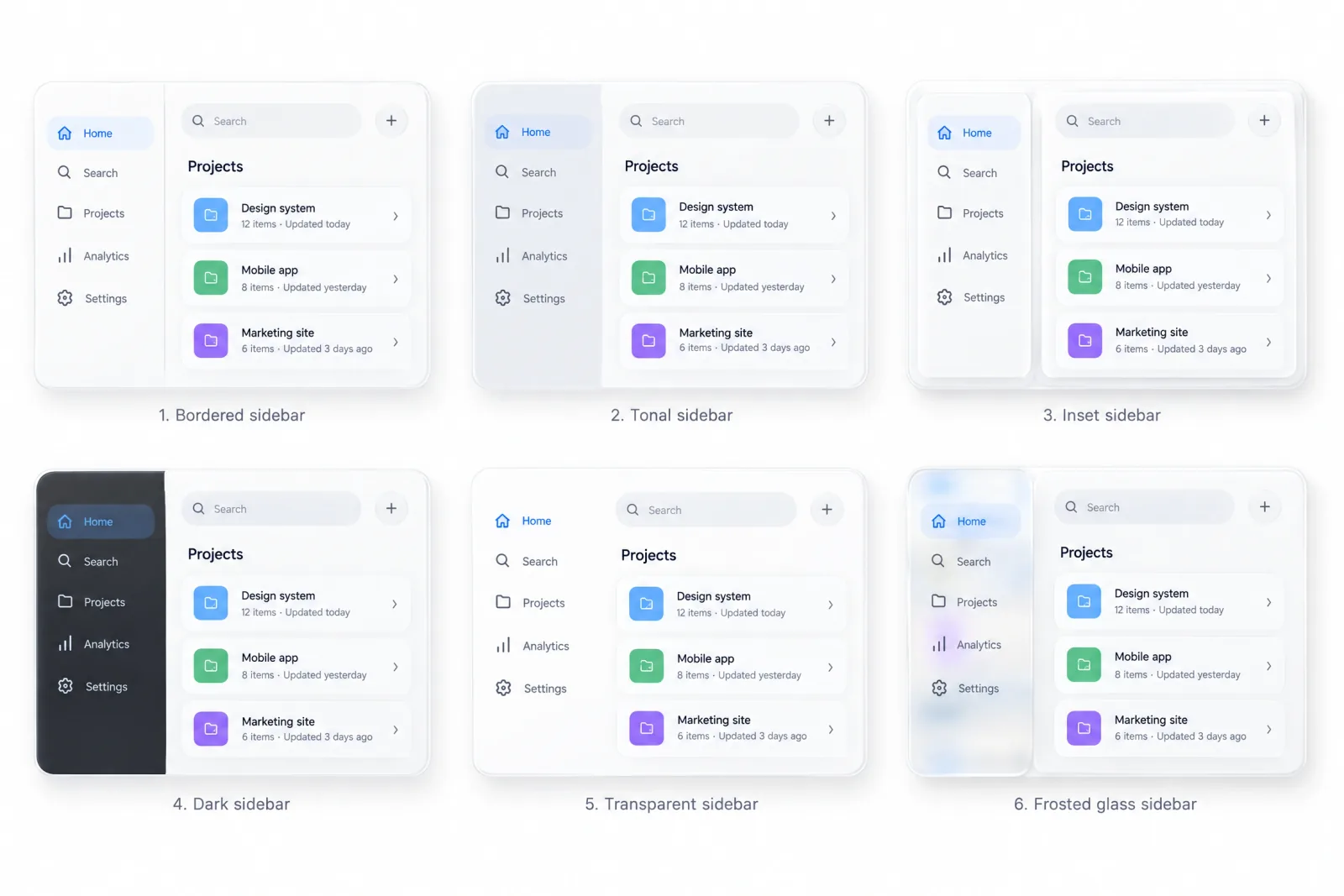
| Style | How it is built | Fits |
|---|---|---|
| Bordered | 1px divider between sidebar and content | Dense admin panels |
| Tonal | Sidebar surface 2-4% darker, no border | Calm SaaS apps |
| Inset or floating | Content in a raised card with 8-12px radius | shadcn-style dashboards |
| Dark on light | Dark sidebar next to a light content area | Products that want a strong frame |
| Transparent | No surface, sidebar over the canvas | Design tools, maps |
| Glass | Blurred translucent surface | macOS-native apps |
Dark on light is the one I see misused most, because it doubles the visual weight of navigation. Tonal is the safest default. In dark themes, keep the sidebar one elevation step away from the content surface, or the boundary disappears.
If you want both themes side by side, the free Nav templates file has sidebars and drawers in light and dark modes.
Mobile sidebar navigation and responsive breakpoints
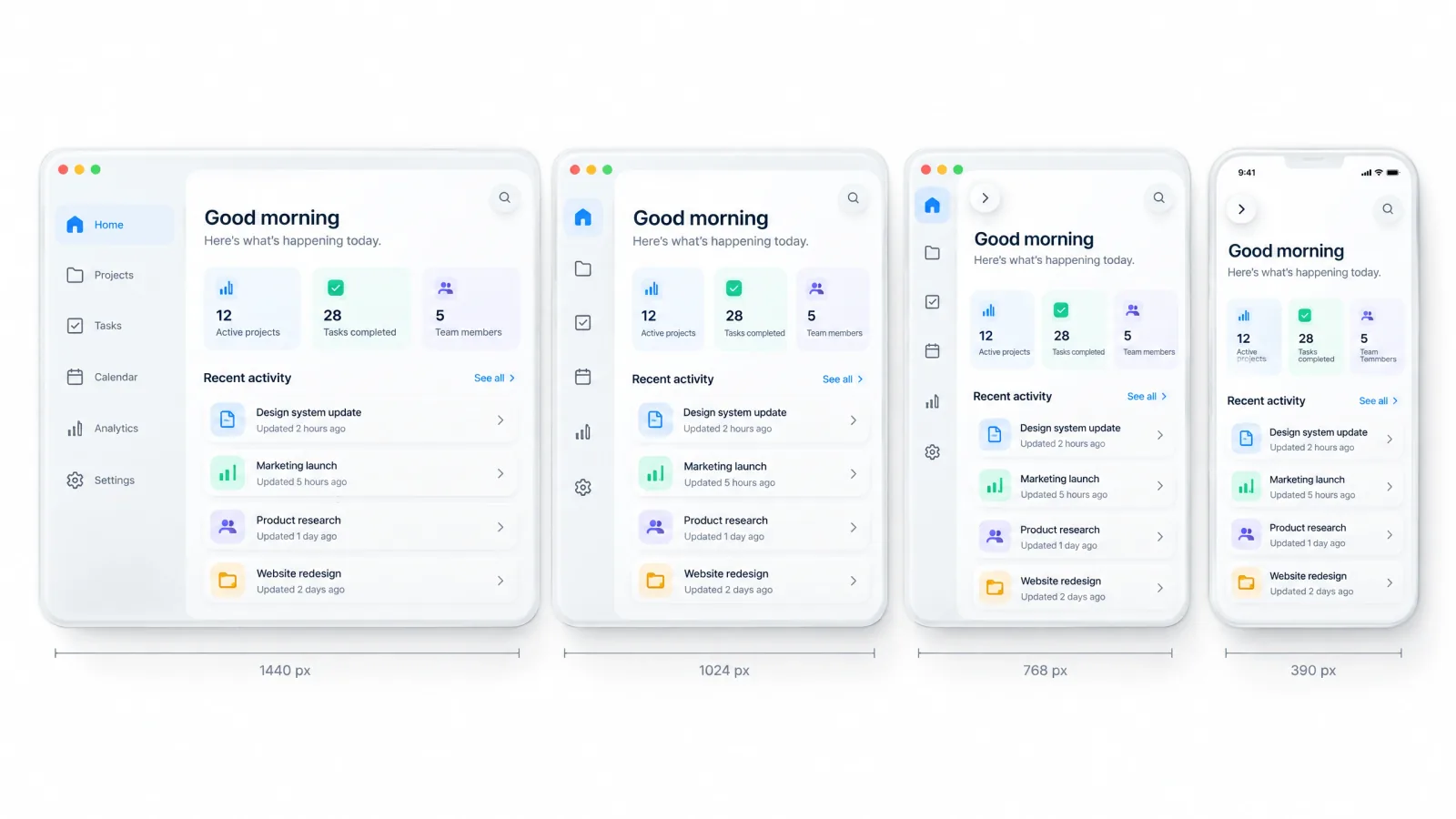
On mobile, every section must stay reachable while content gets the full width.
| Breakpoint | Default state | Notes |
|---|---|---|
| 1280px and up | Expanded | User can collapse to rail, choice persists |
| 1024-1279px | Rail or saved state | Expanded opens as an overlay |
| 768-1023px | Rail, or off-canvas with a top bar | Horizontal iPad behaves like 1024px |
| Below 768px | Hidden | Drawer, bottom tabs, sheet |
Tablets are where most sidebars break. In iPad portrait (around 820px) a 240px sidebar leaves under 600px for content, so use a rail or off-canvas. In Split View the app can shrink to about 320px, so phone rules apply on a tablet.
Read Apple's HIG guidance on sidebars before you design the tablet state.
Below 768px the sidebar disappears. You have 3 replacements.
Off-canvas drawer
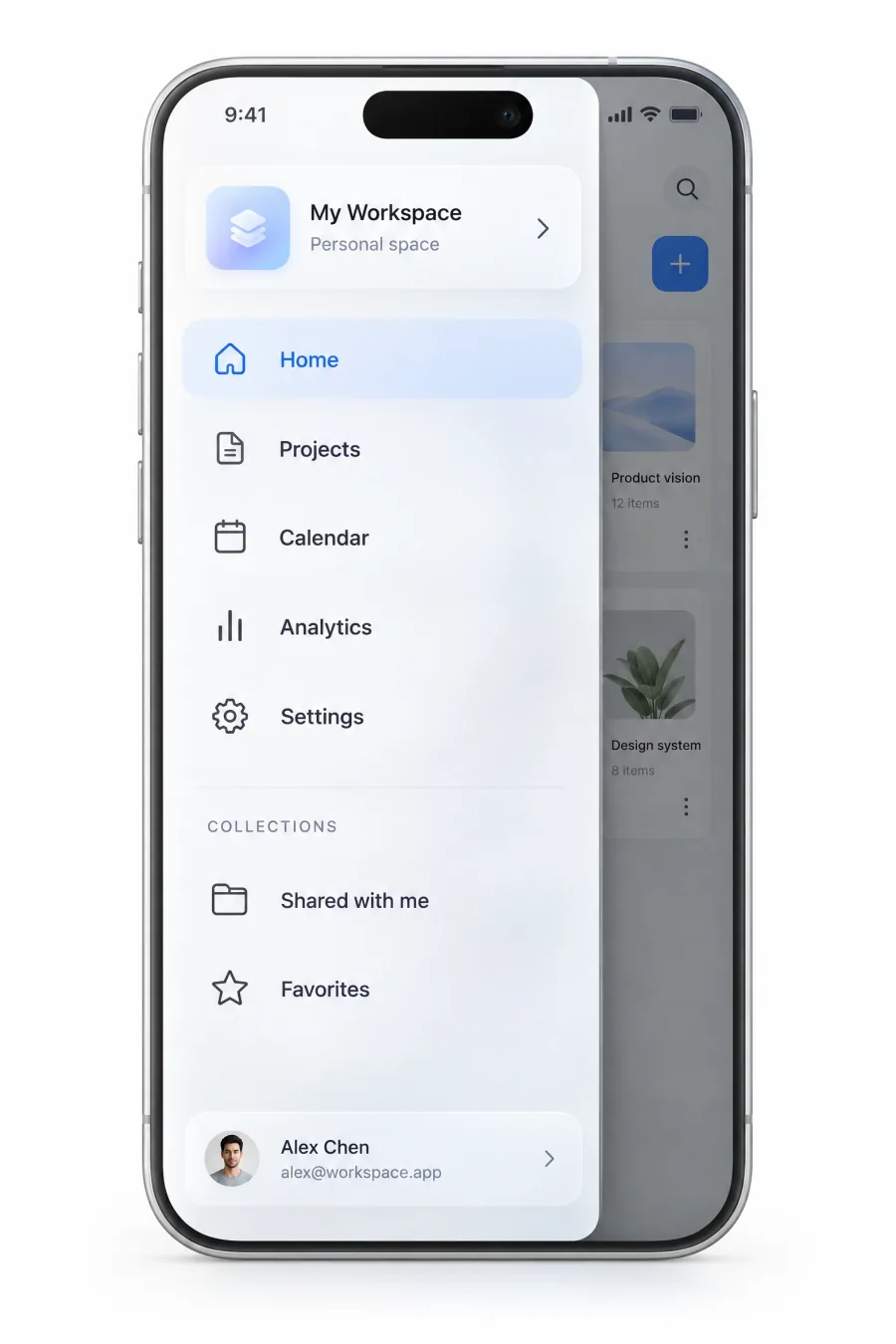
The drawer slides in from the left over a scrim of black at 40-50% opacity. Make it 80-85% of the viewport, capped at 360px, which matches the Material 3 navigation drawer maximum. The visible strip of page tells people a tap there closes the menu.
Items grow to 44-48px for touch. Close the drawer on scrim tap and on Escape, on a left swipe, and after navigation.
Trap focus inside while it is open and return focus to the hamburger on close. Pad it with env(safe-area-inset-top) and its bottom twin so content clears the notch and the home indicator.
The hamburger goes top-left, where users look for it, even though it is a stretch for the thumb. Our Material You kit includes navigation drawer layouts if you want M3-accurate specs to start from.
Bottom tab bar
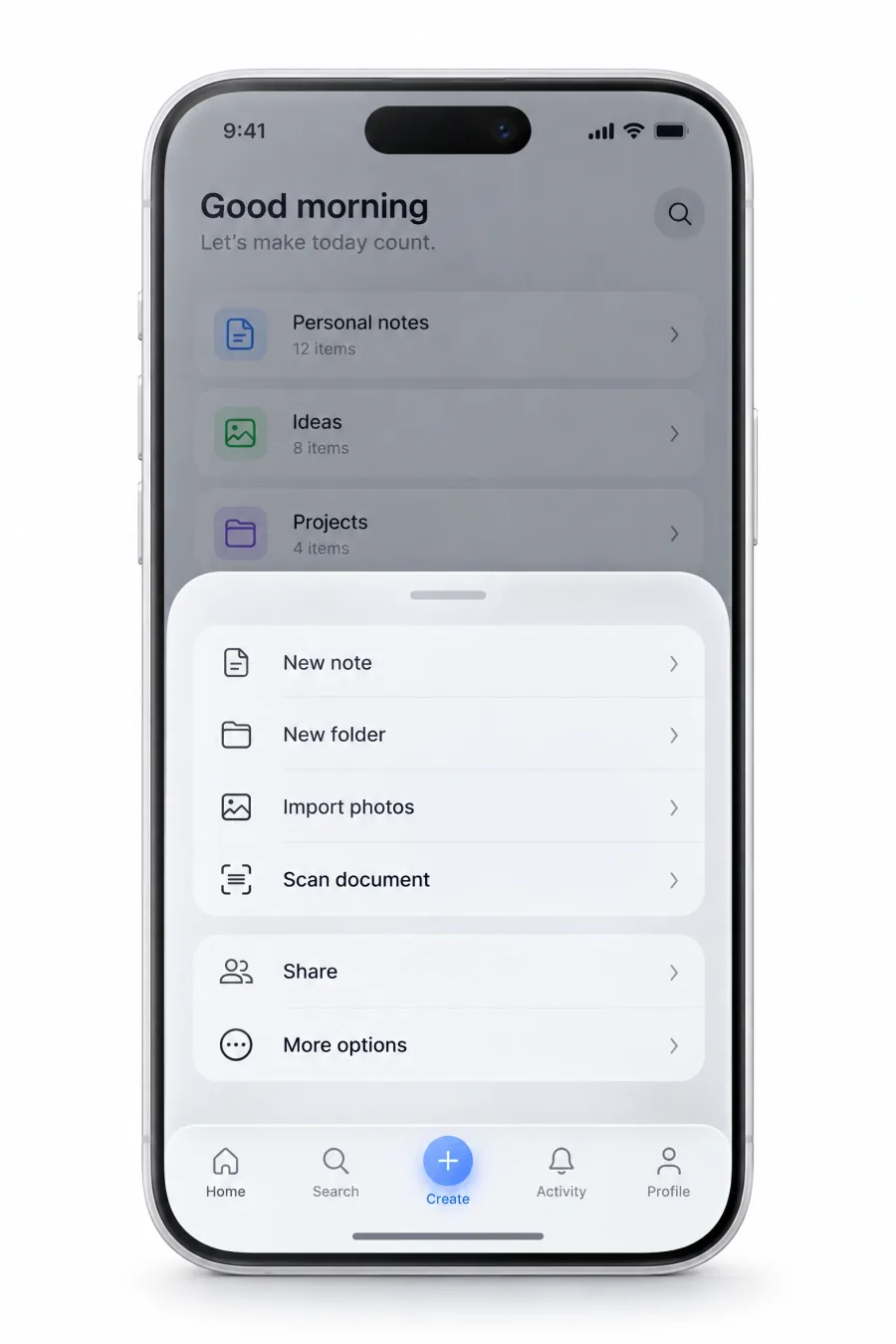
Map the 4 most-used destinations to tabs and put everything else behind a fifth "More" tab that opens a sheet with the desktop group headers.
The tab bar beats a drawer when people switch between top destinations constantly, as in messaging or task apps. Nested items live inside each tab's screen as lists with a back button.
Bottom sheet or full-screen menu
For deep hierarchies, a full-height sheet shows the desktop groups with headers. It handles 30+ items better than a drawer, and past 2 levels drill-down beats an accordion.
Mapping desktop hierarchy to mobile
→ Give every desktop destination a mobile home, either a tab or a row in the More sheet.
→ Sync favorites and workspace selection across devices. Collapse state stays per device.
→ Keep primary actions in the thumb zone. The create button moves to a floating action button or the center tab.
→ Show the current section name in the top bar, because the sidebar's active state is gone.
Gestures in PWAs and native wrappers
An edge swipe to open the drawer collides with the back-swipe in iOS Safari and with Android's system back gesture. In a PWA or native wrapper, open the drawer with the hamburger only, or start the swipe zone 20-30px in from the edge.
Accessibility and keyboard
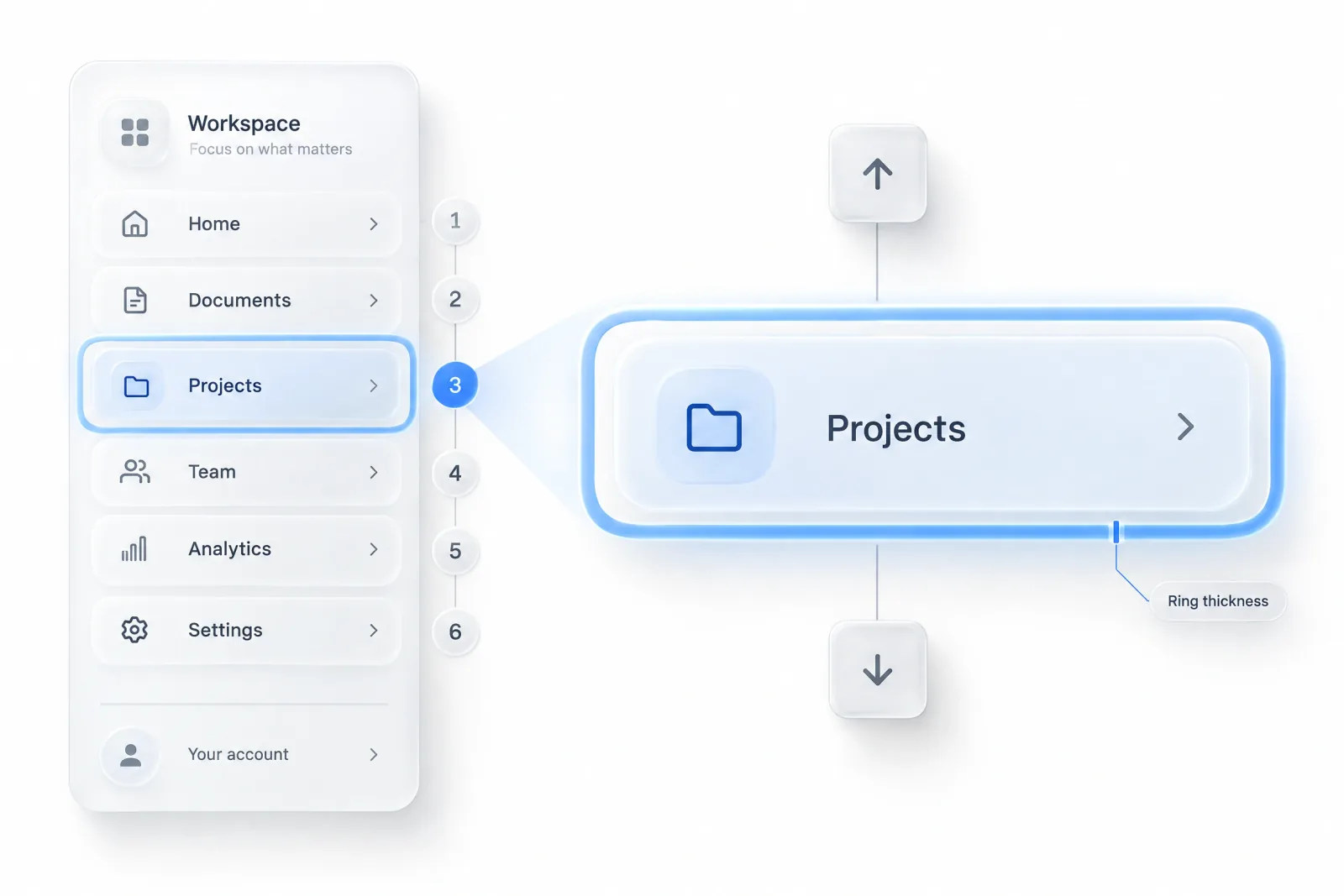
The WAI-ARIA Authoring Practices tree view pattern is the spec for anything that behaves like a file tree.
→ Wrap the sidebar in a nav landmark with an aria-label. If you have 2 navs (rail plus panel), label both.
→ Mark the current page with aria-current="page" in addition to the visual highlight.
→ Group toggles are buttons with aria-expanded and aria-controls.
→ Focus order follows visual order: header, primary, groups, footer.
→ In the mobile drawer, trap focus, close on Escape, and return focus to the trigger.
→ A true tree uses role="tree" with roving tabindex: one Tab stop, arrow keys inside. A plain list of links with disclosure buttons is simpler to get right.
→ Focus rings are 2px and visible on both the active and hover backgrounds.
→ Respect prefers-reduced-motion by swapping the collapse animation for an instant change.
→ In RTL languages the sidebar moves to the right edge. Chevrons flip too, and the drawer slides in from the right.
How 8 products solve the sidebar
These describe patterns as shipped in 2025-2026.
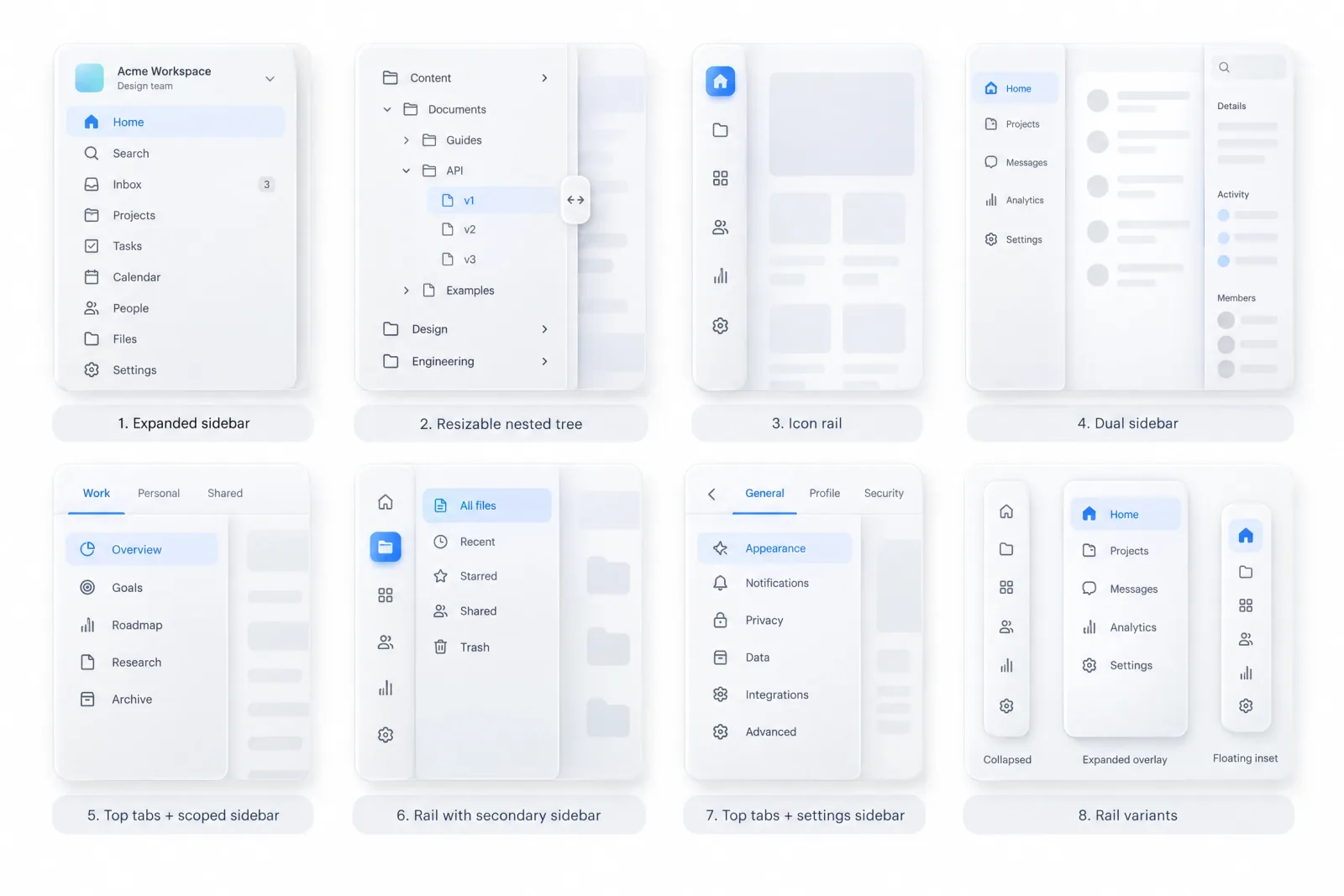
I also track fresh sidebar treatments in the AI inspiration gallery, which is faster than signing up for 8 trials.
Linear
Linear runs an expanded sidebar with the workspace switcher at the top, next to compose and search buttons. Below come personal views like Inbox and My issues, then Favorites and your teams, each team expanding into nested items.
The lesson: a dense sidebar works when the hierarchy is predictable, because users learn positions and stop reading labels.
Notion
Notion's sidebar is a resizable nested tree. You drag its edge to change width and collapse it with Cmd+\. When it is hidden, hovering the left edge peeks it back as a floating panel.
Pages sit in grouped sections. Favorites and Teamspaces come first, with Shared and Private pages below them.
Each row reveals actions on hover: a "more" menu and a plus button to add a child page.
Slack
Since its 2023 redesign, Slack splits navigation into 2 columns. A narrow rail holds the workspace icon at the top and a short set of views such as Home and Activity.
The wider panel to its right lists channels and direct messages for the selected view, including custom sections people create themselves.
The lesson: the rail owns context, while the panel owns content and the strong active state.
Figma
Figma is the clearest dual-sidebar layout. The left panel holds pages and layers as a tree. The right panel is the inspector, with Design and Prototype tabs for the current selection.
The UI3 redesign in 2024 gave both panels resizable widths and a minimized mode that frees up the canvas. Layers tell you where you are, and the inspector tells you what the selection is. Cmd+\ hides the whole interface in one keystroke.
Vercel
Vercel has long used a hybrid. Team and project switchers live in the top bar, project areas sit in a row of tabs, and Settings opens its own left sidebar of categories.
The lesson: a sidebar can be scoped to where the destination count justifies it. Vercel reworked its dashboard navigation during 2025, so verify the current layout before copying it.
Supabase
Supabase uses an icon rail for its products (Table Editor, SQL Editor, Authentication, Storage) that expands with labels on hover. Each product then opens a second sidebar of its own, such as the list of tables in the Table Editor.
The rail icons stay recognizable because each maps to a concrete product. The cost is 2 columns of navigation on smaller laptops.
GitHub
GitHub keeps repository navigation in a horizontal row of tabs (Code, Issues, Pull requests, Actions) and moves overflow into a menu as the window narrows. Settings pages get a left sidebar with grouped headers.
Global navigation opens from a menu button at the top left as a slide-in drawer. A desktop hamburger is defensible here, since repo tabs carry daily navigation.
shadcn/ui sidebar
The shadcn/ui sidebar component has become the default reference for React teams. It ships 3 variants (sidebar, floating, inset) and 3 collapse modes (offcanvas, icon, none).
Defaults are 16rem expanded, 3rem in icon mode, and an 18rem sheet on mobile. Cmd+B toggles it, and the state persists in a cookie.
v0 builds its generated dashboards on shadcn/ui, so call out any deviation from these defaults in the handoff.
Specs cheat sheet
| Token | Value |
|---|---|
| Expanded width | 240-280px |
| Rail width | 56-72px |
| Hover-peek open delay | 150-300ms |
| Hover-peek close grace | 300ms |
| Resizable range | 200-480px |
| Right inspector | 280-360px |
| Item height, desktop | 32-36px |
| Item height, touch | 44-48px |
| Icon size | 16-20px expanded, 20-24px rail |
| Label | 14px, weight 500 |
| Group header | 11-12px uppercase at 60% contrast |
| Group spacing | 16-24px |
| Indent per level | 12-16px |
| Max nesting | 3 levels |
| Mobile drawer | 80-85% of viewport, max 360px |
| Breakpoints | 1280 / 1024 / 768px |
| Collapse animation | 150-250ms ease-out |
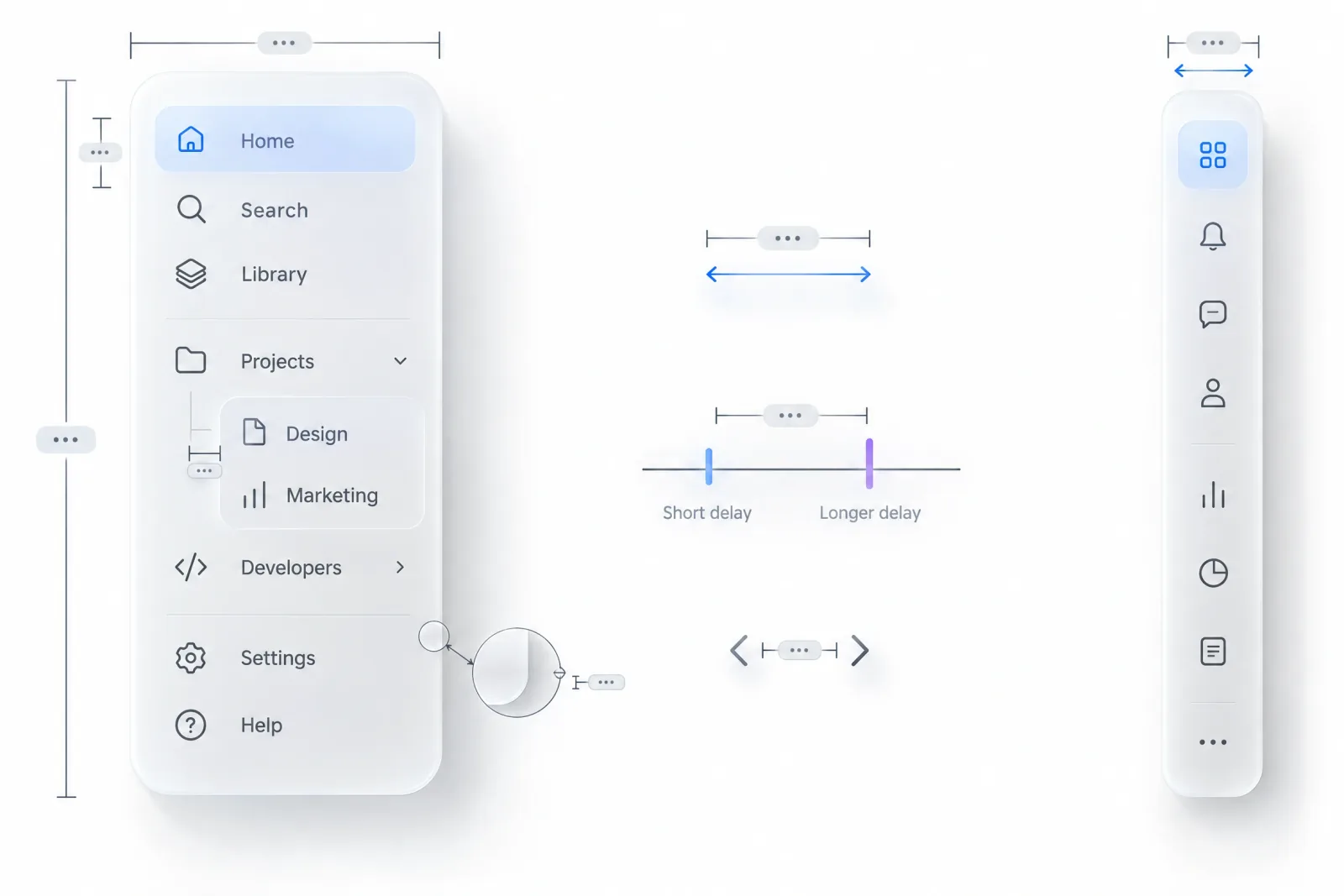
12 sidebar mistakes
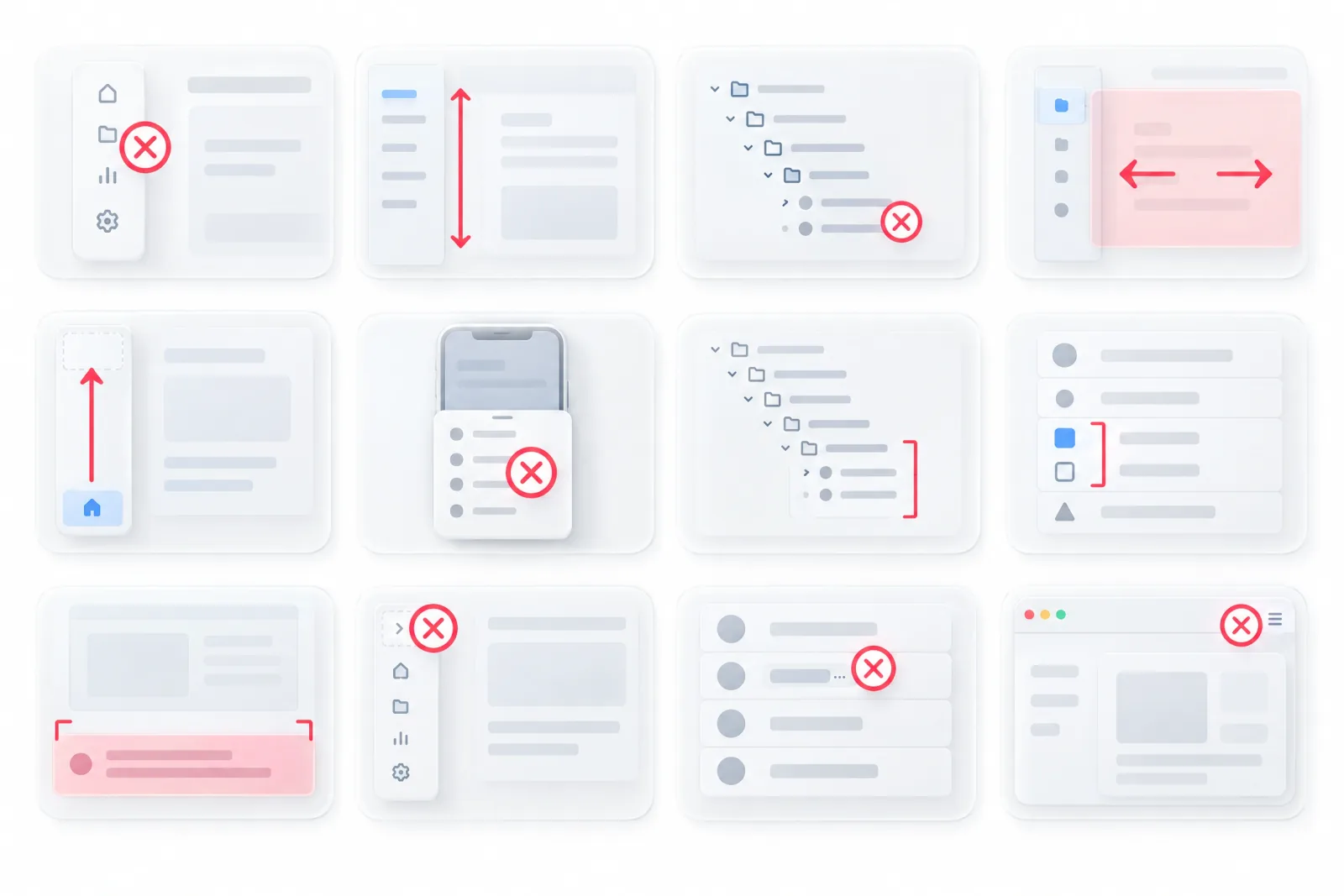
❶ Icons-only rail for abstract sections. Add short labels under the icons or keep the sidebar expanded.
❷ The page scrolls instead of the sidebar region. Give the middle zone its own scroll and pin the header and footer.
❸ No active state at nested levels. Highlight the current item and give its parents a quieter indicator.
❹ Hover-peek flicker. Add a 150-300ms open delay plus a 300ms close grace period.
❺ Workspace switcher buried in the footer. Move it to the top slot, where people look first.
❻ Mobile drawer without a focus trap. Trap focus, close on Escape and return focus to the hamburger.
❼ 5+ levels of nesting. Flatten to 3 and move the rest into in-page navigation.
❽ Mixed icon sets. Use one family at one stroke width.
❾ Upgrade banner stealing the footer. Cap it at 2 lines and make it dismissible.
❿ Collapse state forgotten on reload. Persist it per user and per device.
⓫ Labels truncated without a tooltip. Show the full label on hover and focus.
⓬ Hamburger on desktop. Keep the sidebar visible at 1280px and above, unless daily navigation lives elsewhere, as with GitHub's repository tabs. Hide it only on small screens.
Pre-ship checklist
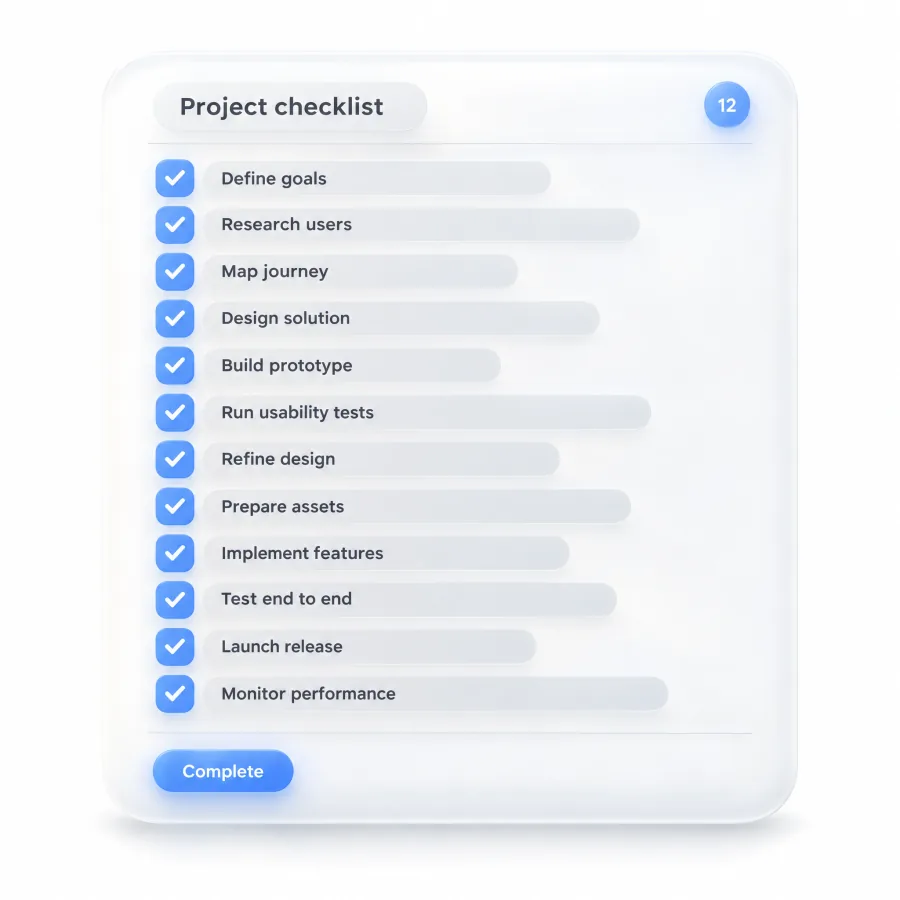
Any "no" is a bug.
✔ The destination count justifies a sidebar, or you chose a top bar on purpose.
✔ Every item lives in one of the 6 zones.
✔ Width modes have pixel values and switch rules.
✔ Collapse state persists per user.
✔ Abstract sections keep labels in the rail.
✔ The middle zone scrolls on its own while header and footer stay pinned.
✔ The active state is visible at every nesting level.
✔ Hover-peek has open and close delays, or there is no hover-peek.
✔ Every desktop destination has a mapped home on mobile.
✔ The drawer traps focus, closes on Escape and respects safe areas.
✔ aria-current and aria-expanded are set, and focus rings are visible.
✔ The layout holds at 1440, 1024, 768 and 390px.
Frequently asked questions
How wide should a sidebar be?
An expanded sidebar should be 240-280px wide, which fits a 20px icon and labels of about 22 characters at 14px. A collapsed rail should be 56-72px. Go wider than 280px only for long names in docs or file trees, and make that sidebar resizable with a 200-480px range.
Should a sidebar collapse to icons?
Collapse to icons when your destinations are concrete objects with obvious icons, such as an inbox or a calendar. Keep labels when sections are abstract, like Insights or Governance, because icons alone become guesses. Either way, show tooltips in the rail and remember the user's choice across sessions.
Sidebar or top navigation for a dashboard?
Use a sidebar when the dashboard has 7+ destinations or needs context like a workspace to stay visible. Use top navigation for 3-6 flat destinations. Large platforms combine both, with global items in the top bar and section navigation in the sidebar.
How do you handle sidebar navigation on mobile?
Below 768px, hide the sidebar and pick one of 3 patterns. Use an off-canvas drawer at 80-85% width for broad navigation, a bottom tab bar when people switch between 4 main destinations constantly, or a full-screen sheet for deep hierarchies. Map every desktop destination to a mobile home before choosing.
How many levels of nesting can a sidebar have?
Three levels is the practical maximum. Past that, the 12-16px indent per level crushes labels, and users lose track of where they are. If your content goes deeper, keep 3 levels in the sidebar and show the rest with breadcrumbs plus in-page navigation inside the content area.
Should the sidebar scroll with the page?
No. The sidebar should scroll inside its own region while the page scrolls independently. Pin the header with the workspace switcher and the footer with the account menu, and let only the middle section scroll. Add a soft fade at the edges to show that more items exist.
Closing thought
Every sidebar decision follows the same chain. Count destinations to choose between a sidebar and a top bar. Let item count and depth pick the hierarchy model, then define width states with real pixel values.
Map every destination to a mobile home last, before anyone writes code. Skip a step and the sidebar breaks exactly there, usually at item 31 or on the first iPad.
For a head start, open one of our dashboard templates and compare its sidebar against the checklist above before you redraw your own.