
Roman Kamushken
Free iPhone Mockup takes the other route. It is a free 3D iPhone mockup generator that runs in the browser, with no account and no watermark on the export. Below is what it does well, where it stops, and when a paid app or a plain Figma frame is the better call. Nothing was paid for this review, and the link to the tool is a plain nofollow.
Why a mockup still decides whether your design gets seen
A case study cover gets a glance in a crowded feed, and little more. In that glance a flat screenshot in a gray rectangle reads as a draft, while the same screen on a device reads as a shipped product. The pixels are identical, yet the context changes how seriously people take them.
The same logic runs through product pages and App Store listings, launch graphics and client decks. A device shot answers one quiet question: how will this feel on an actual phone?
Hiring teams judge presentation as part of the work. That is why I keep sending people to what reviewers on the hiring side look for in a UX portfolio. A good mockup cannot rescue a weak case study. A missing one can make a strong case study look unfinished.
What it is, in one paragraph
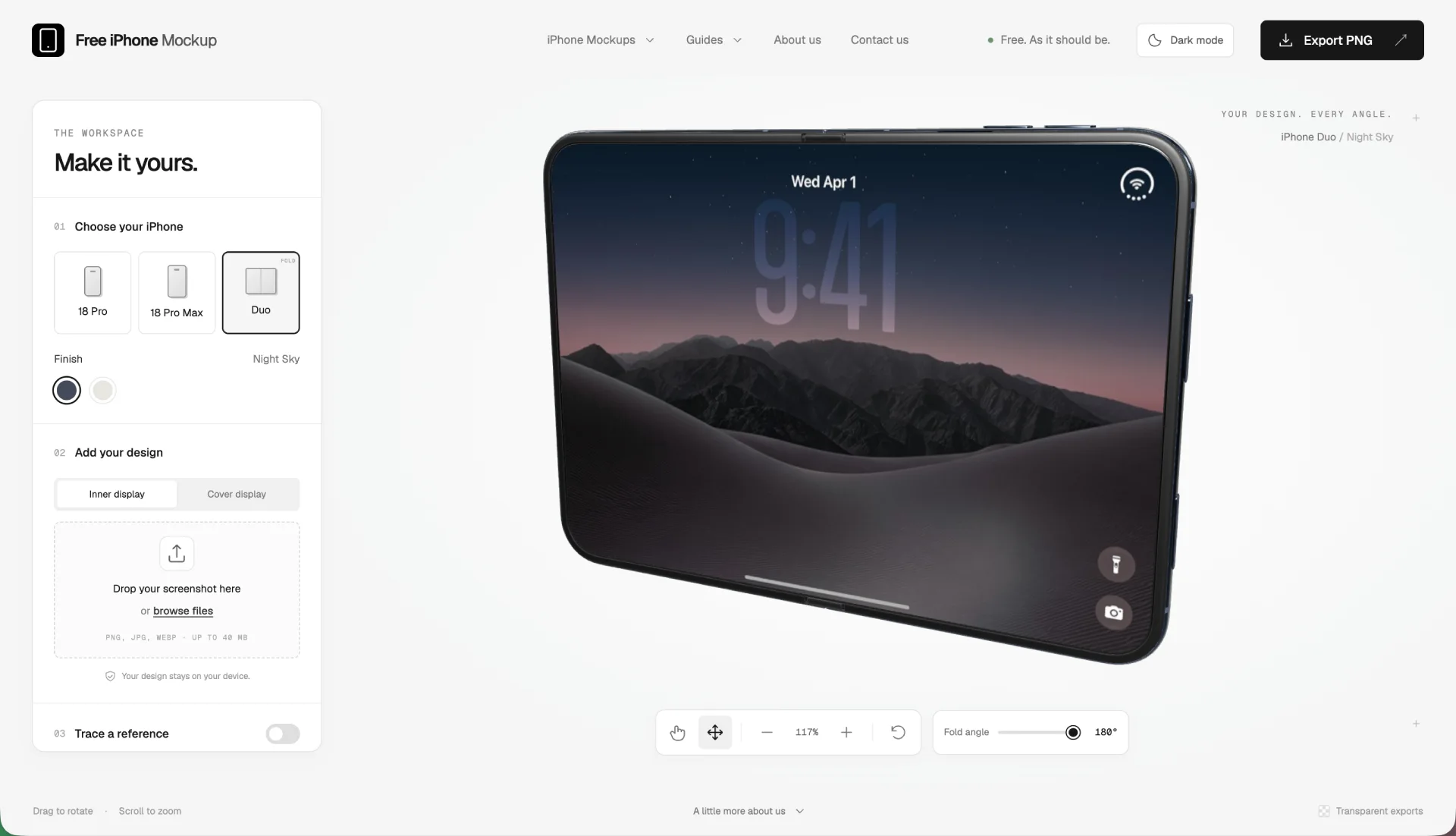
Free iPhone Mockup is a browser-based 3D iPhone mockup generator that turns a screenshot into a transparent PNG of an iPhone 18 Pro, an 18 Pro Max or the foldable iPhone Duo, posed at whatever angle you set. It is free with no account and no daily limits, the export carries no watermark, and all rendering happens on your own device instead of a server. An indie designer built it after posting publicly that they were tired of paywalled mockup tools with subscription fees, broken export quality, watermarks and no real 3D angle control. Expect a single-purpose tool that does one job carefully, and nothing like a mockup suite with scene libraries and hand models.
Inside the editor
Choose a device and a finish
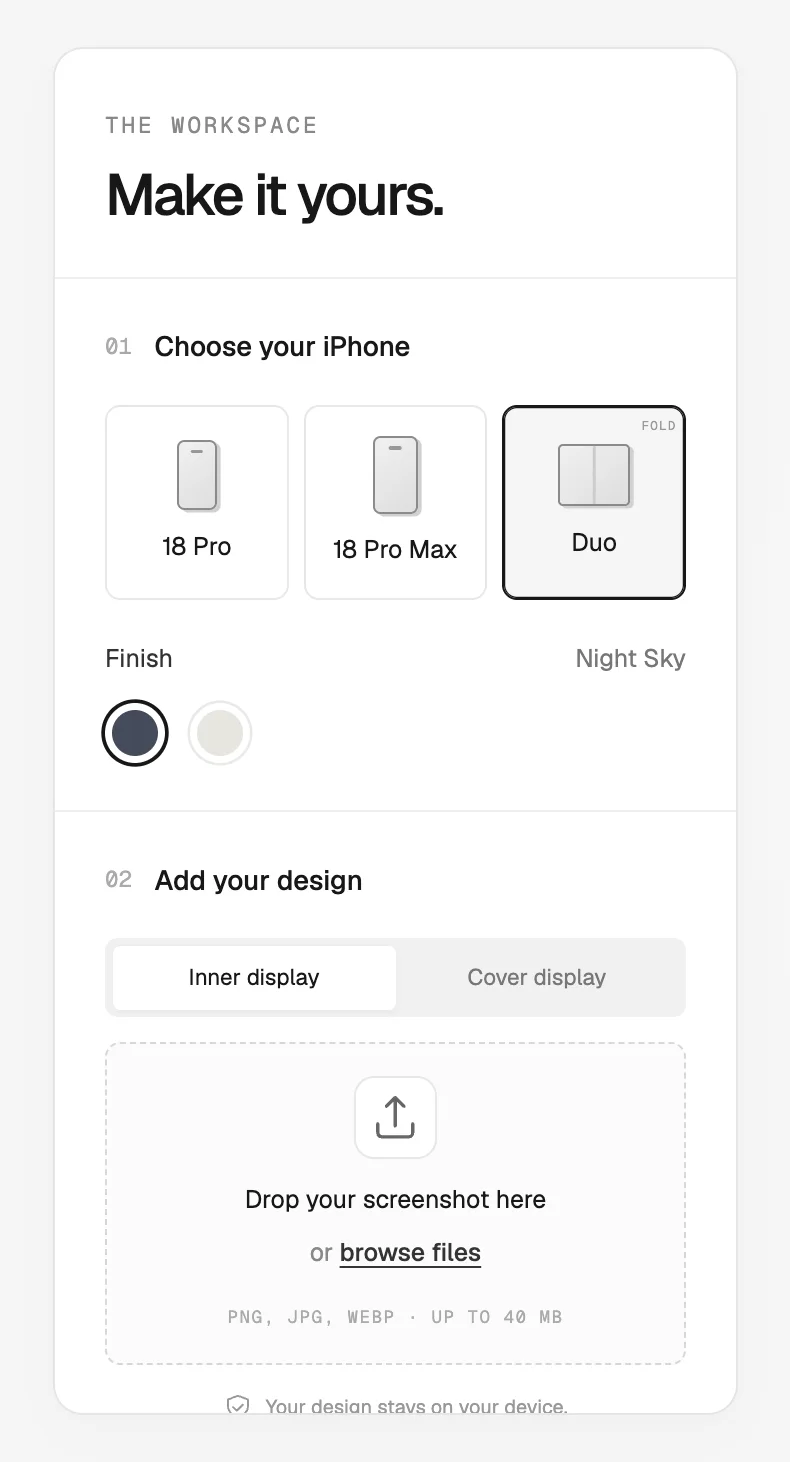
Three models sit at the top of the settings panel. The iPhone 18 Pro and 18 Pro Max come in Silver, Black, Burgundy and Glacier. The foldable iPhone Duo comes in Night Sky and Star White.
The Duo's fold angle is adjustable, with Closed, Halfway and Open shortcuts, and the inner and cover displays take separate screenshots. A halfway fold shows off the hinge, which a flat template cannot do.
Place your screenshot
Uploads accept PNG, JPG or WebP files up to 40 MB and 64 megapixels. Fill covers the display and gives you horizontal and vertical crop sliders. Fit shows the whole image inside the screen without stretching it.
Rotate design turns the screenshot independently of the phone, which helps when a capture arrives sideways. One detail to know before you export a UI with transparent corners: transparent areas of the screenshot sit over a black display.
Set the angle
You drag to rotate the model, switch to Move to reposition it, and scroll to zoom. Five presets cover front, three-quarter, low, high and top views. When I wanted a calmer tilt than the three-quarter preset, I typed an exact value into the Rotate frame field.
Trace a reference
This is the feature I did not expect in a free tool. Turn on Trace a reference, drop an inspiration image behind the phone, and it appears at 25% opacity. An Editing switch flips the canvas target between Mockup and Reference, so you can move, resize or rotate the guide without touching the phone.
Reference and mockup each get their own opacity slider. Lowering the mockup for a moment shows how close its edges sit to the guide, and the reference never lands in the exported PNG. Matching stays manual because the editor does not detect angles, and the guide to matching an iPhone mockup angle walks through the method.
Shape the light
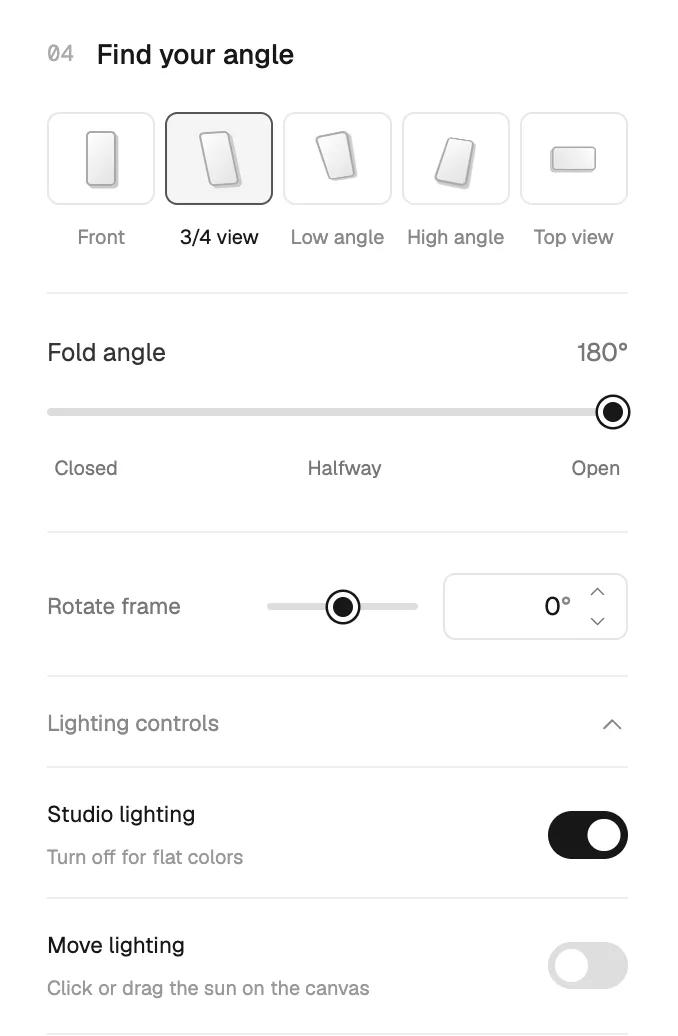
Studio lighting can be switched on, or off for flat colors. Move lighting lets you click or drag a sun control anywhere on the canvas, and the intensity slider resets to 100%. The light shapes the device, while your screenshot stays mapped to the display.
Export a transparent PNG
Export PNG offers 2K, 4K or 8K on the longest edge, which means 2048, 4096 or 8192 px on a transparent background. The file holds the rendered phone and your design only, without the editor interface or the reference guide. The step-by-step iPhone mockup guide covers this flow from screenshot to download.
The caveat is hardware. The dialog selects the highest texture size your device reports and also depends on free graphics memory, so a laptop with integrated graphics may never reach 8K. And no export size can add detail the source screenshot never had, so a small capture blown up to 8K gives you a sharp phone around a soft screen.
Your screenshots never leave the browser
Image preparation and rendering happen on your device. Screenshots and references are never uploaded to a server, and there is no upload queue to wait in. Reloading the page clears the session.
For agency work this matters more than any single feature. If you are under an NDA for an unreleased app, pasting its screens into an unknown web service is a risk you should avoid, and a client-side tool removes that question. The flip side is that nothing is saved, so a careless reload wipes your whole setup along with the images.
What it does better than the paid tools
Four things set it apart from the subscription tools I have used.
No signup wall. You open the page and the editor is already there. Paid tools usually want an email before the first upload, and some want a card.
No watermark on the free tier. The free tier here is the only tier, and every export comes out clean. Elsewhere the watermark is the upsell.
True 3D rotation. You pose an actual model in space instead of picking from a fixed set of flat frames. That is how you get a low angle that matches the rest of your launch art.
Reference tracing on the same canvas. Matching a pose from a photo usually means toggling between two apps and guessing. Here the guide sits behind the phone with its own opacity and stays out of the file.
Where it falls short
It is iPhone only. There is no Android, iPad, Mac or generic phone model, and only one device fits on a canvas, so a two-phone hero or a phone-and-tablet scene is off the table.
Stills are the only output, with no video or MP4 export for a rotating reveal. There are no saved projects, presets or account, so a reload loses your setup. If you have twenty screenshots for an App Store set, you will export them one at a time, because batch export does not exist.
The 8K option is real on capable machines and theoretical on many others, since browsers often cap well below it. Finishes and lighting are narrow next to paid suites with full scene libraries. Working in 3D also costs time, and for a plain straight-on shot a flat Figma frame gets you there faster. Figma is still a fine place for a flat device frame, though it has its own blind spots, as I argued in why you should not design your resume in Figma.
None of these are bugs. They are scope decisions that barely touch a designer who needs one strong iPhone shot, and matter a lot to a team producing device videos or multi-device scenes every week.
How it compares to the usual alternatives
Paid desktop apps in the Rotato class give you animation and multi-device scenes, which justifies the cost if you ship launch videos regularly. Figma mockup plugins keep everything inside your file, the right pick when the mockup lives in a deck you already maintain.
Generic free mockup sites in the Smartmockups and Shots.so class are fine for a quick internal preview if a watermark or fixed angles do not bother you. Free iPhone Mockup sits in the gap: free 3D posing with private rendering, limited to iPhones.
| Approach | Cost | Angle control | Best for |
|---|---|---|---|
| Paid desktop apps (Rotato-class) | Subscription or license | Full 3D, animation | Launch videos, multi-device scenes |
| Figma mockup plugins | Free to paid | Fixed or limited | Mockups inside existing files |
| Generic free mockup sites | Free with watermark | Fixed frames | Quick internal previews (Smartmockups, Shots.so class) |
| Free iPhone Mockup | Free | Full 3D, exact degrees | Single iPhone stills, private work |
Need a background for the transparent PNG? My Get Gradients review covers a free browser tool that pairs well with it. For a wider look, see our roundup of design tools.
Three ways to actually use it
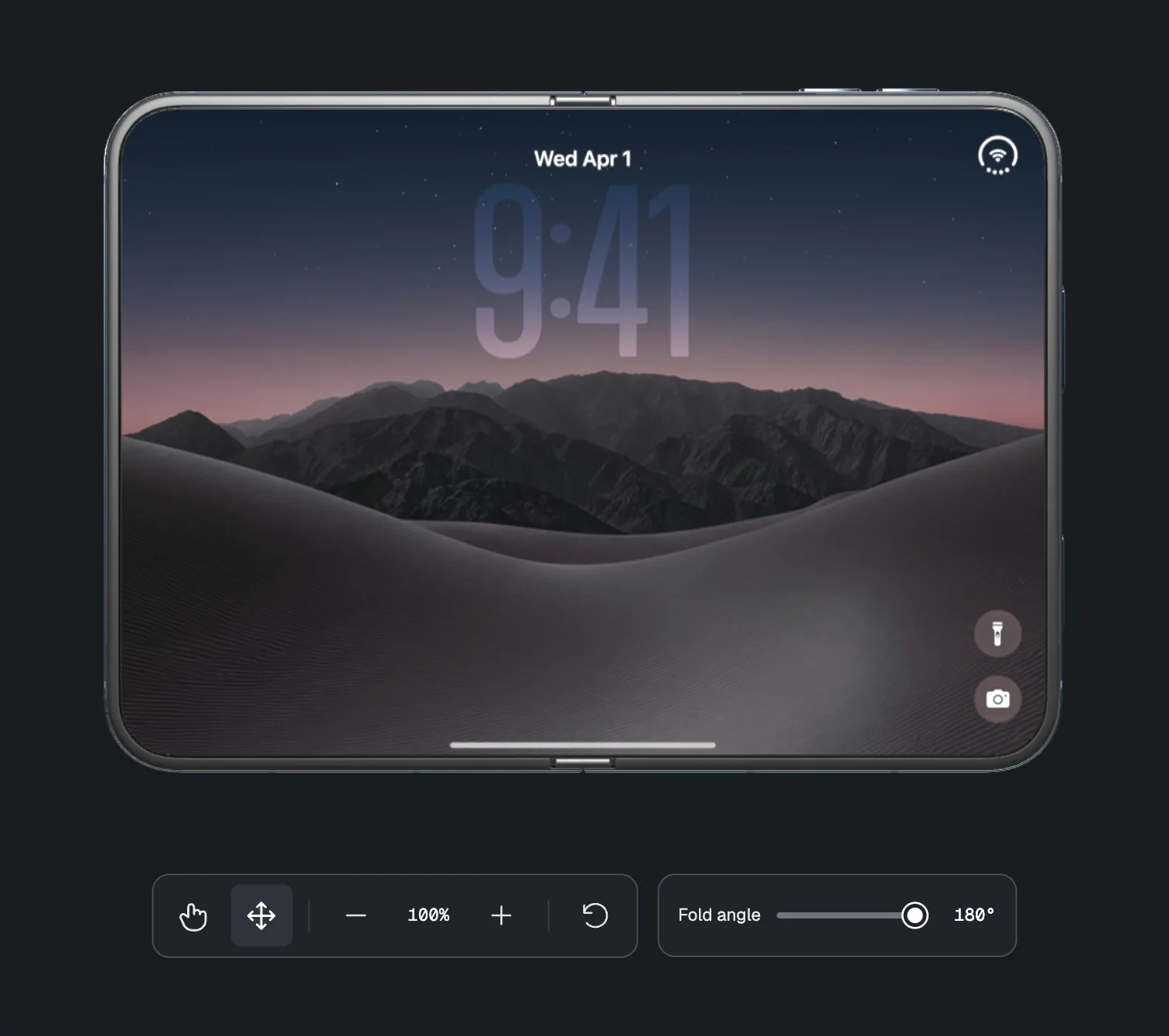
A finished composition on the canvas, before export.
❶ Portfolio case study cover. Use the iPhone 18 Pro in a three-quarter view with studio lighting on. Export at 4K and place the PNG on a solid brand color so the screen carries the story.
❷ Product launch hero image. Pick the 18 Pro Max from a low angle so the phone reads as the hero. Trace your hero illustration as a reference, match its perspective, then export at the largest size your machine allows. If you are still planning the launch itself, here is where to launch a startup in 2026.
❸ Client deck slide. Use the Front preset with lighting switched off for flat, faithful color. Export at 2K, which covers a 1920 px slide, and the client's unreleased screens never touch a third-party server.
Verdict
For iPhone-only mockups in a browser, this is the best free option I have found. The reasons are specific: real 3D posing, a reference guide on the same canvas, clean transparent export, and screenshots that never leave your machine.
Use it whenever one iPhone carries the image. Pick a paid suite for video, multi-device scenes or Android, and a plain Figma frame when the shot is straight-on.
☞ Before you export at 8K, check your source screenshot. A sharp phone around a blurry screen looks worse than an honest 4K.
FAQ
Is Free iPhone Mockup really free?
Yes. Every device, angle and export size is free, and the site lists no account, subscription, watermark or daily limit. There is no paid tier hiding the 8K option. The only practical cost is your hardware, since large exports depend on your browser's graphics and memory limits.
Does it add a watermark?
No. Exports come out as clean transparent PNGs that contain only the rendered phone and your screen design. The editor interface and the reference guide stay out of the file. That holds at every size from 2K up to 8K, so you can place the image on a slide or a web page directly.
Do my screenshots get uploaded to a server?
No. Image preparation and rendering happen in your browser tab on your own device, and there is no upload queue. Screenshots and reference images are never sent to a server as part of the mockup workflow. Reloading the page clears the session, so download your PNG before you close the tab.
Can I export at 8K?
Yes, if your machine can handle it. The export dialog offers 2K, 4K and 8K on the longest edge and selects the highest texture size your device reports. Free graphics memory also limits the result, so many laptops and phones will cap below 8K. A larger export cannot add detail missing from your screenshot.
Does it work on iPhone and iPad?
Yes. The editor runs in mobile and tablet browsers with touch gestures: drag with one finger to rotate the phone, and use two fingers to zoom or move it. Tap Settings to open the control panel. Export sizes depend on the device, so an iPhone or iPad may top out below a desktop maximum.
Can I use the mockups commercially?
Yes. The site's terms say you may download the PNG output for personal or commercial projects, with no account or payment required. You stay responsible for the rights to the screenshots you upload. The tool is independent and not affiliated with Apple, so treat the iPhone design and product names with the usual care in advertising.
Is there an Android version?
No. The tool covers only the iPhone 18 Pro, the iPhone 18 Pro Max and the foldable iPhone Duo. There are no Android, iPad, Mac or generic phone models. If you need a Pixel or Galaxy frame, use a Figma plugin or a paid desktop app with a broader device library.