

How to create responsive mobile tab bar in Figma

Create convenient and flexible design components right in Figma

How to create responsive mobile components in Figma
Tutorials

Published on

December 16, 2018

|

4 mins read

Blog

How to create responsive mobile tab bar in Figma

Roman Kamushken

Roman Kamushken

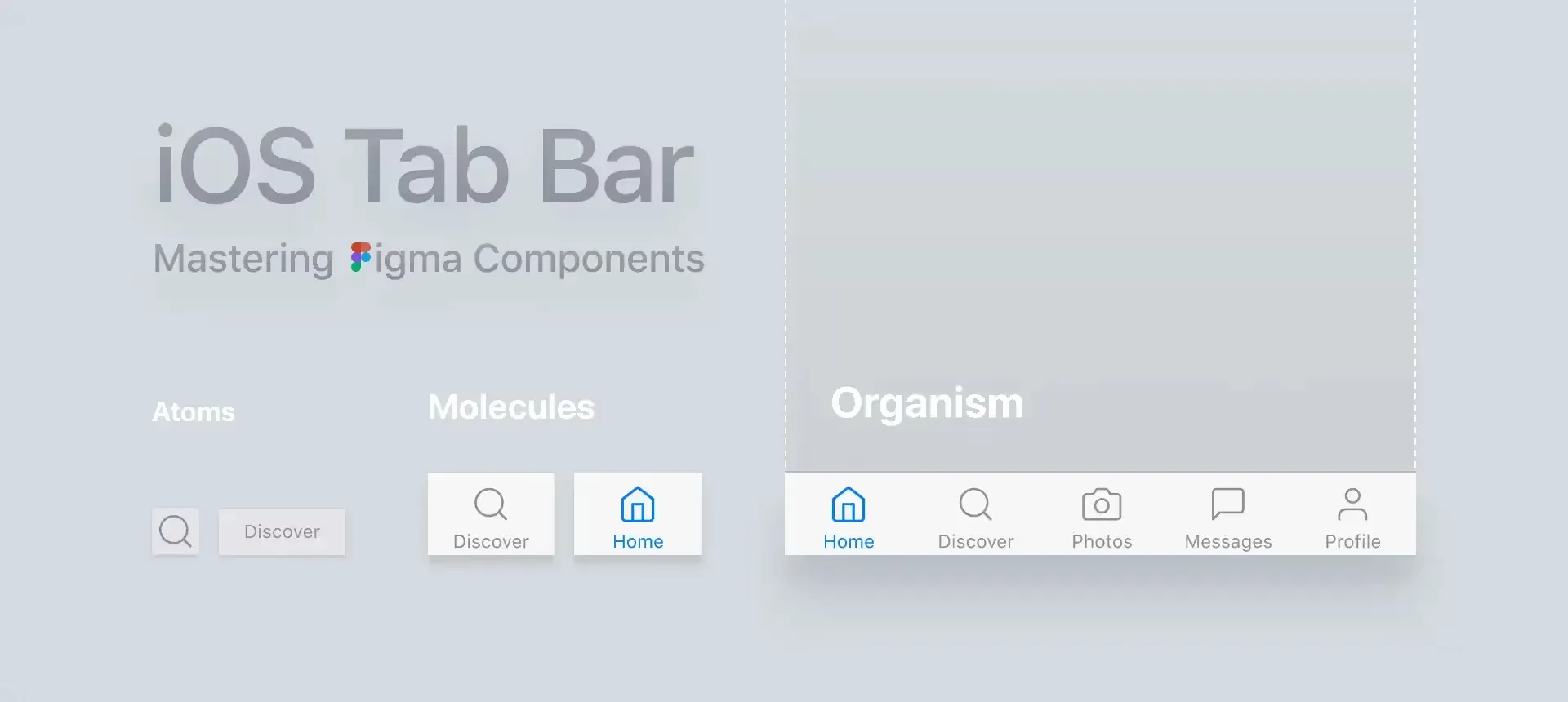
When creating the next design product based on iOS design templates, I decided to experiment with the Tab Bar component. I'd like to remind you that it is the bottom navigation in the iOS guidelines. I wanted its contents to have a logical and optimal behaviour at resizing. I wanted to make it as adaptive as possible for all mobile iOS devices, as far as Figma and constraints allow to make it.

What does Tab Bar consist of?

A tab bar appears at the bottom of an app screen and provides the ability to quickly switch between different sections of an app.

Could we have it responsive?

No tool for interface design allows the full adaptivity so far. Figma is no exception, it uses the classic Constraints approach, but even with it you can do a lot. For example, you can see the perfect and actually adaptive behaviour of the Tab Bar on all devices in the animation below:
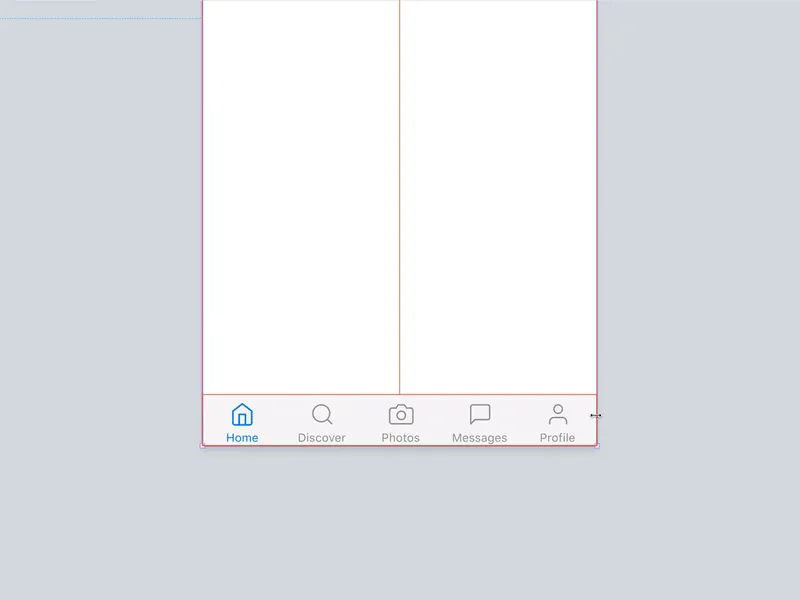
The elements move proportionally to the indents between them.
Below I will tell you how to achieve this behavior in a simple way.

The problem is the icons

A good design system in Figma necessarily contains an icons library. At least the main system ones. This eliminates the need to import them manually from SVG files every time. Constraints in the Scale mode should be for each icon component, from which you will make a convenient library over time. Then you will get a flexible icon that can be used in any dimensions: 16x16, and 44x44, and so on.

Most likely you will throw such an icon through Figma's left panel inside the Tab Bar and add an inscription when you start creating a component. And the problem is that with such constraints the icon will always be squeezed inside the Tab Bar at resizing if you want to get an adaptive component:
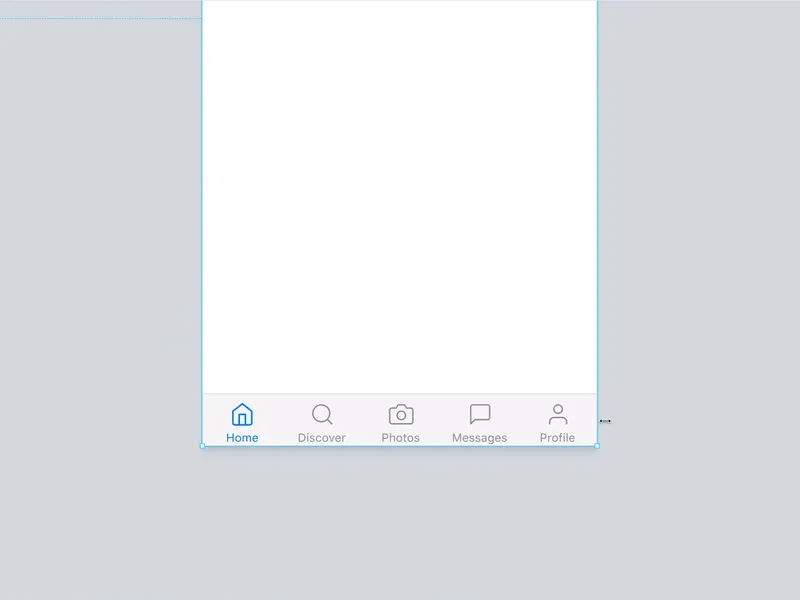
There are several methods to solve the problem

METHOD 1

Immediately detach icons

I suggested above that within your design system, all the component icons are in the Scale mode, it means when you create the Tab Bar, you can immediately break the connection with them and assign each icon individual Center constraints. It, in turn, will remain in the frame, which you need to assign the Scale mode.

Pros: speed
Cons: disconnecting the component from the system
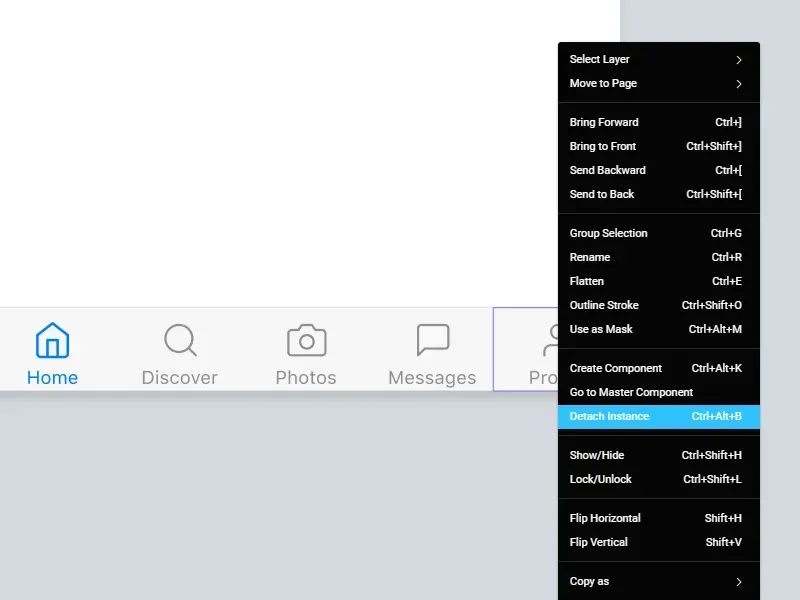
METHOD 2

Keep 2 types of icons in the system

This method may be suitable if there are not so many icons in the project. Just duplicate your entire Scale set, detach, change constraints to Center, re-create the components and submit to a new page with a different name. Recently, I think it's a good idea that several hundred icons in any Figma system can be stored both as Scaleable and as Centered. So, once you dropped a Tab Bar onto your canvas, you just need to swap the icons and you can keep it as the Instance in your project.

Pros: flexibility
Cons: if there many icons, they are a lot harder to organise
METHOD 3

Add an intermediate component

According to the concept of Atomic design, such a component will be considered a molecule. Pack an icon and an inscription in it, then feel free to put Center constraints to both and put the Scale mode for the molecule itself. After that, put them in your Tab Bar. Thus icon constraints will be ignored and no squeeze happening anymore. In addition, the icon with the inscription is an effective navigation pattern. So why not reuse this component somewhere else in the project?

Pros: efficiency
Cons: an extra component of the system

https://webflow.com/@foursets

Personally I prefer Method 3. I think it is more elegant and professional. Maybe you have your own methods?

‍_By the way, many components in the Figma iOS toolkit are made according to this method. I recommend you to pay attention if you are prototyping mobile interfaces in Figma or in case your team concentrated on mobile development_.

Subscribe to Setproduct

Once per week we send a newsletter with new releases, freebies and blog publications

By clicking Sign Up you're confirming that you agree with our Terms and Conditions.

Related posts

Empty state UI design: From zero to app engagement

UI Design

14 min read

Empty States UI design. Best Practices for Better UX

From onboarding screens to no search results, empty states are more powerful than they seem. In this article, you’ll learn how to craft useful messages, design emotionally smart visuals, and use research-backed strategies to improve UX outcomes.

Steps UI design best practices

UI Design

10 min read

Steps UI design tutorial. Build better flows through visual guidance

A great Steps UI guides users, reduces drop-offs, and removes friction. Learn the rules that make it work across desktop and mobile.

Tooltip UI design – A tutorial with anatomy, usability tips, and when to use

UI Design

14 min read

Tooltip UI design: The complete guide

Tooltips are a small component with a big impact on usability. Our new complete guide breaks down the technical and UX aspects of tooltip design, including accessibility (ARIA), timing, and how to choose between a tooltip and a popover.

Figma Templates & UI kits

Save time and human resources by reusing hundreds of pre-made templates crafted by us. Based on top notch UX taken from the World's best apps.
Dashboards
Mobile
Charts
Code
Websites
Bundle
Freebies

Nocra UI kit

Nocra is a design system for AI products. Built specifically for startups harnessing AI generation: images, video, audio, music, prompts, and beyond.

Material X for Figma

Figma library with 1100+ components & 40 app templates beyond Material Design. Powered by top-notch shapes and Manrope font. Customizable & Adjustable UI kit now available for Angular & Figma

Material You UI kit

Figma & React library with 2600+ variants of 32 components compatible with Material Design 3. Plus 220+ dashboard templates for all the viewports. Now available for NextJS & TailwindCSS.

Figma React UI kit

Designed and well-organized in Figma React-based UI toolkit for the web. Optimized for building complex data-dense interfaces for desktop and mobile applications.

Panda Design System

Figma library with dashboard, calendar, kanban, profile, table, ecommerce and 80+ templates in total. Components with variants, dark theme included.

Eclipse UI kit

Figma library with 1100+ components & 74 templates for data-driven web applications. Powered by auto-layout. Supercharged by Figma's variants.

Rome UI kit for Figma

Customizable and well-organized team library. Contains 250+ components & 30 web app templates powered by stylish and trendy guidelines.

Material Design System

Figma library is based on 100% guidelines compliance with Material.io. Contains ready-to-use templates to accelerate app UI design.

Neolex Dashboard UI kit

Customizable & adjustable dashboard design system with 50+ ready-to-use app layouts, 1900+ variants for 30 components with auto-layout.

Material Desktop Dashboard UI kit

Figma library with 48+ dashboard templates based on reusable desktop app patterns carefully handpicked from the most popular web apps.

Xela UI kit for Figma

Figma library with 1900+ variants of 30 components categories to craft perfectly shaped desktop & mobile apps. Customizable & Adjustable dashboard design system with 50+ web app templates.

Figma S8 Design System

Figma design library for mobile and desktop apps made of high quality styled components. Full version includes 67 dashboard templates.

OE Figma Design System

Customizable and well-organized Figma library. This design system aimed to build highly loaded interfaces, boost the speed and save more costs.